
Introduction
How to create documents online free is a common question for students, professionals, freelancers, and business owners who want to write and edit documents without purchasing expensive software. Fortunately, several online tools allow you to create documents directly in your web browser.
You can use free document creation tools to write assignments, prepare resumes, create business letters, make reports, and manage everyday paperwork. Most of these tools also provide features for editing, formatting, saving, downloading, and sharing documents.
In this guide, you will learn how to create documents online for free, which tools are worth considering, how to use them step by step, and how to save your work in popular file formats such as DOCX and PDF.
What Does It Mean to Create Documents Online Free?
Creating documents online for free means using a web-based application to write, edit, format, and save documents without paying for a basic plan.
Unlike traditional desktop software, online document editors usually work directly in a browser. Depending on the tool, you may need an internet connection and a free account to access its features.
You can create many types of documents online, including:
- School and college assignments
- Professional resumes and cover letters
- Business letters and reports
- Meeting notes and project plans
- Invoices and simple business documents
- Personal notes and checklists
Online document creation is especially useful when you need to access your files from different devices or share them with other people.
Best Free Tools to Create Documents Online
Several reliable platforms offer free document creation features. The best option depends on your requirements, preferred file format, and whether you need collaboration tools.
1. Google Docs
Google Docs is a popular online word processor that lets you create, edit, and share documents through your browser.
Its main features include automatic saving, document formatting, collaboration, comments, and downloading files in different formats.
Best for: Students, bloggers, freelancers, and people who collaborate with others.
To get started, visit Google Docs and sign in with your Google account. You can create a blank document or choose a template.
2. Microsoft Word Online
Microsoft Word Online is the browser-based version of Microsoft Word. It lets you create and edit documents without purchasing the desktop version of Word.
You can use it for letters, reports, resumes, assignments, and other text-based documents. It also supports Word file formats and provides online storage through OneDrive.
Best for: Users who frequently work with Microsoft Word documents.
Visit Microsoft Word Online and sign in with a Microsoft account to access its free web-based tools.
3. Zoho Writer
Zoho Writer is an online word processor designed for writing, editing, and collaborating on documents.
It includes document formatting, sharing, and editing features that can help individuals and teams manage their writing tasks.
Best for: Freelancers, small businesses, and users looking for an alternative to Google Docs.
Visit Zoho Writer to explore its available features and free access options.
Which Free Document Creator Should You Choose?
| Tool | Best use | Main advantage |
|---|---|---|
| Google Docs | Assignments and everyday writing | Easy collaboration and automatic saving |
| Microsoft Word Online | Business documents and reports | Familiar Word interface and DOCX support |
| Zoho Writer | Professional writing and teamwork | Online editing and collaboration features |
Free features and account requirements can change, so check each platform’s current terms before choosing a tool.
How to Create Documents Online Free Using Google Docs
Google Docs is an excellent starting point if you want a straightforward way to create a document online without installing software.
Follow these steps to create your first document.
Step 1: Open Google Docs
Open your browser and visit https://docs.google.com/.
Sign in with your Google account if required. You will see options for starting a new document or opening an existing file.
Step 2: Create a New Document
Select the blank document option to open a new page.
You can also choose a template if you want a ready-made layout for a resume, report, letter, or other document.
Step 3: Enter Your Content
Click inside the document and begin typing.
For example, if you are preparing a college assignment, start with the assignment title, add an introduction, and organize the main content under relevant headings.
Write your content clearly before spending too much time adjusting the design.
Step 4: Format the Document
Use the toolbar to improve the document’s appearance.
You can:
- Change the font style and size.
- Make headings bold.
- Add numbered or bulleted lists.
- Adjust text alignment.
- Insert links, images, or tables.
- Change line spacing and page layout.
Keep your formatting consistent, especially when preparing professional or academic documents.
Step 5: Save Your Document
Google Docs saves changes automatically when you are online and the service is working correctly.
Give your document a meaningful name so you can find it easily later. For example, use “College Assignment October 2026” instead of leaving it with a generic name.
Wait for the saving status to confirm that your latest changes have been saved.
Step 6: Download or Share the Document
You can keep the document in Google Drive, share it with other people, or download a copy.
To download it, open the File menu and select Download. Choose the format you need, such as Microsoft Word (.docx) or PDF (.pdf).
If you want someone to review your work, use the sharing options and select the appropriate access permissions.
How to Create Documents Online Free Using Microsoft Word Online
Microsoft Word Online is another useful option, especially if you need to work with Word documents.
Step 1: Open Word Online
Visit https://www.microsoft.com/microsoft-365/free-office-online-for-the-web/.
Sign in with your Microsoft account to access the available online applications.
Step 2: Start a Blank Document
Select Word and create a new blank document. You can also choose an available template if you want a professionally structured layout.
Step 3: Write and Edit Your Content
Enter your text in the document editor.
Use the formatting toolbar to adjust headings, fonts, margins, lists, and other layout elements. Available features may vary depending on the application version and account.
Step 4: Save Your Work
Your online document is generally saved to OneDrive when automatic saving is enabled and the service is connected.
Check the saving status before closing the browser, especially when working on an important assignment or business report.
Step 5: Download or Share Your File
Use the available file options to download a copy or share the document with others.
Choose a Word format when you need an editable file or PDF when you want to preserve the document’s appearance for reading and printing.
How to Create Different Types of Documents Online
Free online document creators can help you prepare documents for school, work, and personal use.
Create a Resume Online
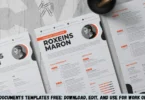
You can create a resume using Google Docs or Word Online.
Start with a clean template, then add your contact information, professional summary, work experience, education, and relevant skills.
Keep the layout simple and check the spelling before downloading the resume as a PDF. A straightforward design is often easier for recruiters to read.
Create a School or College Assignment
Open a blank document and add the assignment title, your details, and the main content.
Use headings to organize different sections. Add citations and references when required by your institution.
Before submitting the assignment, check the formatting requirements, page numbers, spelling, and file format.
Create a Business Letter
Choose a professional layout and include the sender’s information, date, recipient details, subject, message, and closing.
Keep the language polite and direct. Before sending the letter, review the recipient’s name and other important details.
Create a Report or Project Document
Use headings, paragraphs, lists, and tables to present information clearly.
For longer reports, organize the content into sections such as introduction, objectives, findings, recommendations, and conclusion.
If several people are working on the report, choose a tool with collaboration features so everyone can review and update the document.
Benefits of Creating Documents Online for Free
Online document editors offer several practical benefits for everyday writing.
No need to install desktop software: Many tools work directly in your browser, helping you get started without a complicated installation process.
Lower costs: Free versions provide useful writing and editing features without requiring a paid desktop word processor.
Access across devices: Cloud-based documents can generally be opened from different computers or compatible mobile devices after signing in.
Easy collaboration: Some tools let multiple people edit a document, leave comments, and suggest changes.
Convenient file sharing: You can share a document using a link or download it before sending it by email.
Flexible file formats: Many online editors support formats such as DOCX and PDF, although the available export options depend on the platform.
Limitations of Free Online Document Creators
Free online document tools are useful, but they are not perfect for every situation.
- Internet dependency: Some features require a stable internet connection. Offline editing may be available only when configured and supported.
- Limited advanced features: Certain templates, integrations, or advanced editing capabilities may require a paid plan.
- Formatting differences: A document can look slightly different when opened in another application, particularly when fonts or layout features are unsupported.
- Privacy considerations: Documents may contain sensitive information, so review the platform’s privacy settings and sharing permissions.
- Storage limits: Free accounts may have storage limits shared with other files and services.
For most everyday tasks, free online editors are sufficient. For complex publishing, advanced formatting, or specialized business requirements, you should compare their capabilities before deciding.
Tips for Creating Professional Documents Online
Follow these practical tips to make your documents easier to read and share.
Use Clear Headings
Divide your content into logical sections. Use heading styles instead of simply making every section bold or increasing its font size.
Keep Formatting Consistent
Use a small number of fonts, maintain consistent spacing, and avoid excessive colors. A clean design makes your document look more professional.
Give Files Descriptive Names
Names such as “Marketing Report October 2026” are easier to identify than “New Document 1.”
Review Your Work Before Sharing
Check spelling, grammar, names, dates, figures, and links. If the document is important, review it once for content and again for formatting.
Check Sharing Permissions
Before sharing a document, decide whether recipients should be viewers, commenters, or editors. Avoid giving editing access to people who only need to read the file.
Download a Backup When Necessary
For important documents, keep a copy in a suitable format such as DOCX or PDF. Confirm that the downloaded file opens correctly before submitting or sending it.
Common Mistakes to Avoid When Creating Documents Online
Even simple document creation can lead to problems if you overlook a few important details.
Closing a document before changes are saved: Check the saving indicator before leaving the editor.
Using inconsistent formatting: Different font sizes and random spacing can make a document difficult to read.
Sharing the wrong link permissions: Review access settings to avoid exposing private information or allowing unwanted edits.
Downloading the wrong format: Use DOCX when continued editing in compatible word processors is important, and PDF when preserving the final layout is the priority.
Ignoring mobile readability: If readers will open the document on smartphones, use readable font sizes, short paragraphs, and clear headings.
Forgetting to check the final file: Open the downloaded document before submitting it to ensure that the formatting and content are correct.
Frequently Asked Questions
1. How can I create documents online free without downloading software?
You can use Google Docs, Microsoft Word Online, or Zoho Writer through your web browser. Open the service, sign in if required, create a blank document, and start writing. Most basic document editing features are available online without installing a desktop word processor.
2. Can I create a Word document online for free?
Yes. Microsoft Word Online lets you create and edit Word documents using a browser with a Microsoft account. Google Docs is another option because it allows you to download documents in DOCX format. Check the downloaded file to make sure its formatting matches your requirements.
3. Can I create documents online for free on my mobile phone?
Yes. You can use compatible mobile browsers or the official apps for services such as Google Docs and Microsoft Word. Sign in, create a new document, and enter your content. Mobile interfaces may differ from desktop versions, so a computer can be more convenient for complex formatting.
4. How do I save an online document as a PDF?
Open your document in an editor that supports PDF export. In Google Docs, select File, then Download, and choose PDF Document. Other platforms provide similar download or export options. Open the resulting PDF to confirm that the text, page breaks, and layout look correct.
5. Are free online document creators safe to use?
Established document platforms provide security and privacy controls, but safety also depends on how you use them. Protect your account, avoid suspicious links, and review sharing permissions before sending documents. For confidential information, check the service’s privacy terms and your organization’s requirements before uploading files.
Conclusion
Learning how to create documents online free is simple when you choose the right tool. Google Docs is a convenient option for everyday writing and collaboration, while Microsoft Word Online is useful for users who regularly work with Word files. Zoho Writer is another alternative for online document editing.
Start by opening a free document editor, creating a blank page, and entering your content. Format it with clear headings, review your work, and download it as DOCX or PDF when needed. With a few simple steps, you can create professional documents without paying for a desktop word processor.