
Introduction
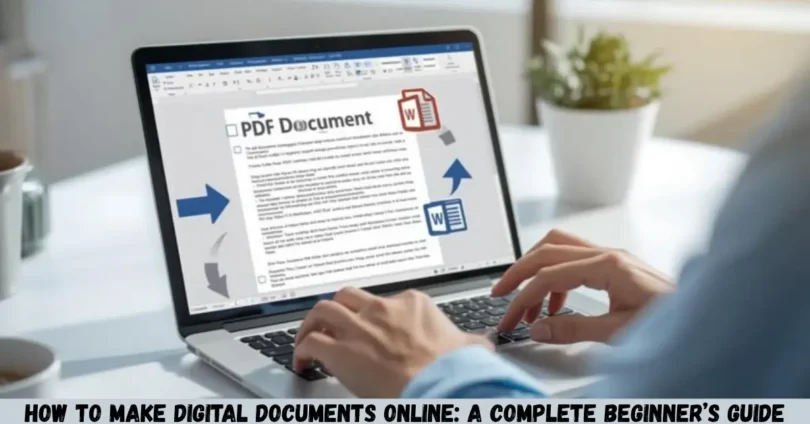
How to make digital documents online is a common question for students, professionals, business owners, freelancers, and anyone who wants to create documents without installing complicated software. Online document tools make it possible to prepare letters, reports, resumes, invoices, applications, business proposals, and other important files directly from a web browser.
You can create digital documents using free or paid online tools, select a ready-made template, customize the content, format the text, and save your work in a suitable file format. Depending on the platform, you can also collaborate with other people, download documents as PDFs, and share files through a link.
In this guide, you will learn how to make digital documents online step by step, which tools you can use, how to choose the right format, and how to create professional documents for personal, educational, and business purposes. You will also discover common mistakes to avoid and practical tips for keeping your digital files organized and secure.
What Are Digital Documents?
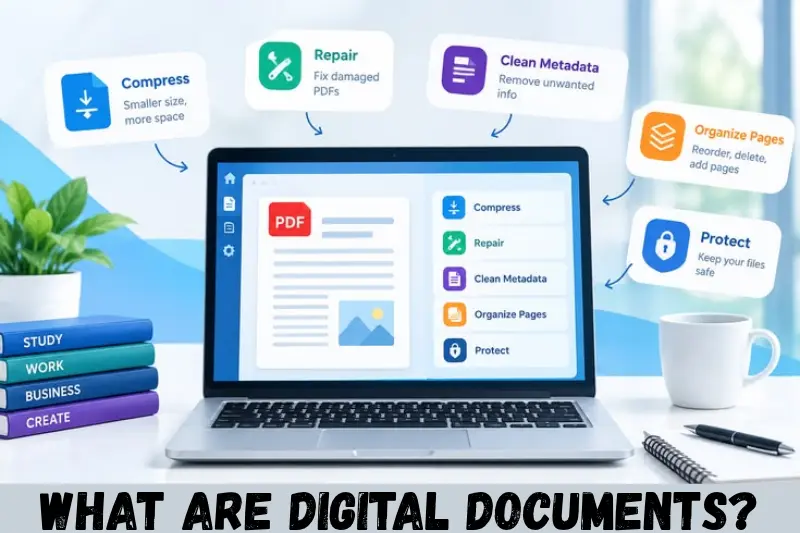
Digital documents are electronic files that contain written information, images, tables, graphics, or other types of content. Unlike traditional paper documents, digital documents can be created, edited, stored, and shared using computers, tablets, and smartphones.
Examples include:
- Resumes and cover letters
- School assignments and college projects
- Business reports and proposals
- Invoices and quotations
- Employment applications
- Meeting notes and project plans
- Contracts and formal letters
- PDF forms and digital brochures
Digital documents can be saved in different formats, including DOCX, PDF, ODT, and TXT. Each format serves a different purpose.
For example, a DOCX file is useful when you expect to edit a document later, while a PDF is often preferable when you want to share a finalized document with its formatting preserved.
How to Make Digital Documents Online Step by Step
You can make digital documents online by choosing a suitable document editor, creating a new file, adding your content, formatting the layout, and saving or downloading the finished document. Most online editors offer a straightforward process that beginners can follow.
Step 1: Choose an Online Document Creator
First, select an online document creation tool that matches your needs. You do not necessarily need to install software on your computer because many services work directly in a browser.
Popular options include:
- Google Docs: Suitable for letters, reports, assignments, and collaborative documents.
- Microsoft Word for the web: Useful for creating and editing Word documents online.
- Canva: Helpful for visually designed documents, brochures, resumes, and presentations.
- Zoho Writer: An online word processor for writing and formatting documents.
- Adobe Acrobat online tools: Useful for supported PDF tasks, including certain editing and conversion workflows.
Some services provide free features, while others require a subscription or payment for particular tools. Availability may also depend on your account and the document format.
If you want to create a simple text document, start with Google Docs or Word for the web. If your document needs more visual design, consider Canva.
Step 2: Open a New Document
After selecting a platform, open its official website and sign in if required.
Look for an option such as Blank document, Create a document, or Start designing. Select it to open a new workspace.
You can usually begin with a blank page or choose a template. A blank document is useful when you want complete control over the layout, while a template can save time when creating a resume, business letter, report, or invoice.
Before entering your content, check the page size, orientation, and margins if these settings are available.
Step 3: Add Your Content
Enter the information you want to include in your document. Depending on your purpose, this might be a heading, introduction, paragraphs, a table, a list, contact information, or supporting details.
For example, a professional business letter might contain:
- Sender’s name and contact information
- Date
- Recipient’s name or department
- Subject line
- Main message
- Closing statement
- Signature or name
For a school assignment, you may need a title, introduction, main sections, conclusion, and references.
Write your content clearly and organize it into meaningful sections. Avoid adding unnecessary information simply to make the document longer.
Step 4: Format the Document Professionally
Formatting helps readers understand your information quickly. A well-formatted document should have a clear visual hierarchy, readable text, and consistent spacing.
Consider these formatting practices:
- Use descriptive headings to separate sections.
- Choose a readable font and an appropriate font size.
- Keep paragraph spacing consistent.
- Use bold text selectively for important information.
- Use bullet points for short lists.
- Add page numbers to longer documents when appropriate.
- Align text and tables consistently.
- Check that images and graphics do not overlap the text.
For most professional documents, a simple layout is easier to read than a page filled with decorative fonts, multiple colors, and unnecessary graphics.
Step 5: Add Tables, Images, or Other Elements
Many online document editors let you insert tables, images, hyperlinks, shapes, and other elements.
Use these features when they improve understanding.
For example, a business report may benefit from a table comparing monthly expenses. A resume may include clearly organized sections for skills and work experience. A project proposal may use a chart to present relevant figures.
Make sure every element serves a purpose. Large images and complicated layouts can make a document harder to read, particularly on smaller screens.
Step 6: Review and Edit Your Document
Before sharing your file, read it carefully from beginning to end.
Check the following details:
- Spelling and grammar
- Names, dates, and contact information
- Headings and paragraph spacing
- Numbers, calculations, and tables
- Broken hyperlinks
- Missing pages or sections
- Unnecessary blank spaces
If the document contains business, financial, academic, or legal information, verify important details against the original records or appropriate authoritative sources.
Do not rely entirely on automated spelling or grammar suggestions. These tools may miss incorrect facts, ambiguous wording, and context-specific errors.
Step 7: Save or Download the Document
Once your document is ready, save it in the format that best suits your needs.
Some online editors save changes automatically to cloud storage when you are connected and signed in. Other workflows may require you to save or download the file manually.
Common file formats include:
| File format | Best use |
|---|---|
| DOCX | Editable letters, reports, and assignments |
| Sharing finalized documents with consistent formatting | |
| ODT | Editable documents compatible with OpenDocument software |
| TXT | Plain text without advanced formatting |
If you need to continue editing the document, keep an editable copy. If you need to send a finalized version to someone else, a PDF may be more convenient.
After downloading, open the file to make sure it displays correctly.
Step 8: Share the Document Online
Many online document creators provide sharing options that let you send a document to another person.
Depending on the platform, you may be able to:
- Share a link to the document.
- Invite specific people by email.
- Allow others to view the document.
- Give selected people permission to comment or edit.
- Download a copy and send it as an attachment.
Choose access permissions carefully. If the document contains private information, avoid creating a public link unless public access is necessary.
For collaborative work, give editing access only to people who need to make changes. Use view-only access when recipients simply need to read the document.
Best Free Tools to Make Digital Documents Online
The right tool depends on the kind of document you want to create. Some platforms are designed primarily for writing, while others focus on visual design, collaboration, or PDF management.
1. Google Docs
Google Docs is an online word processor that allows users to create, edit, format, and share documents through a browser or supported mobile app.

It is useful for students, teachers, freelancers, office workers, and small business owners.
Main features:
- Create documents from scratch.
- Use available document templates.
- Format headings, paragraphs, and lists.
- Collaborate with other users.
- Add comments and suggestions.
- Download documents in supported formats.
Google Docs is particularly convenient when multiple people need to work on the same document. Features and storage availability depend on your account and settings.
Official website: Google Docs
2. Microsoft Word for the Web
Microsoft Word for the web lets users create and edit Word documents online using a Microsoft account.

It is a practical option if you regularly work with DOCX files or need to exchange documents with colleagues who use Microsoft Word.
Main features:
- Create and edit Word documents.
- Apply headings and text styles.
- Insert tables and supported visual elements.
- Access documents stored in supported cloud locations.
- Share documents with other people.
- Work with familiar Word formatting tools.
Some advanced desktop Word features may not be available in the web version. Check document compatibility if your file uses complex formatting or specialized features.
Official website: Microsoft Word
3. Canva
Canva is a design platform that can be used to create visually appealing documents, including resumes, brochures, business proposals, reports, and informational sheets.

It is useful when appearance matters as much as the written content.
Main features:
- Ready-made design templates.
- Text, shapes, and image elements.
- Customizable colors and typography.
- Visual layouts for professional and personal use.
- Export options that vary by design and account.
Canva can help you create attractive documents without advanced graphic design skills. However, highly decorative designs may not be ideal for formal reports or documents that need extensive text editing.
Official website: Canva
4. Zoho Writer
Zoho Writer is an online word processor designed for creating, editing, and collaborating on written documents.
It can be useful for individuals and businesses that need an online writing workspace.
Main features:
- Document creation and formatting.
- Collaboration and commenting features.
- Templates and reusable document structures.
- Sharing and export options.
- Integration with supported Zoho services.
The available features depend on the service plan and configuration.
Official website: Zoho Writer
5. Adobe Acrobat Online
Adobe Acrobat online tools focus on working with PDF files rather than serving as a general-purpose word processor.

You may find it useful when you already have a document and need to perform a supported PDF task, such as converting a file or organizing pages.
Main features:
- Selected PDF conversion tools.
- PDF organization features.
- Supported document-processing workflows.
- Online access to available PDF utilities.
Some operations require an account or paid subscription. Review the specific tool’s terms before uploading sensitive files.
Official website: Adobe Acrobat Online
How to Choose the Right Online Document Creator
Choosing the right document creator starts with identifying your main goal. You should also consider editing requirements, sharing options, file compatibility, privacy, and cost.
Here is a simple comparison.
| Your requirement | Tool to consider | Why it may fit |
|---|---|---|
| Writing letters and reports | Google Docs | Online writing and collaboration |
| Editing Word files | Word for the web | DOCX-oriented workflow |
| Designing resumes and brochures | Canva | Visual templates and design tools |
| Collaborative business writing | Zoho Writer | Online document editing and teamwork |
| Working with PDF files | Adobe Acrobat online tools | Supported PDF operations |
These are starting points, not universal rankings. The best option depends on the specific features you need and whether those features are included in the free plan.
Before choosing a service, ask yourself three questions:
- Do I need a simple text document or a highly designed layout?
- Will I need to edit the file later or mainly share a final version?
- Does the platform support the file format, privacy settings, and collaboration features I require?
Answering these questions can help you avoid paying for features you will not use.
How to Make Digital Documents Online for Different Purposes
Online document creation is useful for a wide range of everyday tasks. The process remains similar, but the structure and formatting should match the document’s purpose.
Creating a Resume or CV
To create a resume online, choose a resume template or start with a simple document.
Include relevant information such as:
- Full name and professional contact details
- Career summary or objective, when useful
- Education
- Work experience
- Relevant skills
- Certifications and projects, where applicable
Keep the layout easy to scan. Use clear section headings, consistent dates, and concise descriptions of your responsibilities and achievements.
Before applying for a job, check the employer’s instructions. If an applicant tracking system will process the resume, a simple layout with standard headings may be easier for the system to interpret than a complex graphic design.
Creating Business Documents
Businesses use digital documents for quotations, invoices, reports, proposals, meeting notes, and internal procedures.
Start with a consistent template that includes your business details and the information required for the document type.
For an invoice, for example, you may need an invoice number, issue date, customer details, item descriptions, quantities, prices, taxes where applicable, and payment terms.
Verify calculations and legal or tax requirements before sending the document. Requirements vary by transaction and jurisdiction, so a general online template should not automatically be treated as a compliant legal or tax document.
Creating School and College Assignments
Students can use online document editors to prepare assignments, essays, project reports, and presentations.
A typical written assignment may include a title, introduction, main sections, conclusion, and references.
Follow your institution’s instructions for font size, margins, citation style, word count, and file format. Use the editor’s spelling and grammar tools as a first check, then proofread the assignment yourself.
Keep a copy of your work and make sure any references accurately identify the sources you used.
Creating Letters and Applications
Online document creators can also help you prepare formal letters, leave applications, cover letters, and request letters.
Use a straightforward structure with the date, recipient details when required, subject, main message, closing, and signature.
Keep the purpose clear from the beginning. Before submitting the document, confirm that the recipient’s name, dates, and supporting information are correct.
Benefits of Making Digital Documents Online
Creating documents online can simplify everyday writing and file management. The advantages depend on the platform, internet access, and the way you organize your work.
Access Documents from Different Devices
Cloud-based tools can let you open your documents from supported devices when you sign in to the appropriate account and have the necessary access.
For example, you might draft a report on a laptop and review it later on a smartphone. Check that your device and browser support the features you need.
Collaborate with Other People
Many online editors support shared documents, comments, and simultaneous editing.
This can be helpful for group assignments, team reports, and business proposals. Instead of exchanging multiple attachments, collaborators may be able to work on one shared file.
However, collaboration works best when users understand who can view, comment on, or edit the document.
Save Time with Templates
Templates provide a starting structure for common document types. Rather than formatting every heading and section from scratch, you can select an appropriate layout and replace the sample content.
Templates are especially useful for resumes, letters, invoices, and meeting notes.
Always review a template before using it. Remove placeholder text and confirm that its structure suits your purpose.
Reduce Paper-Based Workflows
Digital documents can reduce the need to print, scan, and physically deliver certain types of paperwork.
They are also easier to duplicate and organize in folders. Nevertheless, some organizations still require original paper documents, physical signatures, notarization, or other formal procedures.
Check the recipient’s requirements before assuming a digital copy will be accepted.
Make Editing and Updating Easier
An editable digital file allows you to correct mistakes, update details, and reuse information without rewriting the entire document.
This is useful for recurring reports, business templates, project plans, and application letters.
Keep a clear version history or maintain dated copies when changes need to be tracked.
Limitations of Online Document Creation
Online document creators are convenient, but they also have limitations that you should consider.
Internet access: Some browser-based features require an internet connection. Offline editing may be available in certain tools, but it usually needs to be configured in advance.
Formatting differences: A document may look different when opened in another editor, particularly if it contains unusual fonts, complex tables, or advanced layouts.
Free-plan restrictions: Some services limit storage, premium templates, export options, or advanced editing features.
Privacy considerations: Uploading a document to an online service means you should understand the provider’s data-handling practices and account security options.
Acceptance requirements: A digital document may not replace an original, certified, or signed paper document when an institution or law requires a particular form.
To reduce these problems, choose a suitable tool, keep a backup, check the exported file, and confirm any special requirements before submitting important documents.
Tips for Creating Professional Digital Documents
A professional document should be easy to read, accurate, well organized, and appropriate for its audience.
Use the following tips to improve the quality of your work.
Keep the Layout Simple
Use a consistent font, readable text size, and clear headings. Avoid mixing too many font styles or colors on the same page.
A simple design usually works well for reports, applications, formal letters, and business correspondence.
Use Clear File Names
Give every document a descriptive file name so you can find it later.
For example:
Resume_2026.docxBusiness_Proposal_October.pdfCollege_Assignment_Module_2.docxClient_Invoice_104.pdf
Avoid vague names such as document1, finalfinal, or newfile. For sensitive files, do not put unnecessary personal or confidential information in the file name.
Choose the Correct File Format
Keep an editable format when you expect to revise the content. Use PDF when you want to distribute a finalized version and preserve its layout as much as possible.
Remember that PDF formatting can still vary depending on fonts, rendering software, and document features. Review the exported file before sending it.
Protect Sensitive Information
Use strong account security, enable multifactor authentication when available, and restrict sharing permissions.
Before sharing a file, check whether it contains personal addresses, financial details, confidential business information, or comments and revision history that should not be disclosed.
Do not upload sensitive information to an unfamiliar service without reviewing its privacy and security practices.
Maintain Backups
Keep an additional copy of important documents in a separate, trusted location. Depending on your needs, this could be a secure cloud storage account or an external storage device.
For important work, do not rely on a single copy. Check that backups are accessible and that you can restore the files if necessary.
Common Mistakes to Avoid When Making Digital Documents Online
Even a good document editor cannot guarantee a professional result if the content and settings are not checked.
Choosing the Wrong File Format
Sending an editable document when the recipient requests a PDF can cause unnecessary problems. Similarly, sending only a PDF may make later editing less convenient.
How to avoid it: Confirm the required file type before downloading or sharing the document.
Using an Overly Complicated Template
A template with too many graphics, columns, and decorative elements may distract readers from the actual information.
How to avoid it: Select a design that matches the purpose of the document and keeps the important content easy to find.
Forgetting to Proofread
Typos, incorrect dates, broken links, and missing sections can reduce the credibility of a document.
How to avoid it: Review the document before downloading it and inspect the final file after export.
Sharing a Document with the Wrong Permissions
A document containing private information can be exposed if you accidentally enable access for anyone with the link.
How to avoid it: Review the sharing settings and grant only the access each recipient needs.
Failing to Save a Backup
Accidental deletion, account access problems, or unexpected technical issues can make an important document difficult to recover.
How to avoid it: Keep an additional copy of important files and use version history when available.
Frequently Asked Questions
1. How can I make digital documents online for free?
You can create digital documents for free using tools such as Google Docs, Microsoft Word for the web, or the free features available in other online editors. Open the service, create a blank document or choose a template, enter your content, format it, and save or download it. Some advanced features may require payment.
2. Which website is best for creating digital documents online?
The best website depends on your requirements. Google Docs is useful for writing and collaboration, Word for the web is suitable for many Word-document workflows, and Canva is helpful for visually designed documents. For PDF-related tasks, Adobe Acrobat online tools may be appropriate. Compare available features, supported formats, pricing, and privacy settings before choosing.
3. Can I create digital documents online using my mobile phone?
Yes. Many document creation services offer mobile apps or browser-based access. You can write letters, prepare assignments, edit files, and share documents from a supported smartphone. A larger screen may make complex formatting easier, but a phone is often sufficient for basic writing and document editing.
4. How do I convert an online document into a PDF?
Open the document in your chosen editor and look for an option such as Download, Export, or Save as PDF. Select the PDF format if available, then save the file to your device. Open the downloaded PDF and check the layout, page breaks, links, and images before sending it to anyone.
5. Are digital documents created online safe?
Digital documents can be stored and shared securely when you use a trustworthy service, protect your account, and choose appropriate sharing permissions. However, no service can guarantee absolute security. Avoid public links for confidential files, enable multifactor authentication when available, and review privacy settings before uploading sensitive personal, financial, or business information.
Conclusion
Learning how to make digital documents online can help you prepare professional letters, resumes, assignments, business reports, invoices, and many other files without relying on a traditional desktop word processor.
The basic process is simple: choose an appropriate online document creator, start with a blank page or template, add your content, format it clearly, proofread it, and save it in the required format. You can also use sharing and collaboration features when working with other people.
For beginners, Google Docs is a practical starting point for everyday writing, while Word for the web, Canva, Zoho Writer, and Adobe Acrobat online tools offer alternatives for different tasks.