
Introduction
Best online document editor free options help students, professionals, freelancers, and business owners create, edit, format, and share documents directly from a web browser. These tools can save time because you do not always need to download desktop software to work on reports, assignments, letters, or business documents.
Some free online document editors also support real-time collaboration, cloud storage, document templates, and automatic saving. However, their features, storage limits, export options, and account requirements vary.
In this guide, you will discover seven useful free online document editors, their key features, advantages, limitations, and the situations in which each tool works best. You will also learn how to choose the right editor for your everyday document needs.
What Is a Free Online Document Editor?
A free online document editor is a web-based tool that allows you to create, edit, format, and manage documents through an internet browser. Depending on the platform, you can work with text, headings, tables, images, lists, links, and other document elements.
Most tools do not require you to install a traditional desktop application. Some offer free accounts, while others allow limited editing without an account.
Common uses include:
- Writing school and college assignments
- Preparing business reports and proposals
- Creating resumes and cover letters
- Editing existing Word documents
- Sharing files with colleagues or clients
- Collaborating on documents with other people
- Exporting documents into PDF or Word formats
The best choice depends on whether you need simple writing features, advanced formatting, team collaboration, or compatibility with Microsoft Word.
7 Best Online Document Editor Free Tools
The best free online document editor depends on your main purpose. Google Docs is a strong choice for collaboration, Microsoft Word for the web suits users who work with Word files, and Zoho Writer offers a useful alternative for everyday writing and formatting.
1. Google Docs
Google Docs is one of the most practical options for creating and editing documents online without purchasing a traditional word-processing application. It is particularly useful for students, bloggers, office workers, and teams that need to work on shared files.
Key features:
- Create and format documents online.
- Collaborate with others in real time.
- Add comments and suggestions.
- Use spelling and grammar suggestions.
- Edit compatible Microsoft Word files.
- Access document version history.
Google Docs is useful for assignments, meeting notes, reports, and articles. You can also share a document with specific people and control their access permissions.
Google Workspace
+1
Limitation: Some advanced formatting and specialized desktop features may differ from those available in Microsoft Word.
Best for: Students, bloggers, freelancers, and collaborative projects.
Website: Google Docs
2. Microsoft Word for the Web
Microsoft Word for the web is a browser-based version of Word that allows users to create, edit, and share documents online. It is a good option for people who regularly receive DOCX files or already understand the Microsoft Word interface.
Key features:
- Create and edit Word documents in a browser.
- Format headings, paragraphs, and lists.
- Use spelling and grammar tools.
- Work with document templates.
- Share documents for collaboration.
- Download copies for offline use.
Microsoft provides a free web version of Word, although certain advanced features require a paid Microsoft 365 plan or the desktop application.
Microsoft Word for the Web
+1
Limitation: Some advanced page-layout and formatting options are available only in the desktop version.
Best for: Office workers, job seekers, and people who exchange Word documents.
Website: Microsoft Word for the web
3. Zoho Writer
Zoho Writer is a web-based word processor designed for writing, document formatting, and collaboration. It offers a clean interface and useful tools for people who want to prepare professional documents without dealing with complicated menus.
Key features:
- Create documents from scratch or templates.
- Import and export supported file formats.
- Collaborate with other users.
- Format tables, images, headings, and page layouts.
- Use writing assistance features.
- Access documents across supported devices.
Zoho Writer supports formats such as DOCX, DOC, ODT, PDF, TXT, and HTML, subject to its import and export capabilities. Its individual edition is available free of charge.
Zoho
+1
Limitation: Certain business automation capabilities and related services may have separate usage limits or charges.
Best for: Freelancers, content writers, small businesses, and professional document creation.
Website: Zoho Writer
4. Canva Docs
Canva Docs is a useful option for people who want their documents to look visually attractive. It combines document creation with design features, making it suitable for proposals, plans, educational materials, and reports that benefit from graphics.
Key features:
- Start with ready-made document templates.
- Add visual elements and design components.
- Collaborate with other users.
- Create attractive proposals and project plans.
- Access documents across desktop, tablet, and mobile.
- Combine documents with other Canva designs.
Canva Docs is available on its free plan, while some premium content and additional features require a paid subscription.
Free & Easy Online Document Editor
+1
Limitation: Traditional, text-heavy documents may be easier to manage in a dedicated word processor.
Best for: Students, marketers, designers, and people creating visually appealing documents.
Website: Canva Docs
5. ONLYOFFICE Docs
ONLYOFFICE provides document-editing tools for creating and managing text documents, spreadsheets, and presentations. Its online collaboration options can be helpful for individuals and teams working with office files.
Key features:
- Edit text documents online.
- Work with spreadsheets and presentations.
- Collaborate on shared files.
- Use supported office document formats.
- Access free desktop editors for offline work.
- Choose cloud or self-hosted solutions where appropriate.
ONLYOFFICE offers free solutions, including desktop editors and a free cloud DocSpace option. The available features depend on the specific product and plan.
onlyoffice.com
+1
Limitation: Some cloud collaboration, administration, and business features depend on the selected plan.
Best for: Users who want office-document compatibility and flexible deployment options.
Website: ONLYOFFICE
6. Dropbox Paper
Dropbox Paper is a collaborative workspace for creating shared notes, meeting summaries, project plans, and other team documents. It is more focused on collaboration and organizing information than on advanced traditional page formatting.
Key features:
- Write and organize shared documents.
- Collect feedback from teammates.
- Prepare meeting notes and project plans.
- Keep related information in a shared workspace.
- Collaborate on team content.
Limitation: Its traditional word-processing and page-layout capabilities may not meet the needs of users preparing highly formatted reports or formal documents.
Best for: Teams, project managers, and people who need shared working notes.
Website: Dropbox Paper
7. Apple Pages for iCloud
Apple Pages for iCloud is an online document editor that works through a browser and is particularly useful for people who already use Apple devices. It supports document creation, attractive layouts, and collaboration.
Key features:
- Create and format documents online.
- Work with templates.
- Add images, tables, and other elements.
- Collaborate on supported shared documents.
- Work with compatible Pages and Microsoft Word files.
Limitation: Some features and file-format details can differ between the browser and the native Apple application. Users should check the final layout when exporting files.
Best for: Apple users, students, and people who want well-designed documents.
Website: Apple Pages for iCloud
Comparison of Free Online Document Editors
The following table provides a quick comparison to help you choose the right tool for your requirements.
| Document editor | Main strength | Ideal use |
|---|---|---|
| Google Docs | Real-time collaboration | Assignments and shared writing |
| Microsoft Word for the web | Word document compatibility | Business documents and resumes |
| Zoho Writer | Writing and formatting tools | Professional documents |
| Canva Docs | Visual design | Proposals and creative reports |
| ONLYOFFICE Docs | Office file editing | Document-focused workflows |
| Dropbox Paper | Team notes and planning | Shared project documents |
| Apple Pages for iCloud | Document design | Personal and professional writing |
Free features, account requirements, storage allowances, and export options can change. Review the relevant official website before relying on a particular feature for important work.
How to Choose the Best Online Document Editor Free
The right document editor should match your writing needs, budget, and preferred file format. Before choosing a tool, consider how you plan to create, edit, save, and share your documents.
1. Check the Free Features
Start by checking which features are included in the free plan. Basic writing and formatting may be enough for everyday tasks, but professional work might require page numbering, advanced tables, templates, or document conversion.
Do not choose a platform based only on its advertised features. Check whether the specific features you need are free.
2. Consider File Compatibility
File compatibility is important when you exchange documents with clients, teachers, or colleagues.
Look for support for commonly used formats such as:
- DOCX for Microsoft Word documents
- PDF for sharing documents in a fixed layout
- TXT for plain text
- ODT for OpenDocument text files
If you regularly receive Word files, Google Docs, Microsoft Word for the web, and Zoho Writer are worth considering.
3. Look for Automatic Saving
Automatic saving helps reduce the risk of losing work when your browser closes unexpectedly or your computer encounters a problem.
Choose a platform with reliable saving and version history where available. For important documents, periodically download a backup instead of depending entirely on online storage.
4. Check Sharing and Privacy Settings
If you work with other people, select an editor that allows you to manage document access.
Useful sharing options include:
- View-only access
- Permission to comment
- Permission to edit
- Restricted access for selected people
Avoid creating public sharing links for confidential files. Check the privacy settings before sharing contracts, financial information, personal documents, or business records.
5. Consider Mobile Compatibility
Many users in India create and edit documents using smartphones. If you regularly work on a mobile device, choose an editor with a comfortable mobile interface or a suitable app.
Google Docs, Microsoft Word, Zoho Writer, and other major platforms offer mobile options. However, some formatting and editing features may work differently on a phone than on a computer.
How to Edit a Document Online for Free
You can usually create or edit a document online in a few simple steps. The exact process depends on the editor, but the following method works as a general guide.
Step 1: Choose an Online Editor
Select a platform that matches your needs. For general writing and collaboration, Google Docs is a convenient starting point. For Word documents, consider Microsoft Word for the web.
Step 2: Open the Official Website
Visit the editor’s official website and sign in or create an account if required. Check that you are using the genuine service rather than an unfamiliar website requesting unnecessary personal information.
Step 3: Create or Upload a Document
Choose a blank document to start writing from scratch. If you already have a file, look for an option to upload or open an existing document.
For example, you can upload a compatible Word file and edit its text without recreating the entire document.
Step 4: Edit and Format Your Content
Add your text and organize it using headings, paragraphs, lists, and tables where appropriate.
For a professional document, use consistent fonts, readable text sizes, and clear headings. Remove unnecessary spaces and check the page layout before sharing or exporting the file.
Step 5: Save and Share Your Document
Confirm that your changes have been saved. Depending on the platform, saving may happen automatically or require a manual action.
If you need feedback, share the document with the relevant people and assign appropriate permissions. Download a PDF or Word copy if you need to submit or send the document separately.
Benefits of Using a Free Online Document Editor
A free online document editor can make everyday writing more convenient without requiring an expensive software subscription.
Access Documents From Different Devices
Cloud-based editors allow you to access supported documents from multiple devices after signing in. This is useful when you start writing on a computer and need to review the same document on a phone.
Simplify Team Collaboration
Several online editors allow multiple users to work on the same document. Comments, suggestions, and sharing permissions can make it easier to collect feedback without exchanging multiple file versions through email.
Reduce Software Installation Requirements
Browser-based editors do not generally require a traditional desktop installation. This can be useful on shared computers, personal laptops, and devices with limited storage.
However, a compatible browser and internet connection may still be necessary for online work.
Improve Document Organization
Many editors provide folders, search functions, cloud storage, or document history. These features can help you organize assignments, reports, business proposals, and other files.
The available storage and organization tools depend on the service and your account plan.
Limitations of Free Online Document Editors
Free online document editors are useful, but they are not perfect for every situation.
Internet dependency: Many browser-based tools require an internet connection for normal use. Some provide offline capabilities, but these may need to be enabled beforehand.
Advanced formatting: Complex layouts, specialized fonts, macros, and certain page-formatting features may not transfer perfectly between platforms.
Storage restrictions: Free accounts may have storage limits or share storage with other services.
Account requirements: Some editors require registration before you can create, save, or share documents.
Privacy considerations: Cloud documents may be stored on a service provider’s infrastructure. Review the provider’s privacy policy and avoid uploading sensitive information to an untrusted platform.
For important work, test the editor with a sample document before moving all your files to it.
Common Mistakes to Avoid When Editing Documents Online
Avoiding a few common mistakes can make online document editing safer and more reliable.
- Ignoring file compatibility: Always review the layout after importing or exporting a document.
- Forgetting backups: Keep a separate copy of important files when practical.
- Sharing documents publicly: Review permissions before sending a sharing link.
- Using too much formatting: Excessive fonts, colours, and spacing can make documents harder to read.
- Assuming every feature is free: Confirm the free-plan limits before starting a large project.
- Editing without checking the final file: Review spelling, grammar, page breaks, tables, and headings before submitting the document.
A few minutes of checking can prevent avoidable formatting and sharing problems.
Frequently Asked Questions
1. What is the best online document editor free to use?
Google Docs is an excellent starting point for free online document editing, particularly for collaboration and everyday writing. Microsoft Word for the web is a strong alternative for users who work with Word files, while Zoho Writer offers additional formatting options. The best choice depends on your required features and preferred file format.
2. Can I edit Word documents online for free?
Yes, you can edit compatible Word documents online using tools such as Google Docs, Microsoft Word for the web, and Zoho Writer. Upload or open your file through the chosen platform, make your changes, and save or download the result. Always review the formatting after editing, especially if the document contains complex tables or layouts.
3. Do free online document editors require installation?
Most browser-based document editors do not require a traditional desktop installation. You can visit the official website using a compatible browser and start working after completing any required sign-in process. However, mobile apps and offline desktop editors may require installation, and offline access can depend on the particular platform.
4. Can I convert an online document into a PDF?
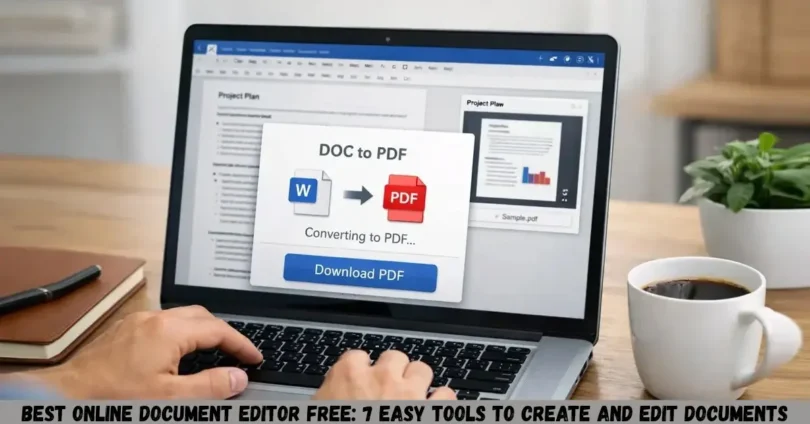
Yes, many online document editors provide a download or export option for PDF files. Open your completed document, locate the relevant download or export menu, and select PDF if available. Check page breaks, fonts, images, and tables before sharing the file, as exported formatting can occasionally differ from the online version.
5. Are free online document editors safe for private documents?
They can be suitable for many everyday documents, but safety depends on the provider, your account security, sharing permissions, and the sensitivity of the information. Use official websites, enable available account-security protections, and restrict access to authorized people. For highly confidential files, review the service’s privacy and data-handling policies before uploading them.
Conclusion
The best online document editor free option is the one that helps you complete your work easily without paying for features you do not need. Google Docs is a practical choice for collaboration, Microsoft Word for the web is useful for Word compatibility, Zoho Writer suits professional writing, and Canva Docs is helpful for visually attractive documents.
Before choosing a platform, compare its free features, supported file formats, sharing options, and privacy controls. For most beginners, starting with Google Docs is a sensible first step. Create a sample document, test the formatting and sharing features, and choose the editor that fits your daily workflow.
SEO Details for WordPress
SEO-Friendly URL Slug: best-online-document-editor-free
Focus Keyword: best online document editor free
Five Related Keywords:
- free online document editor
- best free document editing tools
- edit Word documents online free
- free online word processor
- online document editor without download
Five Image Alt Texts:
- Best online document editor free for everyday writing
- Free online document editor for editing Word files
- Google Docs online document editing interface
- Free document editing tools for students and professionals
- Online word processor for creating and sharing documents
Five Related Article Ideas:
- Best Free PDF Editors Online for Students and Professionals
- How to Edit Word Documents Online Without Installing Software
- Google Docs vs Microsoft Word: Which Is Better for Everyday Use?
- Best Free Online Tools for Creating Professional Resumes
- How to Convert Word Documents to PDF Online for Free
Rank Math Schema Title: Best Online Document Editor Free: 7 Top Tools
Rank Math Schema Description: Compare seven free online document editors for writing, editing, formatting, and sharing documents. Find the right tool for your needs.
Write a complete, high-quality, SEO-friendly, GEO-friendly, and user-friendly article on the topic:
Primary Keyword: [free pdf document maker online]
Secondary Keywords: [free pdf document maker online]
Target Audience: [India]
Required Word Count: [WORD COUNT]
Website Niche: []
Follow these instructions carefully:
Create an attractive H1 title containing the primary keyword naturally.
Write a concise SEO Meta Title of no more than 60 characters.
Write an engaging Meta Description of no more than 155 characters.
Start the introduction with the primary keyword and clearly explain what the article covers.
Use a proper H1, H2, and H3 heading structure.
Keep paragraphs short, clear, natural, and easy to read.
Use the primary and secondary keywords naturally without keyword stuffing.
Write original, plagiarism-free, helpful, and human-sounding content.
Optimize the article for Google Search, AI Overviews, featured snippets, voice search, and generative search engines.
Answer important questions directly in the first few lines under each heading.
Include clear definitions, practical examples, benefits, limitations, steps, tips, and common mistakes wherever relevant.
Add useful bullet points and numbered steps only where they improve readability.
Include relevant facts and statistics only when they can be accurately supported. Do not invent data, studies, experts, or sources.
Maintain strong E-E-A-T signals by using accurate information, balanced explanations, practical insights, and trustworthy wording.
Avoid filler content, repeated points, robotic wording, unnecessary sections, and overly complicated vocabulary.
Use related entities, semantic keywords, synonyms, and topic-specific terms naturally to improve topical authority.
Include a comparison table only when it genuinely helps the reader.
Add a “Frequently Asked Questions” section with 5 useful FAQs. Give each answer in approximately 40–70 words.
End with a clear conclusion that summarizes the main points and gives the reader a practical next step.
Suggest:
One SEO-friendly URL slug
Five image alt texts
Five related article ideas
Rank Math schema title
Rank Math schema description
Focus keyword and five related keywords
Important requirements:
Do not add a Table of Contents unless specifically requested.
Do not mention that the article was written by AI.
Do not include fake quotations or unsupported claims.
Do not force keywords into every paragraph.
Do not write generic sentences such as “In today’s digital world.”
Make the content informative enough to satisfy the reader’s search intent completely.
Use a professional but friendly tone.
Format the final article so it can be copied and pasted directly into WordPress.
Now write the complete article without asking any questions.
10/10 bna krde article or koi bhi horizontal line ni dalne
yar simple do off page ke lya bech me pic wagera nhi do
CancelSend
Free PDF Document Maker Online: 7 Best Tools to Create PDFs Easily
SEO Meta Title: Free PDF Document Maker Online: 7 Best Tools
Meta Description: Discover the best free PDF document maker online tools to create, edit, convert, and share PDF files easily without installing software.
Focus Keyword: free pdf document maker online
Introduction
Free PDF document maker online tools allow you to create professional PDF files directly from your browser without purchasing expensive software. Whether you are a student, freelancer, business owner, teacher, or office worker in India, these tools can help you prepare documents for sharing, printing, or submitting online.
You can use an online PDF maker to create reports, resumes, invoices, assignments, business proposals, and other important documents. Depending on the platform, you may also be able to convert Word files into PDFs, add images, combine multiple files, and adjust document layouts.
In this guide, you will discover seven useful PDF creation tools, their key features, advantages, limitations, and practical uses. You will also learn how to create a PDF online for free and choose a tool that meets your needs.
What Is a Free PDF Document Maker Online?
A free PDF document maker online is a web-based tool that helps you create Portable Document Format (PDF) files using a browser. You can start with a blank document, enter your content, upload an existing file, or use a template, depending on the available features.
PDF files are widely used because they help preserve a document’s layout across different devices and operating systems. They are particularly useful when you want to share a document without requiring the recipient to edit the original content.
Common uses of online PDF makers include:
- Creating resumes and cover letters.
- Preparing school and college assignments.
- Making invoices and business reports.
- Converting Word documents into PDF files.
- Creating forms and informational documents.
- Preparing files for printing or online submission.
- Combining text and images into one document.
Some PDF makers focus on creating documents from scratch, while others specialize in converting, editing, or organizing existing files.
7 Best Free PDF Document Maker Online Tools
The best tool depends on the type of PDF you want to create. Google Docs is suitable for text-based documents, Canva is useful for visually attractive layouts, and Adobe Acrobat online tools provide PDF-related features. Each platform has different free features and limitations.
1. Google Docs
Google Docs is a convenient option for creating text-based documents and exporting them as PDFs. It is especially useful for students, writers, freelancers, and professionals who need to prepare documents without installing desktop word-processing software.
Key features:
- Create documents from scratch.
- Format headings, paragraphs, and lists.
- Insert tables, links, and images.
- Save and manage documents online.
- Collaborate with other users.
- Download documents as PDF files.
How to use Google Docs for PDF creation:
- Visit the Google Docs website.
- Sign in to your Google account.
- Create a blank document or open an existing file.
- Add your content and adjust the formatting.
- Open the File menu and select the download option.
- Choose PDF Document if available in the menu.
Your PDF file will be downloaded to your device.
Advantages: Google Docs is easy to use, supports collaboration, and works well for reports, assignments, and other text-heavy documents.
Limitations: It is primarily a word processor rather than a dedicated PDF editor. Advanced PDF editing features may require another tool.
Best for: Students, bloggers, office workers, and anyone creating text-based PDFs.
Website: https://docs.google.com/
2. Canva
Canva is a design platform that helps users create visually attractive documents and export them as PDFs. It is particularly useful when appearance matters as much as the written content.
Key features:
- Ready-made document templates.
- Custom fonts, colours, and layouts.
- Images, illustrations, and design elements.
- Resume, flyer, brochure, and presentation designs.
- PDF download options.
- Collaboration and sharing features.
How to create a PDF using Canva:
- Visit the Canva website.
- Sign in or create an account.
- Choose a document design or start with a blank layout.
- Add your text, images, and other elements.
- Review the design for spelling and layout issues.
- Select Share or Download and choose an available PDF format.
Some design elements and features require a paid subscription, so check the selected template before completing your work.
Advantages: Canva makes it easier to create polished documents without advanced graphic design skills.
Limitations: It may be less convenient than a traditional word processor for long reports with extensive text.
Best for: Students, marketers, freelancers, and small businesses creating visually appealing PDFs.
Website: https://www.canva.com/
3. Adobe Acrobat Online
Adobe Acrobat online provides browser-based PDF tools for working with PDF files. Depending on the tool and current access limits, users can perform tasks such as converting files, organizing documents, and preparing PDFs.
Key features:
- PDF conversion tools.
- PDF merging and organization options.
- Document compression features.
- PDF editing capabilities where available.
- Browser-based access.
- Integration with Adobe’s PDF services.
How to use Adobe Acrobat online:
- Open the official Adobe Acrobat online website.
- Choose the relevant PDF creation or conversion tool.
- Upload a supported file if required.
- Follow the instructions provided by the selected tool.
- Review the resulting PDF.
- Download the file if the feature is available without an additional charge.
Advantages: Adobe is a well-established name in PDF technology, and its online tools are useful for common document workflows.
Limitations: Not every feature is free. Some editing, conversion, or document-management functions may require an account or paid subscription.
Best for: Users who need PDF conversion and document-management tools.
Website: https://www.adobe.com/acrobat/online.html
4. Smallpdf
Smallpdf offers online tools for creating, converting, compressing, and managing PDF files. It is useful when you already have a document and want to turn it into a more shareable format.
Key features:
- Word-to-PDF conversion.
- PDF compression.
- PDF merging and splitting.
- File conversion options.
- Browser-based document processing.
- Additional PDF utilities.
How to create a PDF with Smallpdf:
- Visit the official Smallpdf website.
- Select the appropriate conversion tool.
- Upload your Word document or another supported file.
- Follow the conversion instructions.
- Check the generated PDF.
- Download the finished document.
The precise process depends on whether you are converting an existing document or using another PDF utility.
Advantages: Its focused tools can make common PDF tasks straightforward.
Limitations: Free usage may be restricted by daily limits, feature availability, or account requirements. Check the current terms before processing many files.
Best for: Users who frequently convert or organize existing documents.
Website: https://smallpdf.com/
5. iLovePDF
iLovePDF is an online platform for common PDF tasks. It is particularly useful for users who want to convert, combine, split, compress, or otherwise organize PDF files.
Key features:
- Convert supported files to PDF.
- Merge multiple PDFs.
- Split PDF documents.
- Compress files to reduce their size.
- Convert PDFs into supported formats.
- Organize document pages.
How to create a PDF using iLovePDF:
- Open the official iLovePDF website.
- Select the appropriate conversion tool.
- Upload the file you want to convert.
- Start the conversion process.
- Review the generated document.
- Download the resulting PDF.
Advantages: It offers a broad collection of PDF utilities in one place.
Limitations: Some tools have usage restrictions, and its main strength is document processing rather than creating long documents from a blank page.
Best for: Students, professionals, and users who need several PDF utilities.
Website: https://www.ilovepdf.com/
6. Zoho Writer
Zoho Writer is an online word processor that can help you create professional documents and export them into supported formats, including PDF.
It is a useful choice for people who want to write and format content before converting it into a shareable file.
Key features:
- Document creation and editing.
- Templates and formatting tools.
- Tables, headings, and images.
- Collaboration features.
- Support for compatible document formats.
- PDF export options.
How to create a PDF using Zoho Writer:
- Visit the Zoho Writer website.
- Sign in or create an account if required.
- Create a new document.
- Write and format your content.
- Review the document layout.
- Use the export or download menu to select PDF, if available.
Advantages: Zoho Writer is useful for creating structured documents, including business reports, proposals, and formal letters.
Limitations: Some advanced capabilities may vary by account or service plan.
Best for: Freelancers, business owners, and professionals preparing formal documents.
Website: https://www.zoho.com/writer/
7. PDF24 Tools
PDF24 Tools is a collection of online utilities for creating and managing PDF files. It can be useful for users who need practical document-processing options without relying on a complicated editing interface.
Key features:
- Create PDFs from supported file types.
- Convert documents and images into PDF.
- Merge PDF files.
- Split documents into separate files.
- Compress PDF files.
- Organize PDF pages.
How to use PDF24 Tools:
- Visit the official PDF24 website.
- Select the tool that matches your task.
- Upload the relevant document or image.
- Adjust the available settings.
- Start the conversion or processing operation.
- Download the finished PDF.
Advantages: PDF24 provides a range of tools for common PDF tasks and also offers desktop software for certain workflows.
Limitations: Features and processing methods differ between individual tools. Check the available options before uploading important documents.
Best for: Users who need simple PDF creation, conversion, and file-management tools.
Website: https://tools.pdf24.org/
Comparison of Free PDF Document Maker Online Tools
The following comparison helps you select a tool based on the work you need to complete.
| Tool | Main purpose | Best use |
|---|---|---|
| Google Docs | Writing and document creation | Reports and assignments |
| Canva | Visual document design | Resumes, brochures, and flyers |
| Adobe Acrobat Online | PDF creation and processing | Conversion and PDF management |
| Smallpdf | PDF conversion and utilities | Everyday PDF tasks |
| iLovePDF | PDF file management | Merging, splitting, and conversion |
| Zoho Writer | Document writing | Business documents |
| PDF24 Tools | PDF utilities | Conversion and organization |
Free access varies across these services. Some offer free PDF export, while others restrict particular tools or the number of operations you can perform.
How to Choose the Best Free PDF Document Maker Online
Choosing the right PDF maker depends on the purpose of your document, the features you need, and how you plan to share the finished file.
Consider Your Document Type
First, identify the type of PDF you want to create.
- For reports and assignments, consider Google Docs or Zoho Writer.
- For resumes, brochures, and visually designed documents, consider Canva.
- For converting existing files, consider Adobe Acrobat Online, Smallpdf, iLovePDF, or PDF24 Tools.
- For combining or splitting PDFs, look for a dedicated PDF utility.
Choosing a tool based on your actual task can save time.
Check the Free Plan
A website may advertise free PDF tools without offering every feature at no cost.
Before starting, check whether you can:
- Create and download PDFs without payment.
- Convert the file type you need.
- Use templates without premium restrictions.
- Process enough documents for your workload.
- Access the required editing features.
This is particularly important if you need to prepare several documents regularly.
Review Formatting and Export Quality
A good PDF should be readable, properly aligned, and suitable for its intended purpose.
Before downloading or sharing your file, check:
- Headings and paragraph spacing.
- Page breaks and margins.
- Image quality and placement.
- Tables and lists.
- Fonts and special characters.
- Page orientation and document size.
For official submissions, make sure the exported file follows the recipient’s formatting requirements.
Consider Privacy and Security
When using an online PDF maker, consider where your files are processed and how long they may be retained.
Read the provider’s privacy policy and file-handling terms. Avoid uploading confidential business records, identity documents, financial statements, or personal information to unfamiliar websites.
For sensitive files, consider an established provider or an appropriate offline tool, depending on your security requirements.
Common Uses of Online PDF Makers in India
Online PDF makers can help people in India prepare documents for education, employment, business, and personal use.
Students and Teachers
Students can create assignment submissions, project reports, study notes, and presentations in PDF format. Teachers can prepare worksheets, learning materials, and classroom documents.
PDF files can also help maintain consistent formatting when documents are opened on different devices.
Job Seekers
Job seekers can create resumes and cover letters and share them with employers. A well-formatted PDF can preserve the intended layout when viewed on another computer.
Before submitting a resume, check that the text is readable and that the file follows the employer’s instructions.
Freelancers and Small Businesses
Freelancers can prepare proposals, quotations, invoices, reports, and service documents. Small businesses can use PDFs to share information with clients and maintain consistent document formatting.
If a document contains legally or financially important information, review it carefully before sending it.
Personal Document Management
Individuals can convert letters, notes, forms, and other documents into PDFs for easier sharing and organization.
However, creating a PDF does not automatically make a document secure. Use appropriate access controls or encryption when confidentiality is important.
Tips for Creating Professional PDF Documents
A professional PDF should be easy to read, well organized, and suitable for its intended audience.
Follow these practical tips:
- Use clear headings: Organize your information so readers can find important sections quickly.
- Choose readable fonts: Avoid decorative fonts for long paragraphs.
- Keep formatting consistent: Use the same heading styles, spacing, and alignment throughout the document.
- Optimize images: Use suitable image sizes to balance clarity and file size.
- Check spelling and grammar: Correct mistakes before exporting the final file.
- Review every page: Look for blank pages, cut-off text, and misplaced images.
- Use a descriptive filename: Choose a name that helps you identify the document later.
- Keep a backup: Save the original editable file when you may need to update the document.
These simple steps can improve the appearance and usability of your PDF without requiring advanced design skills.
Common Mistakes to Avoid When Creating PDFs Online
Even a simple PDF creation process can produce problems if you overlook important details.
Ignoring the final layout: A document may look different after conversion. Always inspect the exported PDF.
Uploading unsupported files: Check which formats the selected tool accepts before beginning.
Choosing a tool with restrictive limits: Review free-plan restrictions if you need to process many documents.
Using poor-quality images: Blurry images and small text can make a PDF difficult to read.
Sharing confidential files carelessly: Review the website’s security practices and sharing permissions before uploading or distributing private information.
Forgetting the editable original: Keep a Word or other source document when future changes are likely.
Assuming every PDF is editable: A PDF may contain scanned images rather than selectable text. Such files may require optical character recognition (OCR) before their text can be edited.
Frequently Asked Questions
1. What is the best free PDF document maker online?
The best option depends on your requirements. Google Docs and Zoho Writer are useful for creating text-based documents, while Canva is suitable for visually attractive PDFs. Adobe Acrobat Online, Smallpdf, iLovePDF, and PDF24 Tools provide PDF processing features. Compare their free options before choosing a service.
2. Can I create a PDF online without installing software?
Yes, many online PDF makers work directly through a web browser. You can create a document, upload a compatible file, or use a template and then export the result as a PDF. Some platforms require an account, and certain features may need a paid plan.
3. How can I convert a Word document into a PDF for free?
Open your Word document in a compatible editor, such as Google Docs or Microsoft Word, and look for the download or export option. Select PDF if available. Alternatively, use a dedicated online conversion tool. Review the exported file to ensure that its formatting, images, and page breaks are correct.
4. Is it safe to use a free online PDF maker?
An online PDF maker can be suitable for routine documents, but safety depends on the provider and the information you upload. Use official websites, review privacy policies, and avoid unfamiliar services for confidential files. For sensitive documents, consider offline software or a solution with security controls appropriate to your needs.
5. Can I create a PDF on my mobile phone in India?
Yes, you can create PDFs on many Android phones and iPhones using compatible browser-based editors or mobile applications. Tools such as Google Docs and Canva offer mobile options. You can write or upload a document, format it, and export it as a PDF when the required feature is available.
Conclusion
A free PDF document maker online can help you create, convert, and share documents without purchasing expensive software. Google Docs and Zoho Writer are practical for text-based files, Canva is useful for designed documents, and Adobe Acrobat Online, Smallpdf, iLovePDF, and PDF24 Tools offer options for common PDF tasks.
The best tool is the one that provides the features you need, preserves your document’s formatting, and fits your privacy requirements. Start by choosing a tool that matches your document type, create a sample PDF, and review the result before using it for important work.