
Introduction
Edit PDF document online free India is a useful option for students, professionals, business owners, and job seekers who need to make changes to PDF files without installing software. Online PDF editors allow users to add text, fill out forms, sign documents, and make other changes directly through a web browser.
Whether you need to correct a mistake in a college assignment, update information on a business document, or sign an application form, an online PDF editor can help you complete the task quickly. In this guide, you will learn how to edit PDF documents online for free, which features to look for, how to protect your files, and what limitations to consider before choosing a tool.
What Does It Mean to Edit a PDF Document Online?
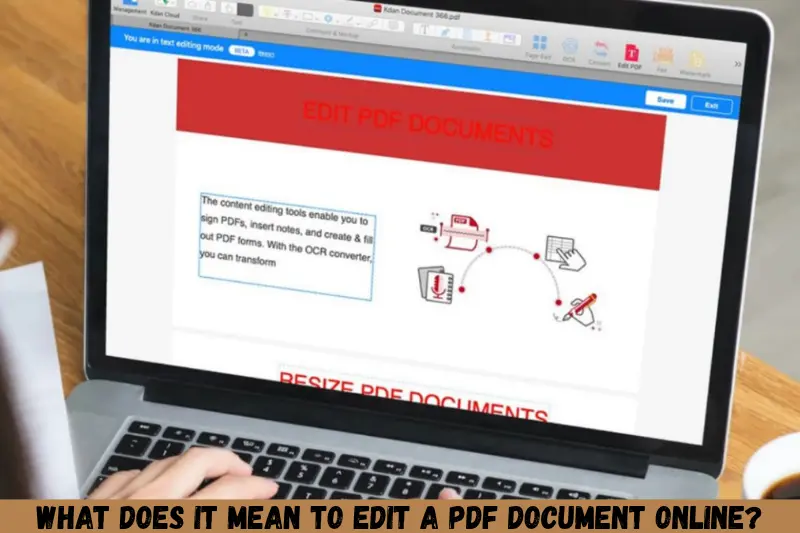
Editing a PDF document online means using a web-based tool to make changes to a PDF file without downloading a dedicated desktop application. Depending on the editor, you may be able to add text, highlight important information, insert signatures, fill forms, or modify existing content.
For example, if you receive a PDF application form that requires your name, address, and signature, an online editor may let you complete those fields and save the finished document.
However, not every free editor supports changing existing text or images. Some tools only allow annotations, text boxes, and signatures, while advanced editing features may require a paid subscription.
How to Edit PDF Document Online Free India
You can edit a PDF online by choosing a suitable editor, uploading your document, making the required changes, and saving the updated file.
Follow these simple steps to get started.
Step 1: Choose an Online PDF Editor
Select an online PDF editor that offers the features you need. Before uploading your document, check whether the tool supports free editing, downloading, and the file size you want to use.
Popular options include:
- Adobe Acrobat Online: Offers browser-based PDF tools, with some features requiring payment or an account.
- iLovePDF: Provides various PDF management tools, including editing-related features.
- Smallpdf: Offers online PDF tools for common document tasks, with usage limits or paid features depending on the tool.
- PDFescape: Provides online PDF editing and form-related features, subject to its current free-plan limitations.
Always check the current feature list because free access and editing capabilities can change.
Step 2: Upload Your PDF File
Open the selected editor and choose the option to upload or select a PDF file. Locate the document on your computer or mobile device.
Wait for the file to load before starting your edits. If the document contains confidential information, review the website’s privacy policy and file-handling practices before uploading it.
Step 3: Make the Required Changes
Once the PDF opens, use the available editing options to make your changes.
Common editing tasks include:
- Adding new text to a document.
- Highlighting important sentences.
- Adding comments or notes.
- Inserting a signature.
- Filling out PDF forms.
- Rotating, rearranging, or removing pages when supported.
- Adding shapes or other annotations.
If you need to change existing text, confirm that the editor supports direct text editing rather than only adding new text boxes.
Step 4: Review the Document
Check the entire document before saving it. Make sure the text is readable, the layout looks correct, and the information is accurate.
Pay particular attention to page breaks, font sizes, signatures, tables, and any information that may have shifted during editing.
Step 5: Download the Edited PDF
After completing your changes, select the download, export, or save option. Store the updated PDF in a suitable folder on your device.
Open the downloaded file to confirm that your changes have been saved correctly. If you need to share the document, ensure that you are sending the final version rather than the original file.
Best Free Online PDF Editors for Indian Users
The best PDF editor depends on the type of changes you want to make. Some tools are better suited to adding annotations, while others focus on converting, organizing, or modifying documents.
| PDF editor | Common uses | What to check |
|---|---|---|
| Adobe Acrobat Online | PDF management, forms, and selected editing tasks | Availability of specific free features |
| iLovePDF | PDF conversion and document management | Free-use limits and editing options |
| Smallpdf | PDF organization, conversion, and related tasks | Account requirements and daily limits |
| PDFescape | Annotations and form-related editing | File size and feature restrictions |
These services have different capabilities, so compare their current features before selecting one. A tool that lets you add text over a page may not let you replace existing text within the original PDF.
What Can You Edit in a PDF File Online?
Online PDF editors support several types of changes, depending on the platform and document structure.
Add or Change Text
Some editors allow you to insert text into a PDF or modify existing text. This is useful for correcting information, adding missing details, or updating a document.
Scanned PDFs can be more difficult to edit because their pages may contain images rather than selectable text. You may need optical character recognition (OCR) to recognize the text before making certain changes.
Add Images and Signatures
You may be able to insert a logo, photograph, handwritten signature, or other image into a PDF. This can be helpful when preparing application forms, business documents, or signed agreements.
Remember that inserting a signature image is not necessarily the same as applying a certificate-based digital signature. Follow the receiving organization’s requirements when signing official documents.
Highlight and Annotate Text
Highlighting and annotation features let you mark important details without rewriting the document.
Students can use these tools to review study materials, while professionals can add comments to reports, contracts, and presentations.
Fill Out PDF Forms
Many PDF editors allow you to complete interactive form fields or place text into blank spaces on a page.
Before submitting a completed form, verify that all required fields are filled correctly and that the saved document displays the information properly.
Benefits of Editing PDF Documents Online for Free
Online PDF editing can make document management easier, especially when you only need to make a few changes.
No software installation: You can use a browser-based editor without installing a dedicated desktop application.
Convenient access: Many tools work on computers, tablets, and smartphones, although the available features may differ by device.
Time-saving workflow: Simple changes, such as adding a signature or filling out a form, can often be completed in a few steps.
Useful for students: Students can annotate notes, complete assignments, and prepare documents for submission.
Helpful for professionals: Employees and business owners can make minor document changes, review files, and prepare paperwork.
Flexible document management: Depending on the tool, you may also be able to convert files, rearrange pages, or compress a PDF.
Can You Edit PDF Documents on a Mobile Phone in India?
Yes, many online PDF editors work through mobile browsers, allowing you to edit documents on Android phones and iPhones without using a computer.
To edit a PDF on your phone, open a browser, visit an online PDF editor, upload the document, and select the required editing feature. Make your changes and download the updated file.
For a better experience:
- Use a stable internet connection.
- Zoom in when editing small text.
- Check the final document before sharing it.
- Save the edited file in an easily accessible folder.
- Use a desktop computer for complex layouts or lengthy documents when possible.
Some tools may provide additional features through mobile applications, but you should check whether those features are free before installing an app.
Is It Safe to Edit PDF Documents Online?
Online PDF editing can be convenient, but safety depends on the service you use and the information contained in your document.
Uploading a file to a website may involve transferring it to the service provider’s servers. Review the provider’s privacy policy, security information, and file-retention practices before uploading sensitive material.
For safer PDF editing, follow these precautions:
- Choose a reputable service with clear privacy policies.
- Avoid uploading passwords, identity documents, financial records, or confidential business files unless the service is appropriate for that information.
- Check whether uploaded files are stored and how they can be deleted.
- Avoid using public computers or unsecured networks for sensitive documents.
- Download the edited file and verify that it contains the correct information.
- Delete temporary files from shared devices when appropriate.
For highly confidential documents, consider using a trusted offline PDF editor instead of uploading the file to a third-party website.
Common Problems When Editing PDFs Online
Although online editors are useful, you may occasionally encounter problems during editing.
Existing Text Cannot Be Changed
Some free editors only support annotations and additional text boxes. If you cannot select the original text, choose an editor that specifically supports direct text editing.
The PDF Is Scanned
A scanned PDF may behave like an image rather than an ordinary text document. OCR can help convert the image into recognizable text, but you should check the results for errors.
Formatting Changes After Editing
Fonts, tables, spacing, and page layouts may change when editing or converting a PDF. Review the saved file carefully and use an editor that preserves the original formatting as closely as possible.
The Website Requests Payment
Some services advertise free PDF tools but charge for particular features, larger files, or additional usage. Check the pricing details before spending time editing your document.
The Edited File Does Not Download
Check your internet connection, browser download settings, and available device storage. You can also try another browser or repeat the process with a smaller file if the service has upload limits.
Tips for Getting Better Results From a Free PDF Editor
You can avoid common editing problems by preparing your document and choosing the right tool for the task.
- Keep a copy of the original PDF before making changes.
- Choose a tool based on the specific editing feature you need.
- Use readable fonts and consistent text sizes.
- Check spelling, numbers, dates, and contact details before downloading.
- Avoid converting the file repeatedly, as this may affect formatting.
- Test the final PDF on another device if you plan to share it.
- Confirm that signatures and form fields appear correctly.
- Review privacy and free-plan restrictions before uploading large or sensitive files.
These simple steps can help you produce a cleaner, more reliable PDF document.
Frequently Asked Questions
1. How can I edit a PDF document online free in India?
Choose an online PDF editor that provides the feature you need, upload your document, make the required changes, and download the updated file. Check the free-plan restrictions before starting because some editors offer free annotations but charge for changing existing text or using advanced tools.
2. Can I edit PDF files online without creating an account?
Some online PDF tools allow basic editing without registration, while others require an account for certain features or downloads. Requirements can change over time. Check the selected service’s current rules before uploading your file, especially if you want to avoid subscriptions or account registration.
3. Can I edit an existing PDF text without converting it to Word?
Yes, certain PDF editors support changing existing text directly without converting the document to Word. However, other tools only allow you to place new text over the page. If your PDF contains scanned pages, you may need OCR before its text can be edited properly.
4. Is it possible to edit PDF documents on an Android phone?
Yes, many browser-based PDF editors support Android phones. Open the editor in your mobile browser, upload your PDF, make the required changes, and download the finished file. Complex documents may be easier to edit on a computer because smaller screens can make precise formatting more difficult.
5. Which free PDF editor is best for students in India?
The best choice depends on the student’s requirements. An editor with annotation, highlighting, text insertion, and form-filling features may be sufficient for assignments and study notes. Compare free usage limits, download options, and privacy policies before choosing a service for educational documents.
Conclusion
Editing a PDF document online for free in India can be straightforward when you choose a suitable tool and understand its limitations. Online PDF editors can help you add text, annotate pages, fill out forms, insert signatures, and manage documents without installing desktop software.
Start by identifying the changes you need to make, compare the available free features, and select a reputable service. Before sharing the finished document, review its formatting and confirm that all changes have been saved correctly. For confidential files, consider an offline editor to reduce the need to upload sensitive information.