
Scan document online free is a useful search for people who want to turn paper documents into digital files without buying a scanner or installing complicated software. Whether you run a business, manage office paperwork, submit forms, or share important records with clients, online document scanning tools can help you create digital copies quickly.
This guide explains how to scan documents online for free, which tools and methods you can use, how to save scanned files as PDFs, and what to consider when choosing a scanning solution. You will also learn about the benefits, limitations, security precautions, and common mistakes associated with digital document scanning.
What Does It Mean to Scan a Document Online for Free?
Scanning a document online for free means using a free digital tool or web-based service to convert a paper document or image into a digital file. Depending on the tool, you may be able to upload a photograph, improve its appearance, convert it to PDF, or extract readable text.
Traditional scanners use hardware to capture documents. Modern alternatives include smartphone cameras, browser-based PDF tools, and document-scanning applications.
For example, a small business owner who receives a signed agreement on paper can photograph each page, convert the images into a single PDF, and email the file to a client.
What Can You Scan?
You can use document-scanning tools for many everyday business and personal tasks, including:
- Business contracts and agreements
- Invoices, receipts, and payment records
- Identification documents, where permitted
- Application forms and registration paperwork
- Printed letters and reports
- Business cards and contact information
- Academic certificates and educational documents
- Printed notes and meeting records
The exact features depend on the scanning method you choose. Some tools only convert images into PDFs, while others offer cropping, image enhancement, or optical character recognition (OCR).
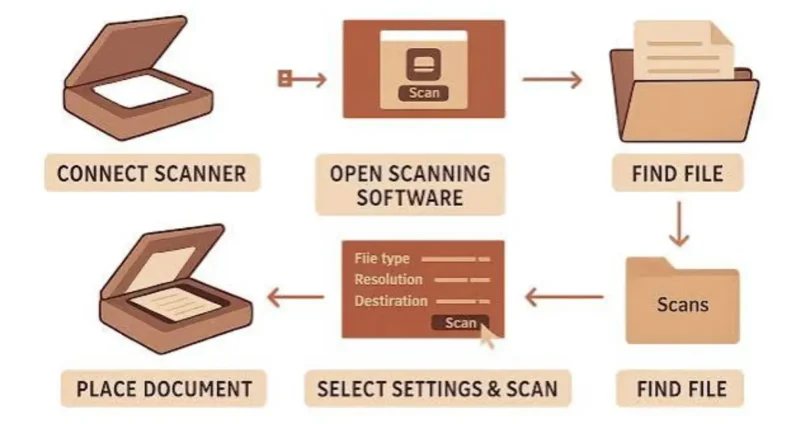
How to Scan a Document Online Free
The easiest method depends on whether you have a smartphone, a computer, or an existing photograph of your document. In many cases, you can complete the process without purchasing additional equipment.
Step 1: Choose a Free Scanning Method
Start by deciding how you want to capture the document.
You can use a smartphone camera, a document-scanning app, or a browser-based tool that accepts image uploads. If you already have a clear photograph, you may not need to capture the document again.
Choose a service that supports your required output, such as PDF or JPG, and check whether its free plan has file-size or page limits.
Step 2: Capture a Clear Image
Place your document on a flat surface with good lighting. Keep the camera directly above the paper and make sure all four corners are visible.
Avoid shadows, reflections, blurred text, and tilted images. A clear photograph usually produces a better digital document than a poorly captured image processed through multiple tools.
If the document contains several pages, capture every page in the correct order.
Step 3: Upload the Document if Required
If you are using a browser-based scanning or PDF service, open the service and select its upload option.
Choose the photograph or image file stored on your device. Depending on the service, you may be able to upload several images at once.
Before uploading sensitive business or personal information, review the service’s privacy policy, file-retention practices, and security information.
Step 4: Adjust the Scan
Some scanning tools allow you to crop the page, straighten its edges, improve contrast, or remove the background.
Review the result carefully. Make sure that signatures, dates, numbers, and small text remain visible.
For business documents, avoid aggressive image filters that could make important details difficult to read.
Step 5: Save the File as a PDF
If you need to email, store, or submit the document, PDF is often a practical format because it can preserve the page layout across different devices.
Select the PDF export or download option when available. If your tool only creates image files, you can use a suitable image-to-PDF converter.
Open the final file to verify that every page appears correctly before sharing it.
Best Free Methods for Scanning Documents
There is no single scanning method that is best for everyone. The right option depends on your device, document type, privacy needs, and required features.
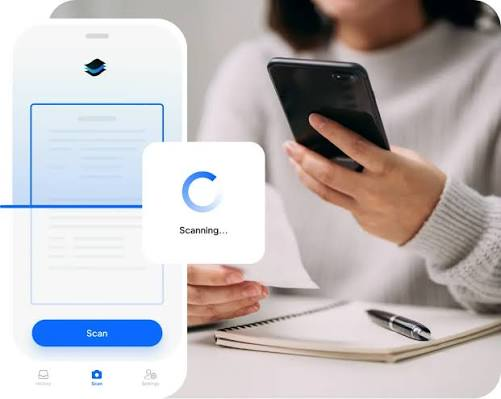
1. Use Your Smartphone Camera
A smartphone is often the quickest way to digitize paper documents.
Take a photograph in good lighting, crop it if necessary, and use a trusted scanning application or PDF converter to create the final file.
Best for: Receipts, letters, invoices, short forms, and documents that need to be scanned while travelling.
Main limitation: Ordinary camera photographs may contain shadows, uneven edges, or perspective distortion.
2. Use Google Drive on a Compatible Device
Google Drive offers document-scanning functionality in its mobile application on supported devices. Availability and the exact interface may vary by device and app version.
To use it, open Google Drive on your phone, look for the scan option, capture the document, adjust the page if needed, and save the scan to your Drive account.
Best for: People who already use Google Drive to organize business files and paperwork.
Main limitation: The scanning workflow may differ between devices, and saving files to cloud storage requires attention to account security and sharing permissions.
3. Use Microsoft Lens Alternatives or Built-In Scanning Features
Microsoft Lens was a popular document-scanning application, but Microsoft announced its retirement. Users should check Microsoft’s current support guidance rather than assume the app remains available as a supported option.
Depending on your device, alternatives may include built-in scanning features, other supported office applications, or reputable third-party scanning tools.
Best for: Users looking for a replacement for an older document-scanning workflow.
Main limitation: Features, availability, and export options differ between applications.
4. Use an Online Image-to-PDF Converter
If you already have photographs of your documents, a browser-based image-to-PDF converter can help you combine them into a single file.
The general process is simple:
- Open a reputable conversion website.
- Select the image files you want to convert.
- Arrange the pages in the correct order.
- Choose the available PDF settings.
- Convert the images and download the result.
- Open the PDF to check its quality.
Best for: People who need to convert existing document photographs without installing software.
Main limitation: Many online converters process uploaded files on their servers. Do not upload confidential documents unless you have verified that the service is appropriate for your privacy requirements.
Online Document Scanning vs. Traditional Scanning
Both online tools and physical scanners can create digital copies of paper documents, but they serve different needs.
| Feature | Online or Mobile Scanning | Traditional Scanner |
|---|---|---|
| Equipment | Often uses an existing phone or computer | Requires scanner hardware |
| Convenience | Useful when travelling or working remotely | Convenient for a dedicated office |
| Multi-page documents | Depends on the app and workflow | Often supported by automatic document feeders |
| Image quality | Depends on camera, lighting, and software | Depends on scanner specifications and settings |
| File formats | Often supports PDF or image formats | Commonly supports PDF and image formats |
| Internet access | May be needed for browser-based tools | Basic scanning can often work offline |
| Privacy | Depends on the app and processing method | Can remain local when using an offline workflow |
For occasional paperwork, a smartphone may be sufficient. Businesses that process large volumes of documents may benefit from a dedicated scanner or a managed scanning workflow.
What Is OCR, and Why Does It Matter?
Optical character recognition (OCR) is technology that identifies printed or handwritten characters in an image and attempts to convert them into machine-readable text.
A normal image-based PDF may show the document clearly but contain no searchable text. An OCR-enabled PDF can allow users to search for words and sometimes copy text from the document.
Benefits of OCR for Businesses
OCR can make digital paperwork easier to manage.
- Searchable records: Find invoices or contracts by searching for words that appear in the document.
- Faster information retrieval: Locate details without reading every page manually.
- Improved document organization: Extract text that can support filing and indexing workflows.
- Reduced manual data entry: Some systems can transfer recognized text into business applications for review.
Important OCR Limitations
OCR is not always accurate. Poor image quality, unusual fonts, low contrast, handwriting, and damaged paper can cause errors.
Always check important figures, account details, names, dates, and legal wording against the original document. OCR should not be treated as a guaranteed replacement for human review.
Benefits of Scanning Documents Online for Free
Free scanning methods can make routine business tasks easier without requiring a major equipment investment.
Save Money on Equipment
If you already own a smartphone or computer, you may be able to scan documents without purchasing a dedicated scanner. Basic image conversion and scanning features are available at no cost through some applications and services.
However, a free tool may have limits on the number of pages, file size, processing features, or downloads.
Make Business Documents Easier to Share
Digital documents can be emailed, uploaded to a client portal, or shared through an approved cloud-storage service.
For example, a freelancer can scan a signed proposal and send it to a customer without mailing the paper copy.
Always confirm that the recipient is authorized to receive the information.
Improve Document Organization
Digital files are easier to sort when you use consistent filenames and folders.
A simple naming system might include the document type, client name or approved client identifier, and date. Avoid placing unnecessary sensitive personal information in filenames.
For example:
- Invoice_2026-10-12.pdf
- Project_Proposal.pdf
- Meeting_Notes_October.pdf
This approach can make it easier to locate records later.
Support Remote Work
Remote teams often need to exchange signed forms, invoices, and other paperwork. Scanning allows employees and business owners to create digital copies without being physically present in the same office.
The final file can be shared through the organization’s approved communication or document-management system.
Reduce Paper Handling
Digital records can reduce the need to print and physically distribute documents. They can also help businesses maintain organized electronic archives.
However, scanning does not automatically replace legal requirements to retain original documents. Check the rules that apply to your industry and location before disposing of paper records.
How to Choose a Safe Free Online Document Scanner
Not every website offering free document scanning is equally suitable for business use. Before uploading files, review the following factors.
Privacy Policy and File Retention
Check whether the service explains how uploaded files are processed, stored, and deleted.
Look for clear information about file retention and whether documents may be used for additional purposes. Do not assume that files are immediately deleted simply because the service offers a free download.
Website Security
Use the official website of a known provider and check that the connection uses HTTPS. A secure connection helps protect information in transit, but it does not independently prove that a service is trustworthy.
Avoid suspicious websites that request unnecessary personal information or software installation.
Free Plan Restrictions
Some services advertise free document scanning but charge for OCR, batch processing, editing, or larger files.
Check the terms before uploading multiple documents. Confirm that the final PDF can be downloaded without an unexpected payment requirement.
Output Quality
The tool should preserve readable text, correct page orientation, and clear edges.
For business records, check the exported document before sending it to a client, accountant, or government office.
File Format Support
Choose a tool that supports your actual needs.
PDF is useful for multi-page documents, while JPG and PNG may be sufficient for individual images. OCR may be necessary when you need searchable text rather than a picture of the page.
Common Mistakes to Avoid When Scanning Documents
A few simple precautions can prevent scanning errors and protect important business information.
Uploading Blurry Documents
Blurry images can make numbers and text difficult to read. Clean your camera lens, improve lighting, and retake the photograph if necessary.
Forgetting to Check Every Page
A multi-page document may have missing, duplicated, or incorrectly ordered pages.
Review the complete PDF before sharing it, especially when dealing with agreements, invoices, and official forms.
Choosing the Wrong File Format
An image may be sufficient for a simple receipt, but a multi-page contract is usually easier to manage as one PDF.
Choose the format based on the recipient’s requirements.
Ignoring Privacy Risks
Uploading identity documents, financial records, or confidential contracts to an unfamiliar website can expose sensitive information.
Prefer an established application or an approved local workflow when handling confidential records. Use cloud sharing carefully and restrict access to authorized people.
Assuming Every PDF Is Searchable
A PDF created from photographs may contain only images. If you need to search or copy text, check whether the file includes an OCR text layer.
Using a Scan as a Substitute for a Digital Signature
A scanned signature is an image of a signature. It is not automatically equivalent to every type of electronic or digital signature under applicable laws.
For contracts and official transactions, follow the recipient’s signature requirements and relevant legal rules.
Practical Tips for Better Document Scanning
You can improve the quality of digital documents by following a consistent process.
- Use a flat surface: Place the document on a clean, contrasting background.
- Choose good lighting: Use even lighting and avoid glare or strong shadows.
- Keep the camera straight: Position the camera parallel to the paper to reduce distortion.
- Capture the entire page: Make sure that no corners, signatures, or text are cut off.
- Use sensible resolution: Select a quality setting that keeps small text readable without creating unnecessarily large files.
- Check page order: Confirm that every page appears in the correct sequence.
- Use descriptive filenames: Make files easy to identify without exposing sensitive details.
- Review before sharing: Check the final document at normal zoom and, when necessary, at higher magnification.
- Protect access: Use secure storage, strong account authentication, and appropriate sharing permissions.
- Keep required originals: Retain paper documents when legal, financial, or organizational rules require them.
Who Can Benefit from Free Online Document Scanning?
Free scanning methods can help people and organizations that regularly exchange paperwork but do not need high-volume scanning equipment.
Small Business Owners
Business owners can digitize receipts, supplier invoices, purchase orders, and signed documents. Organized electronic records can support bookkeeping and make information easier to retrieve.
Freelancers and Remote Workers
Freelancers can scan agreements, proposals, expense receipts, and client paperwork from home or while travelling.
A consistent file-naming system helps prevent important documents from getting lost among downloads and email attachments.
Students and Teachers
Students can scan printed notes, assignments, worksheets, and reading materials. Teachers can digitize selected handouts and classroom paperwork.
Copyright rules and school policies may restrict how some materials can be copied or shared, so check the applicable requirements.
Administrative and Office Teams
Office employees can digitize routine forms and records for electronic filing. Organizations handling confidential data should use approved scanning tools and follow their internal document-retention and security policies.
Online Entrepreneurs
Online business owners may need digital copies of invoices, product paperwork, supplier agreements, and business registration records.
Scanning can simplify file sharing, but it does not remove the need to verify document authenticity or comply with official submission requirements.
Frequently Asked Questions
1. Can I scan a document online for free without a scanner?
Yes. You can often use your smartphone camera and a free scanning application or image-to-PDF converter. Capture a clear photograph, crop the page if necessary, and save it in the required format. If you use an online service, check its free-plan restrictions and privacy policy before uploading documents.
2. How do I scan a document and save it as a PDF?
Capture the document using a compatible scanning application or photograph it with your phone. Select the option to save or export as PDF. If you have existing photographs, use a suitable image-to-PDF converter. Before sharing the file, open it and check the page order, orientation, readability, and completeness.
3. Is it safe to scan documents using a free online website?
It depends on the provider and the information in your document. Some services may upload and process files on remote servers. Review the privacy policy, file-retention practices, and security information before using them. For confidential contracts, identity documents, or financial records, consider an established local scanning application or an organization-approved solution.
4. Can I scan a document online using my mobile phone?
Yes. Many smartphones support document scanning through built-in features, cloud-storage applications, or third-party scanning apps. Open a supported tool, capture the paper, adjust the page boundaries, and save the result. Exact steps vary by phone and application, so consult the app’s current instructions if the scan option is unavailable.
5. What is the difference between a scanned PDF and an OCR PDF?
A scanned PDF may contain only images of the original pages. An OCR-enabled PDF includes recognized text that can often be searched and copied. OCR can save time when managing large collections of documents, but recognition errors are possible. Always verify important details against the original, particularly names, figures, dates, and legal terms.
Conclusion
Scan document online free is a practical way to digitize paperwork without necessarily purchasing a scanner or installing expensive software. Depending on your needs, you can use a smartphone, a supported document-scanning application, or an online image-to-PDF converter to create files that are easier to store and share.
For the best results, capture clear images, select the correct file format, review every page, and use OCR when searchable text is important. Most importantly, consider privacy before uploading confidential documents to an online service.
Your next step: Choose a scanning method that works with your device, test it with a non-sensitive document, and verify the final PDF before using it for business or official purposes.