
Create PDF from images online to combine multiple pictures into one organized, professional document without installing complicated software. Whether you need to convert scanned business documents, invoices, receipts, product photos, certificates, or handwritten notes, an online image-to-PDF converter can help you complete the task quickly. This guide explains how to convert images into PDF files, choose the right tools, improve document quality, protect sensitive information, and share your finished files confidently.
What Does It Mean to Create a PDF from Images Online?
Creating a PDF from images online means converting one or more image files into a single Portable Document Format (PDF) file using a web-based tool. You can usually upload pictures, arrange their order, adjust page settings, and download the completed document.
For example, a small business owner might photograph five purchase receipts and combine them into one PDF for accounting records. Similarly, a freelancer can convert screenshots of project details into a document that is easier to email to a client.
Common image formats supported by online converters include:
- JPG and JPEG
- PNG
- WebP, when supported by the selected tool
- TIFF, when supported by the selected tool
The available formats depend on the converter. Before uploading your images, check its supported file types, maximum file size, and download options.
Why Convert Images into PDF Files?
Converting images into PDFs makes documents easier to organize, distribute, and store. Instead of sending several separate pictures, you can create one file containing all the pages in the correct order.
1. Easier Document Sharing
A single PDF is convenient for sharing business records, customer documents, reports, and project images. Recipients can open the document on most computers and smartphones without needing the original image-editing application.
2. Better File Organization
PDFs help keep related images together. You can combine invoices, receipts, product photographs, and scanned forms into separate documents according to your business needs.
For example, an online store could maintain one PDF containing product images for a particular collection.
3. Professional Presentation
A properly arranged PDF looks more organized than a collection of unrelated image attachments. Consistent page sizes, suitable margins, readable text, and correct image orientation can improve the presentation.
4. Convenient Printing
PDF files are useful when printing multiple images. Depending on the converter’s settings, you can choose page sizes such as A4 or Letter and adjust image placement to avoid unnecessary cropping.
5. Long-Term Record Keeping
Businesses often keep PDFs of receipts, signed forms, invoices, and other records. However, a PDF alone does not guarantee that a document is authentic, legally valid, or permanently preserved. Important records should also be backed up and stored according to applicable requirements.
How to Create PDF from Images Online Step by Step
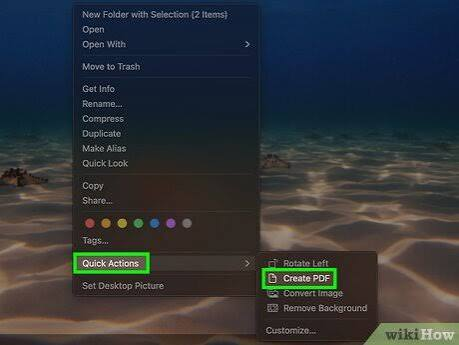
You can create a PDF from images online by following a few straightforward steps. Most browser-based converters use a similar process, although the button names and available features may differ.
Step 1: Choose an Online Image-to-PDF Converter
Open your browser and search for an image-to-PDF conversion tool. Select a service that clearly explains its features, file-size limits, privacy practices, and download process.
Look for these useful options:
- Multiple image uploads
- Page reordering
- Page-size selection
- Image rotation
- Portrait and landscape orientation
- Adjustable margins
- Clear download instructions
For business documents, choose a service with appropriate privacy and security practices.
Step 2: Select Your Images
Click the upload button, which may be labeled “Choose Files,” “Select Images,” or “Upload Images.”
Select the pictures you want to combine. On a computer, you can often select multiple files at once by holding the Ctrl key while clicking individual files.
On a smartphone, choose images through the file picker or gallery if the website supports that option.
Before uploading, make sure your images are readable, complete, and relevant to the document.
Step 3: Arrange the Images in the Correct Order
After uploading, check how the images appear in the converter. Many tools allow you to drag and drop pictures into the desired order.
This step is especially important when converting scanned contracts, school assignments, reports, or business paperwork.
For example, arrange a multipage invoice as follows:
- Invoice cover or first page
- Itemized details
- Payment information
- Supporting receipts or attachments
The exact order should match the purpose of your document.
Step 4: Adjust PDF Settings
Select the settings that suit your needs. Depending on the converter, you may be able to choose A4 or Letter page size, portrait or landscape orientation, margins, and image scaling.
Use portrait orientation for most documents containing text. Landscape orientation may work better for wide charts, spreadsheets, or product images.
Avoid stretching images disproportionately. If a picture contains important text, make sure it remains readable after fitting it onto the page.
Step 5: Convert Images into a PDF
Click the conversion button, which may say “Create PDF,” “Convert to PDF,” or “Generate PDF.”
Wait for the tool to process your files. Conversion time depends on the number of images, their file sizes, your internet connection, and the service’s processing capabilities.
If conversion fails, try reducing unusually large image files or uploading fewer pictures at a time.
Step 6: Download the PDF File
Once the conversion finishes, click the download button and save the PDF to your device.
Choose a clear filename, such as Business-Invoices-October-2026.pdf or Product-Catalog.pdf.
Descriptive filenames make documents easier to locate later and help reduce confusion when several files are shared with customers or colleagues.
Step 7: Review the Finished Document
Open the downloaded PDF before sharing it. Check that every image appears in the correct order and that no important details have been cropped.
Confirm the following:
- All intended images are included.
- Pages appear in the correct sequence.
- Text and important details are readable.
- Images have the correct orientation.
- The file opens successfully.
- The PDF is an appropriate size for emailing or uploading.
This final check helps prevent avoidable mistakes when sending documents to clients or storing business records.
Best Online Tools for Creating PDF Files from Images
Several established services offer image-to-PDF conversion. Their features, supported formats, pricing, and privacy policies can change, so review the current information before choosing a service.
Adobe Acrobat Online
Adobe Acrobat Online provides browser-based PDF tools, including conversion features for supported file types. It may suit users who already work with PDFs and need additional document-management functions.
Explore the official service at: https://www.adobe.com/acrobat/online.html
Smallpdf
Smallpdf offers online PDF utilities, including tools for creating PDFs from supported image formats. Its interface is designed for straightforward document conversion and related PDF tasks.
Visit: https://smallpdf.com/
iLovePDF
iLovePDF provides online tools for creating, converting, organizing, and managing PDF files. It can be useful for people who regularly handle business paperwork or scanned documents.
Visit: https://www.ilovepdf.com/
PDF24 Tools
PDF24 offers browser-based PDF utilities, including image-to-PDF conversion options. It is another service worth considering when comparing available features and processing methods.
Visit: https://tools.pdf24.org/
How to Choose the Right Tool
Do not select a converter based only on its appearance or the promise of free access. Compare its supported image formats, upload limits, output quality, ease of use, and privacy policy.
For confidential documents, consider whether an offline application or a trusted local conversion method would be more appropriate than uploading files to a third-party website.
Online PDF Conversion vs. Desktop Software
Both online converters and desktop applications can create PDFs from images. The best option depends on your document requirements, internet access, and privacy concerns.
| Feature | Online Converter | Desktop Software |
|---|---|---|
| Installation | Usually not required | Usually required |
| Internet access | Generally required | Often not required after installation |
| Convenience | Useful for quick conversions | Useful for regular document work |
| Privacy | Depends on the provider and processing method | Local processing can reduce third-party exposure |
| Advanced editing | Depends on the service | Depends on the application |
| Large batches | Subject to upload and processing limits | Depends on system resources and software |
| Cost | Free and paid options may be available | Free and paid options may be available |
For occasional conversions, an online tool may be sufficient. For sensitive financial records, confidential contracts, or frequent large batches, desktop software with local processing may offer better control.
Important Features to Look for in an Image-to-PDF Converter
The right features can make PDF creation easier and improve the final document.
Multiple Image Uploads
Batch uploading allows you to convert several images into one PDF instead of processing each picture separately. This is useful for receipts, reports, portfolios, and scanned paperwork.
Page Reordering
Page reordering lets you correct the sequence before conversion. It is particularly valuable when a document must follow a specific order, such as a business proposal or application.
Image Quality Control
Some converters offer options that affect image resolution, compression, or file size. Higher image quality can preserve small text, but it may produce a larger PDF.
Choose settings that balance readability and storage requirements.
Page Size and Orientation
Page-size controls help you prepare documents for printing or digital sharing. A4 is commonly used for business documents in many countries, while Letter is common in the United States.
Choose the size required by your recipient or organization rather than assuming one format suits every situation.
Password Protection
Some PDF tools offer password protection or other security features. These can help restrict access, but they should not replace appropriate file-sharing practices or secure storage.
If a document contains confidential information, check that the chosen protection method meets your security requirements.
Optical Character Recognition (OCR)
Optical Character Recognition, or OCR, can recognize printed text inside images and make it searchable or selectable in a PDF.
A basic image-to-PDF conversion usually places images into PDF pages without automatically turning their contents into searchable text. If you need to search for words within scanned documents, choose a tool that explicitly supports OCR.
OCR accuracy depends on image clarity, language, font, and document condition. Always review important recognized text for errors.
Common Business Uses for Image-to-PDF Conversion
Creating PDFs from images can support a variety of business activities.
Invoices and Receipts
Freelancers and small businesses can combine photographs of receipts or invoice pages into one document for bookkeeping, expense reporting, or sharing with an accountant.
Keep the original records when necessary and ensure that all transaction details remain readable.
Product Catalogs
Online sellers can combine product images into a simple PDF catalog. Adding clear filenames, product names, and prices through a suitable editing tool can make the document more useful to customers.
Remember that converting pictures into a PDF does not automatically create an interactive catalog or update prices.
Reports and Presentations
Employees and consultants can combine charts, screenshots, diagrams, and scanned pages into a document for internal review or client communication.
For a formal report, arrange the images logically and include explanatory text where necessary.
Educational Documents
Students and teachers can combine photographed notes, handwritten exercises, and assignment pages into a single PDF. Check that the handwriting is readable and that page edges are not cut off.
Marketing and Portfolio Documents
Designers, photographers, and service providers can assemble selected work samples into a PDF portfolio. A consistent layout and reasonable file size help make the portfolio easier to review.
How to Create a High-Quality PDF from Images
A good PDF should be clear, correctly arranged, and easy to open. Follow these practical tips to improve your results.
Use Clear Original Images
Start with sharp photographs or scans. Good lighting, proper focus, and straight alignment help preserve text and fine details.
If an image is blurry before conversion, creating a PDF will not restore the missing information.
Crop Carefully
Remove unnecessary background space when appropriate, but avoid cutting off signatures, page numbers, dates, or other important details.
For business documents, preserve the complete original content whenever possible.
Balance Quality and File Size
Large, high-resolution images can create bulky PDF files. Compression may reduce file size, but excessive compression can make small text difficult to read.
Review the final document at normal viewing size before sending it.
Use Consistent Page Layouts
Whenever possible, use consistent margins and suitable page dimensions. A document containing a mixture of orientations or sizes can still be useful, but it should be arranged intentionally.
Name and Store Files Properly
Use meaningful filenames and organize documents into suitable folders. Maintain backups of important business records and apply access controls when documents contain private information.
Common Mistakes to Avoid When Creating PDFs from Images
A few simple precautions can prevent problems during conversion.
Uploading images in the wrong order: Review the sequence before creating the PDF, especially when combining multipage records.
Ignoring image orientation: Rotate sideways photographs so readers do not need to turn their screens or printed pages.
Choosing excessive compression: Smaller files are convenient, but poor image quality can make numbers, signatures, and fine print unreadable.
Forgetting to review the downloaded file: Always open the finished PDF to verify that all pages were converted correctly.
Uploading confidential documents without checking privacy: Read the service’s privacy and retention policies before uploading sensitive records.
Assuming a PDF is automatically searchable: Image-based pages may not contain searchable text. Use OCR when text recognition is required.
Ignoring file-size limits: Email providers, websites, and online converters may impose different limits. Compress the file or divide the document when appropriate.
Security and Privacy Tips for Online PDF Conversion
Online conversion is convenient, but uploading a file may expose its contents to a third-party service. The actual risk depends on the provider, its security practices, and how it processes and retains files.
Before uploading business documents, consider these precautions:
- Review the provider’s privacy policy and file-deletion practices.
- Avoid uploading passwords, identity documents, financial records, or confidential contracts to an untrusted website.
- Use reputable services with appropriate security measures.
- Remove unnecessary sensitive information before sharing a document.
- Store downloaded PDFs in a secure location.
- Use suitable access controls when sending private files to clients or colleagues.
HTTPS protects data while it travels between your browser and a website, but it does not by itself guarantee that the service will handle or delete your files appropriately.
For particularly sensitive material, an offline PDF application may be the safer choice.
Frequently Asked Questions
1. How can I create PDF from images online for free?
You can use an online image-to-PDF converter that offers a free conversion option. Upload your images, arrange them in the correct order, choose suitable page settings, convert them, and download the PDF. Check the tool’s current limits, supported formats, and privacy policy before uploading your files.
2. Can I convert multiple images into one PDF?
Yes. Many online converters allow you to upload multiple images and combine them into a single PDF document. Arrange the images in the desired sequence before conversion. The maximum number of images and total file size depend on the service you choose.
3. Can I create a PDF from images on my phone?
Yes. Many online PDF converters work through mobile browsers on Android and iPhone devices. Open a compatible website, select pictures from your device, adjust the available settings, and download the resulting file. The exact process may vary according to your browser, operating system, and selected converter.
4. Will converting images to PDF reduce their quality?
Not necessarily. The result depends on the original images, page scaling, compression, and converter settings. Some tools preserve image quality well, while others may compress images to reduce the file size. Review the final PDF carefully, particularly if it contains small text, signatures, diagrams, or important numbers.
5. Is it safe to create PDF from images online?
It can be safe when you choose a trustworthy service and understand how it handles uploaded files. However, no online service should be assumed completely risk-free. Check its privacy and retention policies, and avoid uploading highly confidential documents to unknown websites. For sensitive files, consider software that processes images locally on your device.
Conclusion
Create PDF from images online using a straightforward process: choose a suitable converter, upload your pictures, arrange their order, adjust page settings, convert the files, and review the finished document before sharing it.
For personal tasks and routine business paperwork, online converters can save time and simplify document organization. Businesses should also consider file quality, supported formats, file-size limits, and privacy requirements when selecting a tool.
Your next step: Choose a converter that suits your needs, test it with a few non-sensitive images, and check the downloaded PDF before using it for important documents.