
Introduction
Create professional documents online to prepare polished, well-organized files for work, business, education, and personal use. Online document creation tools make it easier to write content, format text, add tables, collaborate with others, and share files without installing complicated software.
Whether you need a business proposal, resume, project report, invoice, meeting agenda, or school assignment, online document editors can help you prepare documents from almost any device with an internet connection.
In this guide, you will learn how online document creation works, which tools you can use, how to format your content professionally, and what mistakes to avoid when preparing documents for different purposes.
What Does It Mean to Create Professional Documents Online?
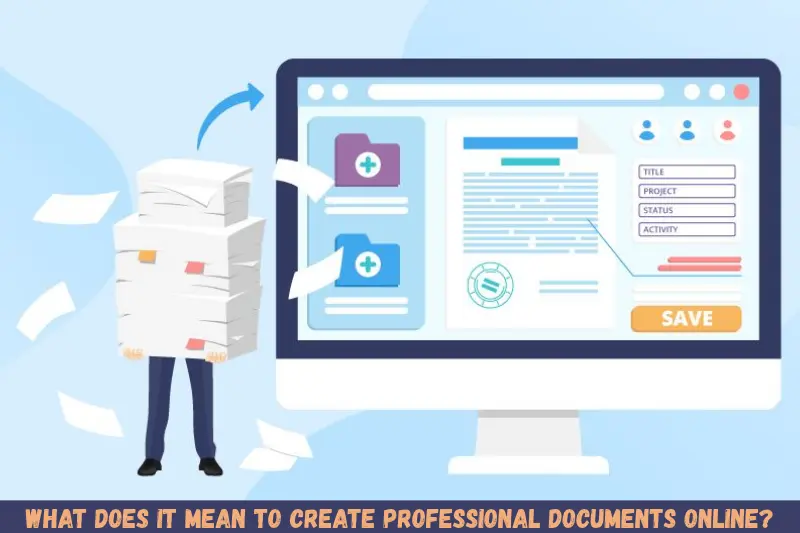
Creating professional documents online means writing, editing, formatting, and managing digital documents through a web browser or cloud-based application. These tools help users prepare readable and consistent documents without relying entirely on desktop software.
Most online document editors offer features such as:
- Text formatting, headings, and paragraph alignment
- Ready-made templates for business and personal documents
- Tables, lists, links, and images
- Automatic saving and cloud storage
- Real-time collaboration and comments
- Downloading and exporting documents in formats such as PDF and DOCX
For example, a small business owner can create a quotation, format the company details, add a pricing table, and export the finished document as a PDF for a client.
The best approach is to choose a tool that matches your document type, formatting requirements, and privacy needs.
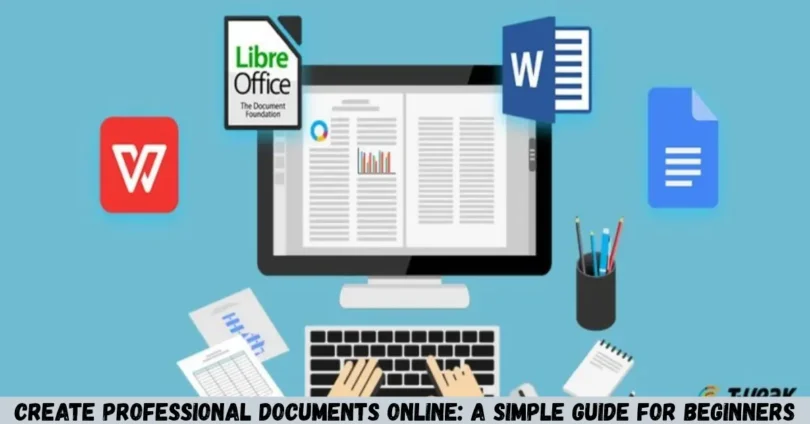
Best Tools to Create Professional Documents Online
Several online tools can help you prepare professional documents. The right option depends on whether you need simple text editing, business templates, collaboration, or advanced formatting.
1. Google Docs
Google Docs is an online word processor suitable for letters, reports, proposals, assignments, and other everyday documents.
Its main advantages include cloud-based editing, automatic saving, sharing controls, and collaborative editing. You can also download supported documents in different formats.
Google Docs is a practical choice for students, freelancers, teams, and small businesses that need to work on documents together.
2. Microsoft Word for the Web
Microsoft Word for the web provides browser-based document creation and editing. It is useful for users who prefer the Microsoft Word interface and need familiar formatting features.
You can prepare reports, business letters, resumes, and other documents. Available features may depend on your Microsoft account and subscription.
It is particularly useful when you need to work with DOCX files or exchange documents with people who use Microsoft Word.
3. Canva Docs
Canva Docs is useful for people who want visually appealing documents with a design-focused layout.
It can help with proposals, presentations of ideas, marketing materials, and other documents that benefit from visual elements. Templates and design features make it easier to maintain a consistent appearance.
However, a design-heavy document may not be the best choice for lengthy reports that require detailed academic formatting or extensive text editing.
4. Zoho Writer
Zoho Writer is an online word processor designed for creating, editing, and collaborating on documents.
It can be useful for business correspondence, reports, proposals, and team documents. Its features may also support document workflows depending on the plan and configuration.
Before selecting a tool, compare its export options, collaboration features, and compatibility with your existing files.
How to Create Professional Documents Online Step by Step
You can create professional documents online by following a simple process. Start with a clear purpose, organize the information, choose suitable formatting, and review the final file before sharing it.
Step 1: Choose the Right Online Document Editor
First, select a document editor that supports your requirements.
For a simple letter or report, Google Docs or Microsoft Word for the web may be sufficient. If visual presentation is important, consider Canva Docs. For business-focused document workflows, you can explore Zoho Writer.
Check whether the tool allows you to export your document in the format required by your recipient.
Step 2: Select a Template or Start from Scratch
Templates can save time by providing a ready-made structure for common documents.
Depending on your needs, you might choose:
- A resume template for job applications
- A business proposal template for clients
- A report template for research or projects
- A meeting agenda template for team discussions
- An invoice template for recording charges and payments
If you start from a blank page, create a simple outline before writing. This helps you arrange the information logically.
Step 3: Write Clear and Useful Content
Good document design starts with good writing. Use direct language, short paragraphs, and descriptive headings so readers can quickly understand your message.
For example, a business proposal can include the following sections:
- Project overview
- Client requirements
- Proposed solution
- Timeline and deliverables
- Estimated cost
- Terms and next steps
Include only relevant information. Avoid unnecessary explanations, repeated statements, and complicated language that makes the document harder to understand.
Step 4: Format the Document Professionally
Formatting helps readers identify important information and navigate the document easily.
Use these practical guidelines:
- Choose a readable font, such as Arial, Calibri, or Aptos.
- Use consistent heading styles.
- Keep body text at a comfortable reading size.
- Use bold text selectively to highlight important details.
- Maintain consistent spacing between paragraphs.
- Use bullet points for short lists.
- Align tables and other elements neatly.
- Leave sufficient white space around the content.
For most business documents, a clean and simple design is more effective than using too many colours, fonts, and decorative elements.
Step 5: Add Tables and Other Useful Elements
Tables can make complex information easier to compare. For example, a quotation might use a table to show item descriptions, quantities, prices, and totals.
You can also include hyperlinks, page numbers, a company logo, or a header and footer when they serve a clear purpose.
Make sure every visual element supports the document’s objective. Avoid adding unnecessary graphics that distract from the main information.
Step 6: Review Spelling, Grammar, and Accuracy
Before sharing your document, check the spelling, grammar, dates, names, calculations, and contact information.
Read the document from beginning to end and confirm that the content is understandable. If the document contains financial details or business terms, verify the figures and conditions carefully.
You can use built-in spelling tools to identify possible errors, but always review suggested corrections yourself.
Step 7: Download or Share the Final Document
Once the document is ready, choose the appropriate delivery method.
PDF: Suitable when you want to share a document with a consistent layout across different devices.
DOCX: Useful when the recipient needs to edit the document in a compatible word processor.
Online sharing link: Convenient for collaboration, provided the sharing permissions are configured correctly.
Open the exported file before sending it. Check page breaks, tables, spacing, and other formatting details to ensure that everything appears as expected.
Benefits of Creating Professional Documents Online
Online document creation offers several practical advantages for individuals, students, freelancers, and businesses.
Access Documents from Different Devices
Cloud-based editors allow you to access your work from supported devices when you have an internet connection and the necessary account permissions.
This can be helpful when you need to review a report on a laptop, make a quick correction on a phone, or continue working from another location.
Save Time with Templates
Templates provide a starting point for common documents. Instead of designing every page from scratch, you can use an existing structure and customize the content.
This is particularly useful for resumes, business proposals, meeting notes, and recurring reports.
Collaborate with Other People
Many online editors allow multiple users to review or edit the same document. Comments and suggestions can help teams discuss changes without exchanging multiple attachments.
For example, a manager can review a proposal while a colleague updates the project timeline in the same shared document.
Share Files Easily
Online document editors commonly provide options for sharing a link, downloading a file, or exporting it into a supported format.
These options make it easier to distribute documents to clients, colleagues, teachers, and other recipients.
Maintain Consistent Formatting
Using the same fonts, heading styles, spacing, and document structure helps maintain a professional appearance across multiple files.
Businesses can create templates for recurring documents to reduce formatting differences between team members.
Types of Professional Documents You Can Create Online
Online editors support many document types. The best structure depends on your audience and the purpose of the file.
Business Documents
Businesses can prepare proposals, reports, quotations, invoices, meeting agendas, and company letters.
These documents should include accurate information, clear headings, and appropriate business details. Financial documents should also be checked carefully before being issued.
Resumes and Cover Letters
Job seekers can use online templates to create resumes and cover letters that are easy to read.
Use clear section headings for work experience, education, skills, and relevant qualifications. Keep the design appropriate for the role and ensure that your contact details are correct.
Academic Assignments and Reports
Students can prepare assignments, essays, project reports, and research summaries using online word processors.
Follow the institution’s requirements for margins, citations, page numbering, font size, and referencing style. A visually attractive document should still meet the required academic standards.
Personal Documents
You can also create personal letters, schedules, checklists, travel plans, and household budgets.
For personal records containing sensitive information, use suitable access controls and avoid sharing public links unnecessarily.
Online Document Creation vs. Desktop Software
Both online document editors and desktop applications can be useful. Your choice should depend on how you work and what the final document requires.
| Feature | Online document editors | Desktop document software |
|---|---|---|
| Accessibility | Available through supported browsers and accounts | Usually installed on a device |
| Collaboration | Often supports live collaboration | Depends on the software and sharing setup |
| Internet access | Often needed for full cloud functionality | Many tasks work offline |
| Templates | Commonly available | Varies by application |
| File export | Supports selected download formats | Often offers extensive local file options |
| Advanced formatting | Varies by tool | May offer more specialized controls |
| Storage | Frequently supports cloud storage | Can support local storage and cloud services |
Online tools are often convenient for everyday documents and teamwork. Desktop software may be preferable for specialized formatting, complex layouts, or workflows that require reliable offline access.
Some applications offer both online and desktop versions, allowing you to choose based on the task.
Tips for Making Your Documents Look More Professional
Small improvements in layout and writing can make a significant difference to the final result.
Use a Clear Visual Hierarchy
Make the document title easy to identify and use consistent heading levels for the main sections and subsections.
Readers should be able to scan the page and understand how the information is organized without reading every sentence.
Keep Fonts and Colours Consistent
Choose one font family for most of the document and use a limited number of font sizes. If colour is appropriate, use it consistently for headings or other important elements.
Avoid using several decorative fonts or bright colours in formal business reports.
Use White Space Effectively
White space is the empty area around text, headings, and other elements. It helps prevent a page from looking crowded.
Use comfortable margins, appropriate line spacing, and clear separation between sections. Do not fill every available space with text.
Make Important Information Easy to Find
Place essential details where readers expect to find them.
For example, a proposal should make the project scope, estimated cost, timeline, and next steps easy to locate. A resume should clearly display relevant experience and qualifications.
Check Mobile Readability
Some recipients may open your document on a smartphone. Avoid excessively wide tables, tiny text, and layouts that become difficult to read on smaller screens.
For documents with complex formatting, a PDF can help preserve the intended page layout.
Common Mistakes to Avoid When Creating Documents Online
Even a good online editor cannot automatically make a document professional. You still need to pay attention to the content, design, and final file.
Using too many fonts: Multiple font styles can make the document appear inconsistent. Use a small, coordinated set of styles.
Choosing a complicated template: A design that looks attractive may not suit a formal report, resume, or business letter. Select a template that supports the document’s purpose.
Ignoring proofreading: Spelling mistakes, incorrect dates, and inaccurate figures can reduce credibility. Review all important details before sharing.
Overusing images and colours: Decorative elements should improve understanding, not distract readers from the message.
Sharing the wrong permissions: A document link may allow more access than intended. Check whether recipients can view, comment on, or edit the file.
Forgetting to check the exported file: Formatting can change during conversion. Review the downloaded PDF or DOCX before sending it.
Ignoring privacy: Avoid placing passwords, financial account details, confidential client information, or other sensitive data in documents shared through unrestricted links.
Is It Safe to Create Professional Documents Online?
Creating documents online can be convenient, but safety depends on the service, your account settings, and the information you upload.
Choose a reputable provider, use a strong and unique password, enable additional account security where available, and review sharing permissions before distributing a file.
For confidential business or personal documents, check the provider’s privacy policy, storage practices, and account access controls. Your organization may also have rules about which cloud services you are permitted to use.
If you are working with highly sensitive information, consider whether an approved offline application or organization-managed document system is more appropriate.
Frequently Asked Questions
1. How can I create professional documents online for free?
You can create professional documents for free using tools that offer free document editing, such as Google Docs or the free features of Microsoft Word for the web. Create an account if required, start with a blank page or template, write your content, apply consistent formatting, and export the file in a supported format. Some advanced features may require payment.
2. Which online tool is best for creating professional documents?
The best tool depends on your requirements. Google Docs is useful for everyday writing and collaboration, Microsoft Word for the web suits users familiar with Word, Canva Docs supports design-focused documents, and Zoho Writer offers online editing and collaboration features. Compare formatting options, file compatibility, privacy controls, and pricing before selecting a tool.
3. Can I create professional documents online using my mobile phone?
Yes, many online document editors support mobile browsers or dedicated apps. You can write text, make basic formatting changes, review content, and share files from a supported smartphone. However, complex tables and detailed page layouts can be harder to manage on a small screen, so review the final document on a larger display when possible.
4. Can I convert an online document into a PDF?
Yes, many online document editors offer a download or export option for PDF files. Open your completed document, choose the appropriate download or export command, select PDF if available, and save the file. Before sharing it, check the exported version for missing content, unexpected page breaks, and formatting changes.
5. How do I make an online document look professional?
Start with a clear title, organized headings, readable fonts, consistent spacing, and concise paragraphs. Use tables or bullet points when they make information easier to understand. Proofread the content, verify important details, and avoid excessive colours or decorative elements. Finally, check the exported file and confirm that sharing permissions are appropriate for your audience.
Conclusion
Creating professional documents online is a practical way to prepare business reports, resumes, proposals, assignments, and personal files. The right editor can simplify writing, formatting, collaboration, and file sharing without requiring a complicated workflow.
To get the best results, choose a suitable tool, organize your information, apply consistent formatting, proofread carefully, and check the final file before sharing it. Start with a simple document today and use these steps to create a clear, polished result.