
Introduction
Free PDF converter India tools help students, professionals, business owners, and everyday users convert PDF documents into editable or shareable file formats without paying for expensive software. Whether you need to convert a PDF to Word, extract tables into Excel, turn images into PDF files, or save a document as a JPG, a free PDF converter can make the process easier.
PDF files are widely used for sharing resumes, invoices, educational notes, application forms, reports, and business documents. However, editing a PDF can sometimes be difficult without the right software. A reliable PDF conversion tool helps you change file formats while keeping your documents convenient to use.
In this guide, you will learn how free PDF converters work, which conversion options are useful, how to convert files step by step, and what to consider when choosing a safe and reliable tool in India.
What Is a Free PDF Converter?
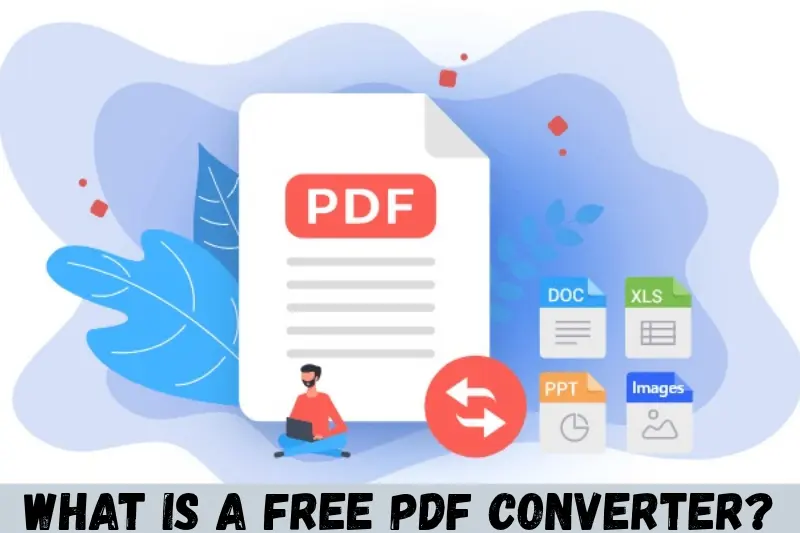
A free PDF converter is an online tool or software application that changes PDF files into other formats or converts different file types into PDFs without charging a fee for the relevant features.
For example, if you receive a PDF resume and need to update your work experience, you can convert it into an editable Word document. Similarly, you can convert a collection of images into a single PDF for easier sharing.
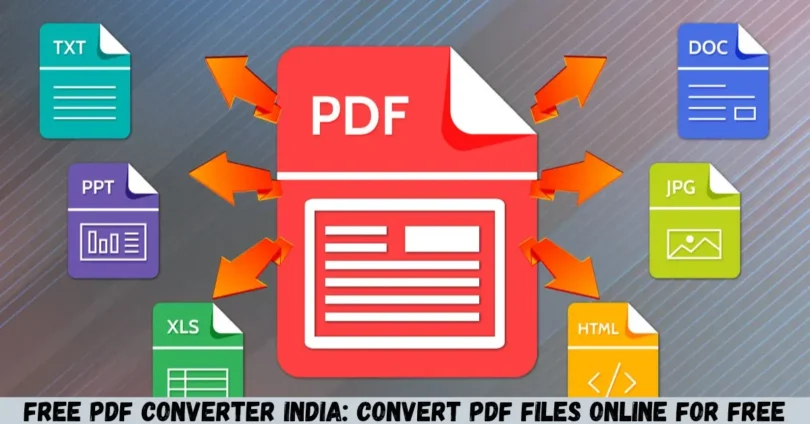
Common PDF conversion options include:
- PDF to Word: Convert PDF documents into editable DOC or DOCX files.
- PDF to Excel: Extract tables and structured information into spreadsheets.
- PDF to JPG: Convert PDF pages into image files.
- JPG to PDF: Combine images into a PDF document.
- Word to PDF: Save Word documents in a widely supported format.
- Excel to PDF: Share spreadsheets as documents that are easier to view and print.
- PowerPoint to PDF: Convert presentations into a convenient document format.
- PDF to text: Extract readable text from supported PDF files.
The best option depends on your document type, conversion requirements, file size, and privacy needs.
Why Use a Free PDF Converter in India?
A free PDF converter is useful because it allows people to manage everyday documents without purchasing a dedicated conversion application. Many online tools work directly through a web browser, making them convenient for users with computers, tablets, and smartphones.
1. Save Money on Document Conversion
Free conversion tools can help you complete routine tasks without paying for premium software. Students can convert notes, job seekers can edit resumes, and small businesses can prepare invoices without purchasing a separate PDF application.
However, some websites offer free conversions with limits on file size, daily usage, or advanced features. Always check the terms before relying on a particular service.
2. Convert Documents Quickly
Online PDF converters can reduce the number of steps needed to change a file format. Instead of installing a large application, you may be able to upload a document, select an output format, and download the converted file.
Conversion speed depends on file size, internet connectivity, server performance, and document complexity.
3. Work on Different Devices
Many browser-based tools work on Windows computers, Mac computers, Android phones, and iPhones. This flexibility is particularly helpful when you need to convert a document while travelling or working away from your regular computer.
Before using a tool on a mobile device, check whether its interface supports your screen size and allows you to download the converted file easily.
4. Make PDF Documents Editable
PDF files are useful for preserving document layouts, but editing their contents may require additional software. Converting a PDF into Word or Excel can make certain changes easier.
For example, a small business owner might convert a PDF price list into a spreadsheet to update product names and prices. The converted document should always be checked because formatting and table structures may change.
5. Improve Document Sharing
Converting documents into suitable formats can make them easier to share with other people.
For example, you might convert a presentation into PDF before emailing it to a client. This can help recipients view the slides without needing the original presentation software, although interactive features and animations may not be preserved.
Best Types of PDF Conversion Tools
Different PDF converters serve different purposes. Choosing the correct conversion type can help you avoid formatting problems and unnecessary editing.
PDF to Word Converter
A PDF to Word converter changes a PDF into a DOC or DOCX document that you can edit using compatible word-processing software.
This option is useful for:
- Updating resumes and cover letters.
- Editing reports and assignments.
- Correcting text in existing documents.
- Reusing content from older business documents.
- Preparing editable drafts from supplied PDFs.
Important tip: Text-based PDFs generally convert more easily than scanned documents. If your PDF contains scanned pages, you may need optical character recognition (OCR) to identify the text.
PDF to Excel Converter
A PDF to Excel converter extracts tables and places their contents into a spreadsheet format.
It can be useful for converting financial summaries, price lists, tabular reports, and inventory documents.
However, complex tables may not convert perfectly. Merged cells, multiple columns, unusual spacing, and scanned pages can cause errors. Review numerical values and formulas carefully before using the spreadsheet for business or financial decisions.
PDF to JPG Converter
A PDF to JPG converter changes PDF pages into image files.
This option can help when you want to share a page as an image, insert a document page into a presentation, or upload a visual document to a platform that accepts images rather than PDFs.
Remember that JPG files are images, not editable text documents. The output quality depends on the selected resolution and conversion settings.
JPG to PDF Converter
A JPG to PDF converter combines one or more images into a PDF document.
For example, a student can combine photographs of handwritten notes into one file. A business owner can place scanned pages into a single document for easier distribution.
Before converting, arrange the images in the correct order and check their orientation. Clear, well-lit images generally produce more readable results.
Word to PDF Converter
A Word to PDF converter turns a DOC or DOCX file into a PDF document.
This is helpful when sharing resumes, official letters, reports, and business proposals. PDF output can help preserve the intended layout, although you should still inspect the final file for missing fonts, page breaks, or other formatting changes.
How to Use a Free PDF Converter India Tool
Using an online PDF converter is usually straightforward. The exact interface differs between websites, but the general process is similar.
Step 1: Choose a Suitable PDF Converter
Select a conversion tool that supports your required file formats. If you need to edit a document, look for PDF-to-Word conversion. If you need to extract tables, choose PDF-to-Excel instead.
Review the website’s privacy policy, file-size limits, and download requirements before uploading any document.
Step 2: Upload Your File
Open the converter and select the option to upload or choose a file. Browse your device and select the PDF or other supported document.
Some services also support drag-and-drop uploads or importing files from cloud storage.
Do not upload confidential documents to an unfamiliar website unless you understand how it handles uploaded files.
Step 3: Select the Output Format
Choose the format you need, such as DOCX, XLSX, JPG, or PDF.
Make sure you select the correct direction. For example, PDF to Word and Word to PDF are different operations, even though they use the same file types.
Step 4: Start the Conversion
Select the convert option and wait for the process to finish. Simple text documents may convert quickly, while large files, image-heavy documents, or scanned PDFs may take longer.
If the conversion fails, check the file size, internet connection, and supported formats. You may also need to try a different tool.
Step 5: Download the Converted File
When the conversion is complete, download the output file to your device.
Save it in a suitable folder and use a descriptive filename so that you can find it later.
Step 6: Review the Output
Open the converted document and check that the content is correct.
Pay particular attention to:
- Missing or duplicated text.
- Page breaks and margins.
- Tables and numerical values.
- Images, charts, and diagrams.
- Special characters and fonts.
- The order of pages.
A successful conversion does not always guarantee a perfect copy of the original document.
Free PDF Converter Online vs Desktop Software
Both online PDF converters and desktop applications can help you manage documents. The better option depends on your needs and the sensitivity of your files.
| Feature | Online PDF Converter | Desktop PDF Software |
|---|---|---|
| Installation | Usually not required | Usually required |
| Internet access | Generally required | Often works offline |
| Convenience | Useful for quick conversions | Useful for regular workflows |
| Privacy | Depends on the service and its policies | Files can often remain on your device |
| File-size limits | May apply | Depends on the application |
| Advanced features | May require a paid plan | Depends on the software and licence |
| Device compatibility | Depends on browser support | Depends on the operating system |
For occasional conversions, an online tool may be sufficient. For confidential documents or frequent office work, an established desktop application may be a better choice.
How to Choose the Best Free PDF Converter in India
Not every free PDF converter offers the same features. Compare a few important factors before choosing a service.
Check Supported File Formats
Confirm that the converter supports your required input and output formats. A tool that converts PDFs to Word may not offer Excel conversion, OCR, or image extraction.
If you regularly work with multiple file types, a service supporting several common formats may be more convenient.
Review File Size and Usage Limits
Some free services restrict the size of each upload, the number of conversions per day, or access to batch processing.
If you work with large reports or multiple documents, check these limits before beginning.
Look for Good Formatting Preservation
A reliable converter should produce readable output and preserve as much of the original layout as possible.
For documents containing tables, charts, columns, or multiple languages, test the tool with a non-confidential sample before using it for important work.
Consider Privacy and Security
PDF documents can contain personal details, financial records, identification documents, contracts, and business information.
Before uploading a file, check:
- Whether the website uses a secure HTTPS connection.
- What its privacy policy says about uploaded files.
- Whether and when files are deleted.
- Whether files are used for additional purposes.
- Whether the service offers local or offline conversion.
A secure connection alone does not guarantee that a service handles your documents appropriately. For highly sensitive information, consider an offline application instead.
Check Mobile Compatibility
If you plan to convert PDFs on an Android phone or iPhone, make sure the website works well on mobile browsers.
The upload button, conversion settings, and download options should be easy to use without requiring unnecessary application installations.
Avoid Unnecessary Payments
A service described as free may offer only limited conversions at no cost. Some tools require payment for batch processing, OCR, large files, or advanced editing.
Check the pricing terms and avoid entering payment details unless you understand the subscription or purchase conditions.
Common Problems When Converting PDF Files
PDF conversion can occasionally produce unexpected results. Understanding common problems can help you resolve them quickly.
Formatting Changes After Conversion
Text may move, columns may shift, and page breaks may change when converting a PDF to Word.
Solution: Open the output in a compatible editor and adjust the layout. For complex documents, try a converter that supports layout preservation.
Scanned PDF Text Is Not Editable
A scanned PDF may contain page images instead of searchable text. A standard converter may therefore produce images rather than editable words.
Solution: Use OCR-enabled software to recognize text in the scanned pages. Check the recognized text carefully, especially numbers and names.
Tables Are Incorrect in Excel
PDF tables do not always contain the underlying structure required for accurate spreadsheet conversion. As a result, data may appear in the wrong columns.
Solution: Use a table-aware converter and review each row, column, and numerical value after conversion.
The Converted File Will Not Open
A failed download, incomplete conversion, unsupported format, or damaged file can prevent the output from opening.
Solution: Download the file again, confirm its extension, and try opening it with compatible software. If the issue continues, repeat the conversion using another trusted tool.
The Website Requests Too Many Permissions
Some websites may request unnecessary access, require suspicious browser extensions, or display misleading download buttons.
Solution: Avoid installing unknown extensions or downloading unrelated programs. Use established services and close pages that appear deceptive.
Tips for Getting Better PDF Conversion Results
A few simple habits can improve conversion quality and help protect your documents.
- Use a good-quality source file. Clear text and readable scans generally produce better results.
- Choose the correct output format. Use Word for editable text, Excel for structured tables, and JPG for page images.
- Check the language settings. Documents containing Indian languages or special characters may need compatible fonts or OCR settings.
- Keep the original file. Save a copy before converting so you can return to the original if something goes wrong.
- Review important details. Verify names, dates, figures, and page numbers before submitting or sharing the converted document.
- Use trusted tools. Check privacy policies and avoid uploading confidential documents to unknown websites.
- Avoid unnecessary compression. Excessive compression may reduce image clarity and make small text harder to read.
- Rename files clearly. Descriptive filenames help prevent confusion between original and converted documents.
Is a Free PDF Converter Safe to Use?
A free PDF converter can be safe to use when the provider has appropriate security practices and handles uploaded files responsibly. However, not every website offers the same level of protection.
Before uploading a document, verify that the website is legitimate and review its privacy and file-retention policies. Be cautious of services that demand unnecessary permissions, redirect you to suspicious pages, or require unrelated downloads.
For routine, non-sensitive files, a reputable online converter may be convenient. For confidential contracts, financial statements, identity documents, or private business records, an offline conversion tool can reduce the need to send documents to an external service.
Also, remember that converting a PDF does not automatically protect it from unauthorized access. If a document contains sensitive information, use appropriate access controls and secure sharing methods.
Can You Convert PDF Files on a Mobile Phone?
Yes, many online PDF converters work through mobile browsers, allowing users to convert files without a desktop computer.
On Android, you can usually select a document from your device’s file manager or downloads folder. On an iPhone, you may be able to choose files through the Files app, depending on the website and browser.
The basic process is the same:
- Open a trusted PDF converter in your mobile browser.
- Select the file from your device.
- Choose the required conversion format.
- Start the conversion.
- Download and review the converted file.
For large files, an unstable internet connection or limited device storage may create difficulties. If a mobile conversion fails, try a smaller file or use a suitable desktop application.
Free PDF Converter India for Students, Professionals, and Businesses
A free PDF converter can support different types of work, depending on the user’s requirements.
For Students
Students can convert notes into editable documents, combine scanned pages into PDFs, and prepare assignments for submission. They should review the converted content before submitting academic work to ensure that no text or formatting has been lost.
For Office Professionals
Office workers can convert reports, letters, forms, and presentations into suitable formats for editing or sharing. PDF-to-Word conversion can be useful when a document needs updates, while Word-to-PDF conversion is convenient for distributing a finalized version.
For Small Businesses
Small businesses can use PDF conversion tools to manage price lists, invoices, reports, and other routine documents. Spreadsheet conversions may help extract tabular information, but financial figures should always be checked against the original source.
For Freelancers and Job Seekers
Freelancers can convert proposals and reports into PDFs for clients. Job seekers can prepare resumes and supporting documents in the requested format.
When submitting an application, always follow the employer’s or platform’s file-format requirements instead of assuming that every format will be accepted.
Frequently Asked Questions
1. What is the best free PDF converter in India?
The best free PDF converter depends on your requirements. Look for a tool that supports the formats you need, preserves document formatting, explains its privacy practices, and offers suitable file-size limits. For occasional conversions, an online service may be enough. For confidential documents or regular work, offline PDF software may be more appropriate.
2. Can I convert PDF to Word for free?
Yes, some online services and desktop applications offer free PDF-to-Word conversion. Upload the PDF, select Word or DOCX as the output format, and download the converted document. Formatting may change during conversion, especially in files with complex layouts, tables, or scanned pages, so review the result before editing or sharing it.
3. Can I use a free PDF converter on my mobile phone?
Yes, many PDF converters support mobile browsers on Android and iPhone. You can select a document, choose an output format, and download the converted file. The exact process depends on the service and device. Check that the website works on your phone and avoid uploading confidential documents to services you do not trust.
4. Is it safe to upload documents to a free PDF converter?
Safety depends on the provider’s security measures, privacy policy, and file-handling practices. Check how uploaded documents are stored and whether they are deleted after conversion. For sensitive financial, personal, or business documents, an offline converter may be a safer option because it can allow the files to remain on your device.
5. Can I convert a scanned PDF into editable text?
Yes, but a scanned PDF usually requires optical character recognition, commonly called OCR. OCR identifies text within page images and converts it into searchable or editable content. Results depend on image quality, fonts, language, and document condition. Always proofread the output because OCR can misread characters, names, dates, and numbers.
Conclusion
A free PDF converter India tool can make document management easier for students, professionals, freelancers, and businesses. Whether you want to convert PDF to Word, extract tables into Excel, change pages into JPG images, or create a PDF from images, the right tool can save time and simplify everyday tasks.
Before choosing a converter, check its supported formats, file-size limits, conversion quality, mobile compatibility, and privacy policy. Keep the original file, review the converted document, and use offline software when your documents contain sensitive information.