
Introduction
PDF editor online India tools make it easier to edit PDF documents without installing complicated software on your computer. Whether you are a student, office employee, business owner, teacher, or freelancer, an online PDF editor can help you manage documents quickly from your browser.
PDF files are commonly used for resumes, invoices, application forms, business reports, educational notes, and official documents. However, editing a PDF can sometimes be difficult if you do not have the right software. Online PDF editors provide practical features such as adding text, signing documents, highlighting important information, merging files, and converting PDFs into other formats.
In this guide, you will learn how online PDF editors work, which features to look for, how to edit PDF files step by step, and how to choose a suitable tool for your needs in India.
What Is a PDF Editor Online?
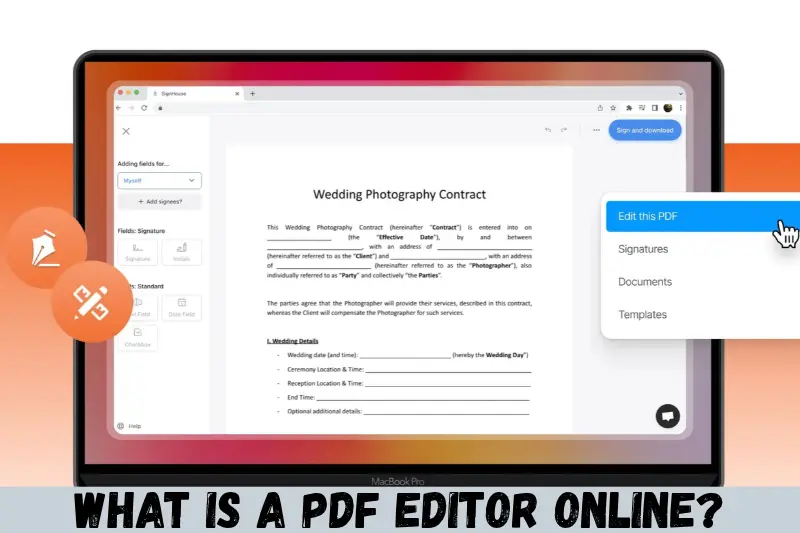
A PDF editor online is a web-based tool that allows users to modify, organize, or manage PDF documents through an internet browser. You generally do not need to install a desktop application to use its basic features.
Depending on the tool, you may be able to add text, insert images, highlight content, fill out forms, sign documents, or rearrange pages.
For example, if you receive a PDF application form that requires your name, address, and signature, an online PDF editor may allow you to complete the form and save the updated document.
Common PDF editing features include:
- Adding text and images to PDF pages.
- Highlighting, underlining, or annotating text.
- Filling out interactive PDF forms.
- Adding electronic signatures.
- Merging multiple PDF files into one document.
- Splitting a large PDF into smaller files.
- Rotating, deleting, or rearranging pages.
- Converting PDFs into Word, Excel, or image formats when supported.
Not every online editor offers all these features for free. Some tools restrict file sizes, daily usage, advanced editing, or downloads unless you purchase a subscription.
Why Use a PDF Editor Online in India?
An online PDF editor is useful because it makes everyday document management more convenient. Users can access supported features from different devices without necessarily installing additional software.
1. Edit Documents Without Installing Software
Most browser-based PDF editors allow you to upload a document and work with it directly through their website. This is helpful when you use a shared computer, work from different locations, or have limited storage space.
However, some advanced tools may require a desktop application or browser extension.
2. Save Time on Everyday Tasks
Online PDF editors can simplify routine tasks such as adding a signature, correcting a document, or removing unnecessary pages.
For example, a freelancer who needs to sign and return a contract can use a suitable online editor instead of printing the document, signing it manually, and scanning it again.
3. Access Tools From Different Devices
Many online PDF editors work on Windows computers, Mac computers, and supported mobile devices.
This makes them useful for students completing assignments on laptops and professionals reviewing documents on smartphones. The editing experience may vary depending on screen size, browser compatibility, and available features.
4. Manage Documents More Easily
Combining several documents into one PDF can make files easier to organize and share.
For instance, a job applicant can combine a resume, cover letter, and portfolio into one document when the employer accepts a combined PDF submission.
5. Use Free Features for Basic Tasks
Some online PDF editors provide free access to essential tools. These may include adding text, merging files, splitting pages, compressing documents, or converting supported file types.
Always check the current pricing and usage limits before uploading a large file or starting an important task.
Best PDF Editor Online India Users Can Consider
The best PDF editor depends on what you want to accomplish. Some tools are better suited to quick changes, while others offer more comprehensive document management features.
Here are several established options to consider.
1. Adobe Acrobat Online
Adobe Acrobat Online offers browser-based PDF tools for working with PDF documents. Depending on the feature and plan, users can access options for organizing, converting, signing, and editing PDFs.
It may be a suitable choice for people who regularly work with business documents and want tools from an established PDF software provider.
Website: https://www.adobe.com/acrobat/online.html
2. Smallpdf
Smallpdf provides online PDF tools for common tasks such as merging, splitting, compressing, converting, and signing documents.
Its browser-based interface is designed to make routine PDF tasks accessible without requiring users to learn complicated software.
Website: https://smallpdf.com/
3. iLovePDF
iLovePDF offers tools for merging PDFs, splitting documents, compressing files, converting formats, and managing PDF pages.
It can be useful for students, office workers, and small businesses that frequently handle multiple documents.
Website: https://www.ilovepdf.com/
4. PDFescape
PDFescape provides online PDF features for tasks such as adding text, annotating documents, and working with PDF forms. Feature availability depends on the version and plan.
It is worth considering if your main requirement is making basic changes to a document rather than performing advanced desktop publishing.
Website: https://www.pdfescape.com/
5. Sejda PDF
Sejda offers online PDF editing and document management tools, including options for adding text, handling pages, and working with PDF content.
Some features have free-use restrictions, so check the current limits before processing lengthy documents.
Website: https://www.sejda.com/
How to Choose the Right Online PDF Editor
Before selecting a PDF editor online in India, compare its features, privacy practices, pricing, and ease of use.
| Feature | Why It Matters |
|---|---|
| Text editing | Helps add or modify document content where supported |
| PDF signing | Useful for signing forms and agreements |
| Merge and split | Makes document organization easier |
| File conversion | Helps move content between PDF and other formats |
| Mobile compatibility | Allows editing from supported smartphones and tablets |
| File size limits | Determines whether large documents can be processed |
| Privacy and security | Helps you assess how uploaded documents are handled |
| Pricing | Shows whether required features are free or paid |
If you only need to merge two documents occasionally, a simple free tool may be sufficient. If you regularly edit contracts, reports, or complex PDFs, consider a more comprehensive editor.
How to Edit a PDF Online in India
Editing a PDF online is generally straightforward. The exact steps depend on the website and the editing features it provides.
Step 1: Choose an Online PDF Editor
Visit a PDF editing website such as Adobe Acrobat Online, Smallpdf, or iLovePDF.
Check that the website offers the specific feature you need. A tool that merges documents, for example, may not support changing existing text.
Step 2: Upload Your PDF File
Select the upload option and choose the PDF document from your device.
Some tools also support importing files from cloud storage services. Review the website’s privacy information before uploading confidential documents.
Step 3: Select the Editing Feature
Choose the relevant tool, such as edit PDF, add text, annotate, sign, or organize pages.
If you need to correct existing text, verify that the editor supports modifying the original text rather than only placing a new text box over it.
Step 4: Make the Required Changes
Use the available editing controls to update your document.
Depending on the tool, you may be able to:
- Add new text or images.
- Highlight important information.
- Insert a signature.
- Delete or rearrange pages.
- Add comments or notes.
- Complete form fields.
Review the layout carefully, especially when changing documents with tables, columns, or complex formatting.
Step 5: Preview the Updated Document
Before saving, check every edited page. Look for missing text, incorrect spacing, overlapping images, and formatting problems.
If the document contains important dates, amounts, names, or identification details, verify them carefully.
Step 6: Download and Save the PDF
Use the download or export option to save the updated file to your device.
Open the downloaded document to confirm that the changes were saved correctly. Keep the original file until you are satisfied with the final version.
How to Edit PDF Text Online
Editing existing text in a PDF can be more complicated than adding new text. Some PDFs contain editable text, while others are scanned images of printed pages.
To edit existing text, choose an editor that specifically supports PDF text editing.
Follow these steps:
- Upload the PDF to a suitable editor.
- Select the text-editing feature.
- Click the text you want to change, if the tool supports direct editing.
- Modify the content and check the formatting.
- Save and download the updated file.
If the document is a scanned image, you may need optical character recognition (OCR) to convert the image into machine-readable text. OCR accuracy depends on scan quality, language, fonts, and document layout.
For sensitive or legally important documents, carefully verify the extracted text before using it.
How to Sign a PDF Online
Electronic signing tools allow users to place a signature in a PDF without printing the entire document.
The general process is simple:
- Open a PDF signing tool.
- Upload your document.
- Create a signature by typing, drawing, or uploading an image, depending on the available options.
- Place the signature in the appropriate location.
- Save and download the signed PDF.
It is important to understand that a drawn or image-based signature is not necessarily the same as a cryptographically protected digital signature. Some official documents require specific signing methods or identity verification.
Before signing an agreement, review its contents and check the recipient’s requirements.
How to Merge Multiple PDF Files
Merging PDFs is helpful when you need to combine several related documents into one file.
For example, students may combine assignment pages, while businesses may merge an invoice, purchase order, and supporting documents.
To merge PDF files:
- Open an online PDF merger.
- Upload the documents you want to combine.
- Arrange the files in the correct order.
- Select the merge option.
- Download the combined PDF and review its pages.
Check that all pages are present and that confidential information has not been included accidentally.
How to Convert PDF Files Online
PDF conversion tools help users transform documents into other file formats when supported by the selected service.
Common conversions include:
- PDF to Word for further text editing.
- PDF to Excel for working with supported tables.
- PDF to JPG or PNG for creating images of pages.
- Word to PDF for sharing documents in a consistent layout.
- Images to PDF for combining scans or photographs.
Conversion results are not always perfect. Tables, columns, special fonts, and complex layouts may change during conversion.
If you are converting a PDF into Word, review the document before submitting, printing, or sharing it. For scanned PDFs, OCR may be necessary to extract editable text.
Is a Free PDF Editor Online Safe to Use?
A free online PDF editor can be convenient, but its safety depends on the provider, its security practices, and the type of information in your document.
Uploading a file to a website may involve transferring it to a remote server. Some services process files in the browser, while others process them on their servers. Do not assume that every tool follows the same approach.
To reduce privacy risks:
- Choose established services with clear privacy policies.
- Check how uploaded files are stored and deleted.
- Avoid uploading passwords, financial records, or sensitive identification documents to unfamiliar websites.
- Use secure internet connections.
- Avoid installing unknown browser extensions or downloading suspicious applications.
- Review the downloaded file before sharing it.
- Use an offline PDF editor when confidential documents should not leave your device.
For sensitive business records, legal agreements, medical documents, or personal identification files, carefully assess whether an online tool is appropriate.
Common Problems When Editing PDF Files Online
Users sometimes encounter problems when modifying PDFs. Understanding the causes can help you choose the right solution.
Existing Text Cannot Be Edited
Some editors only allow users to add text, highlight content, or place annotations. They may not support changing the original text.
Solution: Select a tool with direct text-editing capabilities or convert the document into an editable format when appropriate.
The PDF Is a Scanned Document
A scanned PDF may contain page images rather than searchable text.
Solution: Use OCR-enabled software to recognize the text. Proofread the result because OCR can misread letters, numbers, and symbols.
Formatting Changes After Editing
Fonts, spacing, tables, and images may shift when the document is modified or converted.
Solution: Preview every page, use a tool that supports the original layout, and compare the final file with the source document.
The File Is Too Large
Some online services limit the size of files that can be uploaded or processed for free.
Solution: Look for a service with suitable limits or compress the PDF before editing. Always check the compressed version to ensure that text and images remain readable.
A Feature Requires Payment
A website may advertise PDF editing but restrict certain features to paid plans.
Solution: Check the pricing and free-use restrictions before uploading your file. If the required feature is unavailable for free, compare another provider or consider desktop software.
Tips for Getting Better Results From an Online PDF Editor
A few simple practices can make PDF editing easier and reduce mistakes.
- Keep a backup: Save the original PDF before making changes.
- Choose the right tool: Use a text editor for content changes and a PDF organizer for page management.
- Check formatting: Review fonts, images, page numbers, and spacing after editing.
- Use OCR when necessary: Scanned documents may require text recognition.
- Verify important details: Double-check names, dates, addresses, totals, and signatures.
- Understand free-plan limits: Confirm file size restrictions and download requirements.
- Protect confidential information: Read the provider’s privacy policy before uploading sensitive documents.
- Test the final file: Open the downloaded PDF on your intended device to make sure it displays correctly.
These habits are particularly helpful when preparing job applications, business proposals, invoices, educational assignments, and official forms.
Who Should Use a PDF Editor Online in India?
Online PDF editors can help a wide range of users manage everyday documents.
Students
Students can use PDF tools to organize notes, combine assignments, annotate study material, and complete supported forms.
Office Employees
Office workers can merge reports, add comments, sign documents, and prepare files for sharing with colleagues.
Small Business Owners
Business owners may use PDF editors to manage quotations, invoices, proposals, and other routine paperwork.
Freelancers
Freelancers can prepare client documents, sign agreements, and organize project files without needing a complex document workflow.
Teachers and Educators
Teachers can annotate learning materials, combine worksheets, and prepare PDF resources for students.
The most suitable option depends on the user’s document requirements, privacy needs, and budget.
Frequently Asked Questions
1. Which is the best PDF editor online in India?
The best PDF editor depends on your requirements. Adobe Acrobat Online, Smallpdf, iLovePDF, PDFescape, and Sejda offer different combinations of PDF tools. Compare their editing features, privacy policies, file size limits, and pricing before choosing one. If you only need basic page management, a free tool may be enough.
2. Can I edit a PDF online for free?
Yes, several websites offer free PDF editing or document management features. However, free access may be limited by file size, daily usage, available tools, or download restrictions. Check the current plan details before starting. For occasional tasks such as merging documents or adding annotations, a free option may meet your needs.
3. Can I edit PDF files on my mobile phone?
Yes, many browser-based PDF editors work on supported smartphones and tablets. You can use them to perform tasks such as signing documents, annotating pages, or managing files. However, editing complex layouts can be difficult on smaller screens. Check mobile compatibility and review the finished document before sharing it.
4. How can I edit existing text in a PDF?
Choose an editor that supports direct modification of existing PDF text. Upload the document, select the text-editing feature, make your changes, and review the formatting before downloading. If the PDF contains scanned pages, you may need OCR to recognize the text before editing. Some documents may require conversion to another format.
5. Is it safe to upload PDF documents to online editors?
Online PDF editors vary in their security and privacy practices. Before uploading a document, check the provider’s privacy policy, file retention practices, and security information. Avoid using unfamiliar services for highly confidential documents. If a file contains sensitive personal or business information, consider an offline editor that keeps processing on your device.
Conclusion
A PDF editor online India users can access through a browser is a practical solution for managing documents without installing complicated software. Depending on the selected tool, you can edit text, add signatures, merge files, split pages, annotate documents, and convert PDFs into other formats.
Adobe Acrobat Online, Smallpdf, iLovePDF, PDFescape, and Sejda are useful starting points for comparing available features. Before choosing one, consider whether you need free editing, advanced text changes, mobile compatibility, or stronger privacy controls.