
Introduction
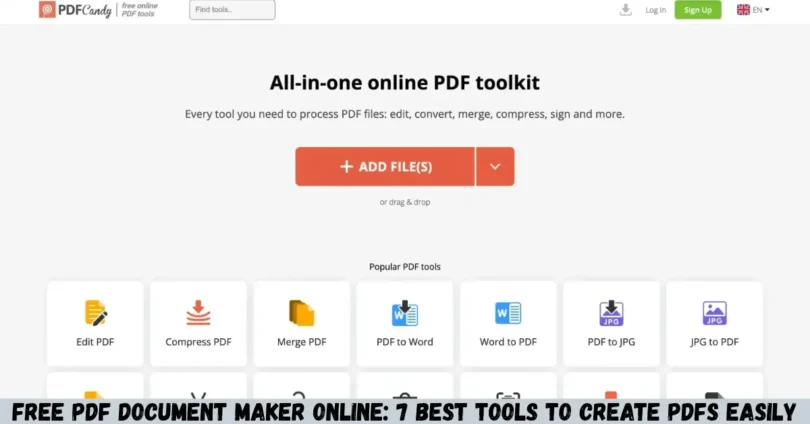
Free PDF document maker online tools allow you to create professional PDF files directly from your browser without purchasing expensive software. Whether you are a student, freelancer, business owner, teacher, or office worker in India, these tools can help you prepare documents for sharing, printing, or submitting online.
You can use an online PDF maker to create reports, resumes, invoices, assignments, business proposals, and other important documents. Depending on the platform, you may also be able to convert Word files into PDFs, add images, combine multiple files, and adjust document layouts.
In this guide, you will discover seven useful PDF creation tools, their key features, advantages, limitations, and practical uses. You will also learn how to create a PDF online for free and choose a tool that meets your needs.
What Is a Free PDF Document Maker Online?
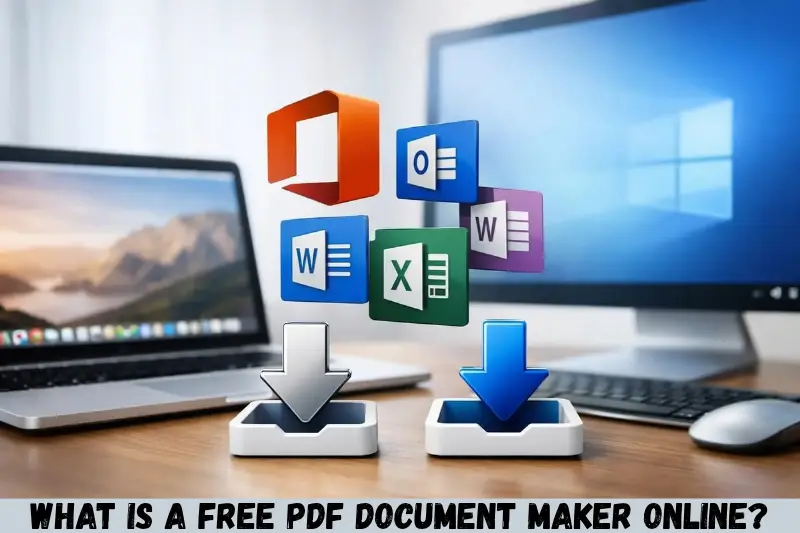
A free PDF document maker online is a web-based tool that helps you create Portable Document Format (PDF) files using a browser. You can start with a blank document, enter your content, upload an existing file, or use a template, depending on the available features.
PDF files are widely used because they help preserve a document’s layout across different devices and operating systems. They are particularly useful when you want to share a document without requiring the recipient to edit the original content.
Common uses of online PDF makers include:
- Creating resumes and cover letters.
- Preparing school and college assignments.
- Making invoices and business reports.
- Converting Word documents into PDF files.
- Creating forms and informational documents.
- Preparing files for printing or online submission.
- Combining text and images into one document.
Some PDF makers focus on creating documents from scratch, while others specialize in converting, editing, or organizing existing files.
7 Best Free PDF Document Maker Online Tools
The best tool depends on the type of PDF you want to create. Google Docs is suitable for text-based documents, Canva is useful for visually attractive layouts, and Adobe Acrobat online tools provide PDF-related features. Each platform has different free features and limitations.
1. Google Docs
Google Docs is a convenient option for creating text-based documents and exporting them as PDFs. It is especially useful for students, writers, freelancers, and professionals who need to prepare documents without installing desktop word-processing software.
Key features:
- Create documents from scratch.
- Format headings, paragraphs, and lists.
- Insert tables, links, and images.
- Save and manage documents online.
- Collaborate with other users.
- Download documents as PDF files.
How to use Google Docs for PDF creation:
- Visit the Google Docs website.
- Sign in to your Google account.
- Create a blank document or open an existing file.
- Add your content and adjust the formatting.
- Open the File menu and select the download option.
- Choose PDF Document if available in the menu.
Your PDF file will be downloaded to your device.
Advantages: Google Docs is easy to use, supports collaboration, and works well for reports, assignments, and other text-heavy documents.
Limitations: It is primarily a word processor rather than a dedicated PDF editor. Advanced PDF editing features may require another tool.
Best for: Students, bloggers, office workers, and anyone creating text-based PDFs.
Website: https://docs.google.com/
2. Canva
Canva is a design platform that helps users create visually attractive documents and export them as PDFs. It is particularly useful when appearance matters as much as the written content.
Key features:
- Ready-made document templates.
- Custom fonts, colours, and layouts.
- Images, illustrations, and design elements.
- Resume, flyer, brochure, and presentation designs.
- PDF download options.
- Collaboration and sharing features.
How to create a PDF using Canva:
- Visit the Canva website.
- Sign in or create an account.
- Choose a document design or start with a blank layout.
- Add your text, images, and other elements.
- Review the design for spelling and layout issues.
- Select Share or Download and choose an available PDF format.
Some design elements and features require a paid subscription, so check the selected template before completing your work.
Advantages: Canva makes it easier to create polished documents without advanced graphic design skills.
Limitations: It may be less convenient than a traditional word processor for long reports with extensive text.
Best for: Students, marketers, freelancers, and small businesses creating visually appealing PDFs.
Website: https://www.canva.com/
3. Adobe Acrobat Online
Adobe Acrobat online provides browser-based PDF tools for working with PDF files. Depending on the tool and current access limits, users can perform tasks such as converting files, organizing documents, and preparing PDFs.
Key features:
- PDF conversion tools.
- PDF merging and organization options.
- Document compression features.
- PDF editing capabilities where available.
- Browser-based access.
- Integration with Adobe’s PDF services.
How to use Adobe Acrobat online:
- Open the official Adobe Acrobat online website.
- Choose the relevant PDF creation or conversion tool.
- Upload a supported file if required.
- Follow the instructions provided by the selected tool.
- Review the resulting PDF.
- Download the file if the feature is available without an additional charge.
Advantages: Adobe is a well-established name in PDF technology, and its online tools are useful for common document workflows.
Limitations: Not every feature is free. Some editing, conversion, or document-management functions may require an account or paid subscription.
Best for: Users who need PDF conversion and document-management tools.
Website: https://www.adobe.com/acrobat/online.html
4. Smallpdf
Smallpdf offers online tools for creating, converting, compressing, and managing PDF files. It is useful when you already have a document and want to turn it into a more shareable format.
Key features:
- Word-to-PDF conversion.
- PDF compression.
- PDF merging and splitting.
- File conversion options.
- Browser-based document processing.
- Additional PDF utilities.
How to create a PDF with Smallpdf:
- Visit the official Smallpdf website.
- Select the appropriate conversion tool.
- Upload your Word document or another supported file.
- Follow the conversion instructions.
- Check the generated PDF.
- Download the finished document.
The precise process depends on whether you are converting an existing document or using another PDF utility.
Advantages: Its focused tools can make common PDF tasks straightforward.
Limitations: Free usage may be restricted by daily limits, feature availability, or account requirements. Check the current terms before processing many files.
Best for: Users who frequently convert or organize existing documents.
Website: https://smallpdf.com/
5. iLovePDF
iLovePDF is an online platform for common PDF tasks. It is particularly useful for users who want to convert, combine, split, compress, or otherwise organize PDF files.
Key features:
- Convert supported files to PDF.
- Merge multiple PDFs.
- Split PDF documents.
- Compress files to reduce their size.
- Convert PDFs into supported formats.
- Organize document pages.
How to create a PDF using iLovePDF:
- Open the official iLovePDF website.
- Select the appropriate conversion tool.
- Upload the file you want to convert.
- Start the conversion process.
- Review the generated document.
- Download the resulting PDF.
Advantages: It offers a broad collection of PDF utilities in one place.
Limitations: Some tools have usage restrictions, and its main strength is document processing rather than creating long documents from a blank page.
Best for: Students, professionals, and users who need several PDF utilities.
Website: https://www.ilovepdf.com/
6. Zoho Writer
Zoho Writer is an online word processor that can help you create professional documents and export them into supported formats, including PDF.
It is a useful choice for people who want to write and format content before converting it into a shareable file.
Key features:
- Document creation and editing.
- Templates and formatting tools.
- Tables, headings, and images.
- Collaboration features.
- Support for compatible document formats.
- PDF export options.
How to create a PDF using Zoho Writer:
- Visit the Zoho Writer website.
- Sign in or create an account if required.
- Create a new document.
- Write and format your content.
- Review the document layout.
- Use the export or download menu to select PDF, if available.
Advantages: Zoho Writer is useful for creating structured documents, including business reports, proposals, and formal letters.
Limitations: Some advanced capabilities may vary by account or service plan.
Best for: Freelancers, business owners, and professionals preparing formal documents.
Website: https://www.zoho.com/writer/
7. PDF24 Tools
PDF24 Tools is a collection of online utilities for creating and managing PDF files. It can be useful for users who need practical document-processing options without relying on a complicated editing interface.
Key features:
- Create PDFs from supported file types.
- Convert documents and images into PDF.
- Merge PDF files.
- Split documents into separate files.
- Compress PDF files.
- Organize PDF pages.
How to use PDF24 Tools:
- Visit the official PDF24 website.
- Select the tool that matches your task.
- Upload the relevant document or image.
- Adjust the available settings.
- Start the conversion or processing operation.
- Download the finished PDF.
Advantages: PDF24 provides a range of tools for common PDF tasks and also offers desktop software for certain workflows.
Limitations: Features and processing methods differ between individual tools. Check the available options before uploading important documents.
Best for: Users who need simple PDF creation, conversion, and file-management tools.
Website: https://tools.pdf24.org/
Comparison of Free PDF Document Maker Online Tools
The following comparison helps you select a tool based on the work you need to complete.
| Tool | Main purpose | Best use |
|---|---|---|
| Google Docs | Writing and document creation | Reports and assignments |
| Canva | Visual document design | Resumes, brochures, and flyers |
| Adobe Acrobat Online | PDF creation and processing | Conversion and PDF management |
| Smallpdf | PDF conversion and utilities | Everyday PDF tasks |
| iLovePDF | PDF file management | Merging, splitting, and conversion |
| Zoho Writer | Document writing | Business documents |
| PDF24 Tools | PDF utilities | Conversion and organization |
Free access varies across these services. Some offer free PDF export, while others restrict particular tools or the number of operations you can perform.
How to Choose the Best Free PDF Document Maker Online
Choosing the right PDF maker depends on the purpose of your document, the features you need, and how you plan to share the finished file.
Consider Your Document Type
First, identify the type of PDF you want to create.
- For reports and assignments, consider Google Docs or Zoho Writer.
- For resumes, brochures, and visually designed documents, consider Canva.
- For converting existing files, consider Adobe Acrobat Online, Smallpdf, iLovePDF, or PDF24 Tools.
- For combining or splitting PDFs, look for a dedicated PDF utility.
Choosing a tool based on your actual task can save time.
Check the Free Plan
A website may advertise free PDF tools without offering every feature at no cost.
Before starting, check whether you can:
- Create and download PDFs without payment.
- Convert the file type you need.
- Use templates without premium restrictions.
- Process enough documents for your workload.
- Access the required editing features.
This is particularly important if you need to prepare several documents regularly.
Review Formatting and Export Quality
A good PDF should be readable, properly aligned, and suitable for its intended purpose.
Before downloading or sharing your file, check:
- Headings and paragraph spacing.
- Page breaks and margins.
- Image quality and placement.
- Tables and lists.
- Fonts and special characters.
- Page orientation and document size.
For official submissions, make sure the exported file follows the recipient’s formatting requirements.
Consider Privacy and Security
When using an online PDF maker, consider where your files are processed and how long they may be retained.
Read the provider’s privacy policy and file-handling terms. Avoid uploading confidential business records, identity documents, financial statements, or personal information to unfamiliar websites.
For sensitive files, consider an established provider or an appropriate offline tool, depending on your security requirements.
Common Uses of Online PDF Makers in India
Online PDF makers can help people in India prepare documents for education, employment, business, and personal use.
Students and Teachers
Students can create assignment submissions, project reports, study notes, and presentations in PDF format. Teachers can prepare worksheets, learning materials, and classroom documents.
PDF files can also help maintain consistent formatting when documents are opened on different devices.
Job Seekers
Job seekers can create resumes and cover letters and share them with employers. A well-formatted PDF can preserve the intended layout when viewed on another computer.
Before submitting a resume, check that the text is readable and that the file follows the employer’s instructions.
Freelancers and Small Businesses
Freelancers can prepare proposals, quotations, invoices, reports, and service documents. Small businesses can use PDFs to share information with clients and maintain consistent document formatting.
If a document contains legally or financially important information, review it carefully before sending it.
Personal Document Management
Individuals can convert letters, notes, forms, and other documents into PDFs for easier sharing and organization.
However, creating a PDF does not automatically make a document secure. Use appropriate access controls or encryption when confidentiality is important.
Tips for Creating Professional PDF Documents
A professional PDF should be easy to read, well organized, and suitable for its intended audience.
Follow these practical tips:
- Use clear headings: Organize your information so readers can find important sections quickly.
- Choose readable fonts: Avoid decorative fonts for long paragraphs.
- Keep formatting consistent: Use the same heading styles, spacing, and alignment throughout the document.
- Optimize images: Use suitable image sizes to balance clarity and file size.
- Check spelling and grammar: Correct mistakes before exporting the final file.
- Review every page: Look for blank pages, cut-off text, and misplaced images.
- Use a descriptive filename: Choose a name that helps you identify the document later.
- Keep a backup: Save the original editable file when you may need to update the document.
These simple steps can improve the appearance and usability of your PDF without requiring advanced design skills.
Common Mistakes to Avoid When Creating PDFs Online
Even a simple PDF creation process can produce problems if you overlook important details.
Ignoring the final layout: A document may look different after conversion. Always inspect the exported PDF.
Uploading unsupported files: Check which formats the selected tool accepts before beginning.
Choosing a tool with restrictive limits: Review free-plan restrictions if you need to process many documents.
Using poor-quality images: Blurry images and small text can make a PDF difficult to read.
Sharing confidential files carelessly: Review the website’s security practices and sharing permissions before uploading or distributing private information.
Forgetting the editable original: Keep a Word or other source document when future changes are likely.
Assuming every PDF is editable: A PDF may contain scanned images rather than selectable text. Such files may require optical character recognition (OCR) before their text can be edited.
Frequently Asked Questions
1. What is the best free PDF document maker online?
The best option depends on your requirements. Google Docs and Zoho Writer are useful for creating text-based documents, while Canva is suitable for visually attractive PDFs. Adobe Acrobat Online, Smallpdf, iLovePDF, and PDF24 Tools provide PDF processing features. Compare their free options before choosing a service.
2. Can I create a PDF online without installing software?
Yes, many online PDF makers work directly through a web browser. You can create a document, upload a compatible file, or use a template and then export the result as a PDF. Some platforms require an account, and certain features may need a paid plan.
3. How can I convert a Word document into a PDF for free?
Open your Word document in a compatible editor, such as Google Docs or Microsoft Word, and look for the download or export option. Select PDF if available. Alternatively, use a dedicated online conversion tool. Review the exported file to ensure that its formatting, images, and page breaks are correct.
4. Is it safe to use a free online PDF maker?
An online PDF maker can be suitable for routine documents, but safety depends on the provider and the information you upload. Use official websites, review privacy policies, and avoid unfamiliar services for confidential files. For sensitive documents, consider offline software or a solution with security controls appropriate to your needs.
5. Can I create a PDF on my mobile phone in India?
Yes, you can create PDFs on many Android phones and iPhones using compatible browser-based editors or mobile applications. Tools such as Google Docs and Canva offer mobile options. You can write or upload a document, format it, and export it as a PDF when the required feature is available.
Conclusion
A free PDF document maker online can help you create, convert, and share documents without purchasing expensive software. Google Docs and Zoho Writer are practical for text-based files, Canva is useful for designed documents, and Adobe Acrobat Online, Smallpdf, iLovePDF, and PDF24 Tools offer options for common PDF tasks.
The best tool is the one that provides the features you need, preserves your document’s formatting, and fits your privacy requirements. Start by choosing a tool that matches your document type, create a sample PDF, and review the result before using it for important work.