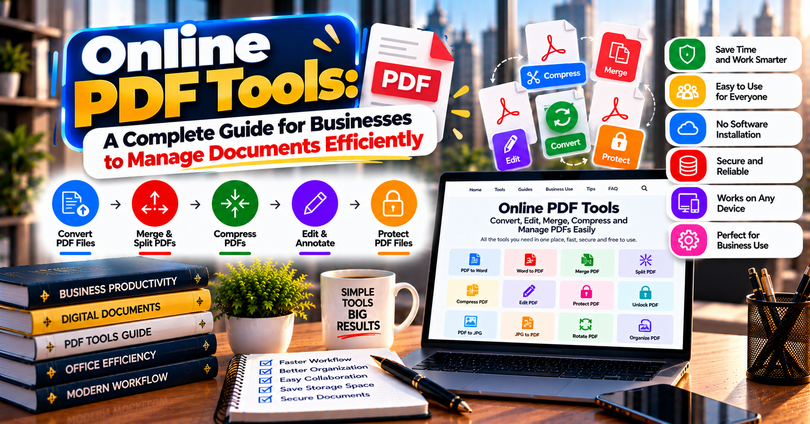

online PDF tools help businesses create, edit, convert, compress, sign, and organize documents without installing complicated software. These browser-based tools make everyday document tasks easier for small businesses, freelancers, remote teams, and large organizations. Whether you need to convert a Word document into a PDF, reduce a file’s size for email, or combine multiple reports into one document, the right PDF tool can save time and simplify your workflow.
This guide explains what online PDF tools are, how they work, their main benefits and limitations, and how businesses can choose the right solutions for their needs. It also covers document security, practical examples, common mistakes, and tips for managing business files more efficiently.
What Are Online PDF Tools?
Online PDF tools are web-based applications that allow users to work with Portable Document Format (PDF) files through a browser. Most tools do not require a traditional desktop installation, making them convenient for people who work across different devices.
A PDF preserves the layout of a document, including its text, images, fonts, and page formatting, across compatible devices. This makes it useful for invoices, contracts, proposals, reports, forms, and other business documents.
How Do Online PDF Tools Work?
Most online PDF services follow a straightforward process:
- Open the PDF tool website in your browser.
- Select the operation you need, such as converting, merging, or compressing.
- Upload your document if the service requires it.
- Adjust the available settings.
- Process the file and review the result.
- Download the finished document.
Some services process files on their servers, while others perform certain operations directly in the browser. Understanding this difference is particularly important when working with confidential business information.
Why Do Businesses Need Online PDF Tools?
Businesses use online PDF tools to handle document tasks more quickly and maintain consistent file formats. They can be especially helpful when employees exchange documents with clients, suppliers, accountants, or remote colleagues.
1. Save Time on Everyday Tasks
Manual document editing can involve several steps and multiple applications. An online PDF service may combine these operations into one convenient workflow.
For example, a freelancer can convert a completed project report to PDF, compress it, and share it with a client without switching between several programs.
2. Improve Document Compatibility
Different users may work with different operating systems and office applications. PDF files help preserve document formatting when files are shared between devices.
This is useful for business proposals, price lists, product catalogs, and official forms that need to look consistent when opened by different recipients.
3. Support Remote Work
Remote employees often need to review contracts, sign documents, and share reports from different locations. Browser-based PDF services can support these tasks without requiring every team member to use the same desktop software.
However, businesses should select services that meet their security requirements and internal document-handling policies.
4. Reduce Unnecessary Software Costs
Many PDF websites offer free tools for basic operations, while advanced features may require a paid subscription.
Small businesses can start with free features and upgrade only when they need capabilities such as batch processing, advanced editing, team management, or electronic signature workflows.
Types of Online PDF Tools Every Business Should Know
The most useful PDF service depends on the task a business needs to complete. Some tools focus on simple file conversion, while others support more advanced document management.
PDF Editor Tools
An online PDF editor allows users to modify supported elements of a PDF document. Depending on the service, users may add text, insert images, highlight important information, annotate pages, or fill out forms.
Example: A marketing agency can add comments to a client proposal before sending it for approval.
Keep in mind that editing text in a PDF may be more difficult when the document contains complex layouts, embedded fonts, or scanned pages.
PDF Converter Tools
PDF converters change files from one format to another.
Common conversion options include:
- Word to PDF
- PDF to Word
- Excel to PDF
- PowerPoint to PDF
- JPG or PNG to PDF
- PDF pages to image files
Example: An online store can convert a product catalog created in a word processor into a PDF for customers to download.
Always check the converted file for missing images, altered tables, spacing problems, and other formatting changes.
PDF Compressor Tools
PDF compressors reduce the size of a document. This can make large files easier to email, upload, or share through business platforms.
Compression settings may affect image quality. A file containing detailed product photography, for example, may look less sharp after aggressive compression.
Choose a compression level that balances file size with readability.
PDF Merger and Splitter Tools
A PDF merger combines multiple documents into one file. A PDF splitter separates a document into individual pages or smaller sections.
These features are useful for assembling monthly reports, combining invoices, separating contract sections, and organizing training materials.
For instance, an accounting team can merge several supporting documents into a single report for internal review.
Electronic PDF Signature Tools
Electronic signature tools allow users to place signatures on documents digitally. Depending on the service, they may also provide signing requests, timestamps, document tracking, and audit records.
Businesses should distinguish between inserting an image of a signature, using an electronic signature workflow, and applying a digital signature backed by cryptographic technology. These methods are not identical.
For important contracts, confirm that the chosen process satisfies the applicable legal and organizational requirements.
OCR PDF Tools
Optical character recognition (OCR) converts text found in scanned documents or images into machine-readable text.
OCR is particularly useful for archived invoices, scanned agreements, printed forms, and paper records.
Recognition quality depends on image clarity, language, font, and document condition. Always proofread the extracted text before using it for financial, legal, or operational decisions.
How to Choose the Best Online PDF Tools for Your Business
The best service is not necessarily the one with the most features. It is the one that meets your document requirements, security expectations, and budget.
Step 1: Identify Your Main Requirements
Start by listing the PDF tasks your team performs most frequently.
Ask yourself:
- Do we mainly convert documents?
- Do we need to edit text and images?
- Are large files difficult to share?
- Do employees need to sign contracts?
- Do we process scanned documents?
- Do we need to handle multiple files at once?
A clear list of requirements makes it easier to compare suitable tools.
Step 2: Compare Free and Paid Features
Free PDF tools can be sufficient for occasional document work. Paid plans may offer larger file limits, batch processing, advanced editing, or additional collaboration features.
Read the plan details carefully. Some services advertise a free tool but limit downloads, daily tasks, or access to advanced functions.
Step 3: Review Security and Privacy
Security is essential when handling business documents. Before uploading files, review the service’s privacy policy, file retention rules, security controls, and deletion options.
Look for features such as encrypted data transfer, access controls, and clear information about how uploaded files are processed.
For confidential or regulated documents, consider an approved business service or an offline solution instead of an unfamiliar website.
Step 4: Test Output Quality
Use a non-confidential sample file to test the tool before making it part of your workflow.
Check whether:
- Fonts and spacing remain consistent.
- Tables and images appear correctly.
- Links remain functional when expected.
- The final file opens properly.
- The processed document is readable on different devices.
Step 5: Check Compatibility and Usability
A good PDF tool should be reasonably easy to use and work with your team’s devices and browsers.
If your employees regularly work on laptops, tablets, and smartphones, test the most important features on those devices before committing to a subscription.
Online PDF Tools Compared With Desktop PDF Software
Both browser-based services and desktop applications can be useful for business document management. The right choice depends on the complexity of your work and your privacy requirements.
| Feature | Online PDF Tools | Desktop PDF Software |
|---|---|---|
| Installation | Usually not required | Usually required |
| Access | Through a compatible browser | Through installed software |
| Internet connection | Often required | Many tasks work offline |
| Basic conversion | Commonly available | Commonly available |
| Advanced editing | Depends on the service | Depends on the software |
| Confidential files | Requires careful service review | Can support local processing |
| Pricing | Free and paid options | Free, paid, or subscription options |
| Team collaboration | Available on some platforms | Depends on the application |
Neither option is automatically better for every business. Online services are convenient for quick tasks, while desktop software can be preferable for complex workflows or documents that must remain on a controlled device.
Are Online PDF Tools Safe for Business Documents?
Online PDF tools can be appropriate for business use, but their safety depends on how the service handles files and how the business uses it.
Uploading a document to a website may involve transferring information to an external server. A privacy statement alone does not guarantee that every security requirement is met.
Important Security Practices
Review file retention policies. Check how long uploaded documents are stored and whether you can delete them.
Avoid uploading sensitive information to unknown websites. Payroll records, identification documents, customer data, and confidential contracts deserve additional protection.
Use approved services. Businesses should establish a list of permitted document-processing tools for employees.
Protect shared files. Use appropriate access permissions and password protection when supported and required.
Verify deletion options. Do not assume that closing a browser tab automatically removes an uploaded file from the provider’s servers.
For highly confidential information, an offline PDF application or an organization-approved document system may be more appropriate.
Practical Ways to Use Online PDF Tools in Business
Online PDF tools become more valuable when they solve real workflow problems rather than simply adding another application to the process.
For Small Businesses
Small business owners can convert quotations, create customer-ready invoices, compress product catalogs, and combine supporting documents for bookkeeping.
A simple workflow might involve creating an invoice in a spreadsheet, converting it to PDF, checking the details, and sharing it through an approved communication channel.
For Marketing Agencies
Marketing teams can convert campaign reports into PDFs, annotate drafts, combine performance summaries, and prepare documents for client approval.
Before sending a report, review the final file for correct branding, readable charts, and any confidential internal notes that should not be shared.
For Freelancers
Freelancers can use PDF tools to prepare portfolios, send proposals, sign agreements, and organize project deliverables.
Converting a final document into PDF can help preserve its intended layout when clients open it on different devices.
For Human Resources Teams
HR teams may use PDF forms for onboarding, policy acknowledgments, and internal documentation.
Because employee records often contain personal information, HR departments should use only services approved for their data-handling requirements.
For Accounting Departments
Accounting teams can merge receipts, separate pages from reports, and convert financial documents into convenient formats.
Any extracted or converted financial data should be checked against the original records before it is used for reporting or payment decisions.
Common Mistakes to Avoid When Using Online PDF Tools
Even a useful tool can cause problems if users overlook important details.
Uploading Confidential Documents Without Checking Privacy
Do not assume that a popular website is automatically suitable for sensitive files. Review its policies and follow your organization’s rules before uploading documents.
Compressing Files Too Aggressively
Excessive compression can make small text, signatures, charts, and product images difficult to read. Compare the original and compressed versions before sharing the file.
Ignoring Conversion Errors
A converted Word or Excel document may not preserve every layout detail. Review tables, page breaks, headers, footers, and numerical values.
Trusting OCR Without Proofreading
OCR can misread letters, dates, invoice numbers, and decimal points. Correct these errors before using the extracted text for business decisions.
Forgetting to Check the Final File
Always open the downloaded document. Confirm that the correct pages are included, the formatting is readable, and no unwanted information is visible.
Tips for Getting Better Results From Online PDF Tools
A few consistent habits can make PDF workflows more reliable.
- Keep original copies of important documents before editing or converting them.
- Use descriptive file names, such as
Monthly-Sales-Report-October.pdf. - Choose appropriate compression settings for the document’s purpose.
- Test unfamiliar services with sample files rather than confidential records.
- Check whether free plans have file-size, task, or download restrictions.
- Use OCR when scanned text needs to be searchable or editable.
- Review signatures and document permissions before sharing agreements.
- Maintain a consistent folder structure for invoices, contracts, reports, and archived files.
Businesses should also review their PDF workflow periodically. If employees repeatedly perform the same task manually, a standardized process or an approved batch-processing tool may improve efficiency.
Frequently Asked Questions
1. What are online PDF tools used for?
Online PDF tools help users edit, convert, compress, merge, split, sign, and organize PDF documents through a browser. Businesses use them for invoices, reports, contracts, proposals, forms, and customer documents. The available features vary by provider, and some advanced operations require a paid plan or a separate application.
2. Are online PDF tools free to use?
Many online PDF services offer free features for common tasks, including basic conversion, compression, or merging. However, free plans may limit file size, daily usage, downloads, or access to advanced features. Check the pricing page before choosing a service, especially if your business processes documents regularly.
3. Can I edit a PDF without installing software?
Yes, many browser-based PDF editors let you add text, annotations, images, or signatures without installing traditional desktop software. However, the ability to change existing text or complex layouts depends on the tool. Some documents may require OCR or a dedicated desktop editor for reliable results.
4. Are online PDF tools safe for confidential business files?
Some services provide useful security controls, but safety depends on their data practices, technical protections, and your business requirements. Review file retention policies, encryption, access controls, and deletion options before uploading confidential documents. For sensitive records, use an approved service or software that processes files locally.
5. How do I choose the right online PDF tool?
Start by identifying the tasks you perform most often, such as conversion, editing, compression, or signing. Then compare features, pricing, security policies, file limits, and ease of use. Test the service with a non-confidential document and verify the output before making it part of your regular business workflow.
Conclusion
Online PDF tools help businesses handle everyday document tasks with greater convenience. From converting reports and compressing files to merging invoices and preparing electronic signatures, the right tools can simplify workflows for freelancers, small businesses, marketing agencies, and larger teams.
However, convenience should not replace careful document management. Businesses should check output quality, understand subscription limits, and evaluate security before uploading confidential information.
Your next step: List the PDF tasks your business performs most often, choose a tool that supports those requirements, and test it using a sample document. This practical approach will help you find a suitable solution without paying for features you do not need.