
Online document tools help businesses create, edit, organize, share, and manage digital documents through a web browser or cloud-based application. Whether you run a small business, work remotely, manage a team, or serve clients online, these tools can simplify everyday tasks. This guide explains how online document tools work, their key features, popular platforms, benefits, limitations, security considerations, and practical ways to choose the right solution for your business.
What Are Online Document Tools?
Online document tools are web-based applications that allow users to work with digital documents without relying entirely on traditional desktop software. Depending on the platform, users can create text documents, edit files, convert formats, collect electronic signatures, collaborate with colleagues, and store documents online.
For example, a marketing agency can prepare client proposals, share contracts, collect feedback, and update project documents using online applications. Team members can access the latest versions without repeatedly sending attachments through email.
Common types of online document tools include:
- Document creation and editing tools
- PDF editors and converters
- Cloud storage and document management systems
- Online spreadsheets and presentation applications
- Electronic signature platforms
- Collaborative writing and proofreading tools
These applications serve different purposes, so the best option depends on the type of documents you handle and the workflow you want to improve.
Why Do Businesses Need Online Document Tools?
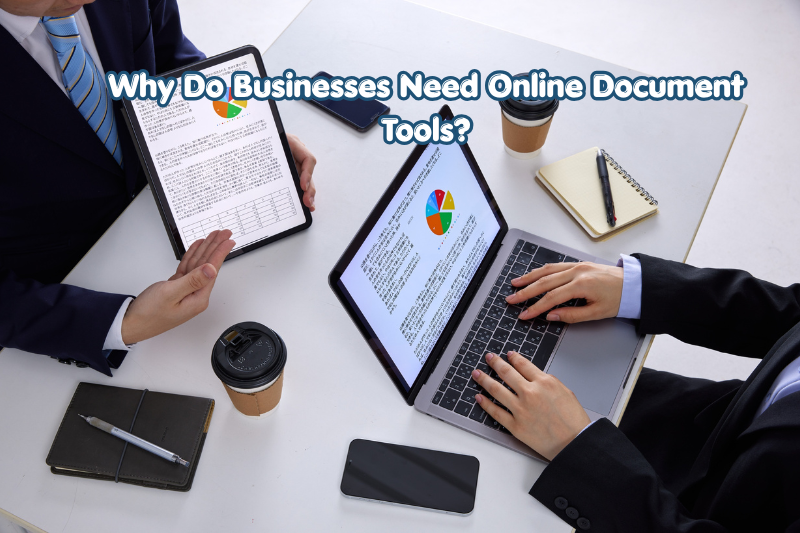
Businesses use online document tools to reduce manual work, improve collaboration, and make important information easier to access. Instead of maintaining separate copies of every file, employees can work within shared digital environments.
1. Faster Document Creation
Online editors provide templates, formatting options, tables, and other features that help users prepare professional documents. Businesses can create invoices, reports, proposals, meeting notes, and internal policies more efficiently.
For instance, a freelance consultant can use a proposal template to prepare a client offer without formatting every page from scratch.
2. Easier Team Collaboration
Many online document tools allow multiple people to work on the same file. Depending on the application, team members can leave comments, suggest changes, track revisions, and view updates.
This is particularly useful for content marketing teams, business consultants, and remote employees who need to review documents together.
3. Convenient Access Across Devices
Cloud-based applications can make documents available from different locations and compatible devices. A user might prepare a report on a laptop and review it later on a phone.
Access usually depends on an internet connection, account permissions, device compatibility, and the platform’s offline capabilities.
4. Better Document Organization
Businesses often manage hundreds or thousands of files. Search functions, folders, tags, naming conventions, and document management features can make important information easier to find.
Organized records also help teams reduce confusion when several employees work on similar projects.
5. More Efficient Client Communication
Online document tools make it easier to send proposals, share project updates, collect feedback, and obtain approvals. Permission controls can allow clients to review a document without giving them unrestricted editing access.
This helps businesses maintain a clearer communication process throughout a project.
Best Online Document Tools for Different Business Needs
The best online document tool depends on whether you need collaborative writing, PDF editing, cloud storage, or document automation. Some platforms offer an extensive collection of business applications, while others focus on specific tasks.
Google Docs
Google Docs is an online word-processing application used to create, edit, and collaborate on text documents.
Its useful features include:
- Real-time collaboration
- Comments and suggestions
- Sharing permissions
- Document templates
- Version history
- Integration with Google Drive
Google Docs is a practical choice for businesses that regularly prepare reports, blog posts, proposals, and shared working documents.
However, advanced formatting requirements and certain specialized workflows may be better served by dedicated desktop publishing or word-processing applications.
Microsoft Word for the Web
Microsoft Word for the web allows users to create and edit Word documents through a browser. It is useful for businesses that work with DOCX files and need compatibility with the Microsoft 365 ecosystem.
Important capabilities include document formatting, collaboration, comments, and integration with OneDrive, with specific features depending on the account and subscription.
Businesses that depend on complex layouts, advanced features, or specialized document automation should check whether the web version meets their requirements before moving their entire workflow online.
Adobe Acrobat Online
Adobe Acrobat’s online services provide browser-based PDF tools. Available capabilities can include PDF conversion, editing, compression, and electronic signing, depending on the service, region, and subscription.
These tools are useful when a business needs to prepare a PDF for distribution, make permitted changes, or simplify document review.
Some advanced editing and administrative features may require a paid plan. Businesses should also consider whether a PDF contains sensitive information before uploading it to an online service.
Smallpdf
Smallpdf offers browser-based tools for common PDF tasks, including conversion, compression, merging, and splitting files.
It can be useful for freelancers, students, office administrators, and small businesses that occasionally need to modify PDF documents without installing specialized software.
Before choosing a plan, review current usage limits, supported features, pricing, and file-handling policies. Free access may not include every feature needed for frequent business use.
Dropbox
Dropbox provides cloud storage and file-sharing features that help teams organize documents and share files with colleagues or clients.
It can be useful for businesses that need a central location for project files, creative assets, contracts, and other work materials.
Its document-related capabilities depend on the plan and integrations being used. Teams should review access controls, storage limits, version recovery, and administrative features before selecting a business subscription.
Zoho Writer
Zoho Writer is an online word processor designed for creating and collaborating on documents. It can be relevant to businesses that already use Zoho applications or want document workflows connected to other business processes.
Depending on the available plan, features may include collaboration, templates, document sharing, and workflow-related options.
Organizations should evaluate its integrations, user permissions, export formats, and compatibility with their existing tools before adopting it.
Online Document Tools Comparison
A quick comparison helps businesses identify which type of application best matches their needs.
| Tool | Best For | Main Strength |
|---|---|---|
| Google Docs | Collaborative writing | Real-time teamwork |
| Microsoft Word for the Web | Word documents | Microsoft ecosystem integration |
| Adobe Acrobat Online | PDF workflows | PDF-related tasks |
| Smallpdf | Everyday PDF operations | Convenient file conversion |
| Dropbox | Cloud file storage | File organization and sharing |
| Zoho Writer | Business document creation | Zoho ecosystem integration |
This comparison describes general use cases rather than a complete feature ranking. Pricing, free limits, integrations, and individual capabilities can change, so confirm the current details on each provider’s official website.
Essential Features to Look for in Online Document Tools
Not every platform offers the same capabilities. Businesses should identify their most important requirements before selecting an application.
Document Editing and Formatting
A useful document editor should provide the formatting options required for your work. These may include headings, lists, tables, page layouts, images, links, and reusable templates.
If your business prepares formal reports or branded proposals, test how well the tool preserves layouts when documents are exported to PDF or Word formats.
File Conversion
File conversion allows users to change documents between formats such as DOCX, PDF, TXT, and other supported file types.
This is helpful when clients use different software or when a document must be submitted in a specific format.
However, conversions can sometimes alter fonts, spacing, tables, or images. Always review the converted file before sending it to a client.
Sharing and Permission Controls
Sharing features determine who can view, comment on, or edit a document. Good permission controls help protect business information while allowing authorized people to collaborate.
For confidential files, avoid unrestricted public links when a restricted invitation or named-user permission is available.
Version History and Recovery
Version history records changes or allows users to restore earlier document versions, depending on the platform.
This can be valuable when a team accidentally deletes content, makes unwanted edits, or needs to compare revisions. Check how long previous versions remain available and whether recovery depends on a paid plan.
Integration With Business Applications
Integration connects document tools with other applications, such as email, cloud storage, customer relationship management systems, and project management software.
For example, a sales team may connect document creation with its customer management system to prepare proposals more consistently.
The right integrations can reduce repetitive data entry, but unnecessary integrations can add complexity. Choose those that support real business processes.
How to Use Online Document Tools Effectively
You can introduce online document tools into a business workflow by following a simple process.
Step 1: Identify Your Document Requirements
Start by listing the documents your business handles regularly.
These might include:
- Client proposals and contracts
- Business reports and invoices
- Marketing plans and content briefs
- Employee documents and internal policies
- PDF forms and signed agreements
Identify which tasks consume the most time and which documents require collaboration.
Step 2: Choose the Appropriate Tool
Select a platform that supports your main tasks. A team that writes articles together may prioritize collaborative editing, while a business that processes signed contracts may need PDF and electronic signature capabilities.
Avoid paying for advanced features that your team is unlikely to use.
Step 3: Create a Consistent Folder Structure
Organize files using clear categories, such as Clients, Finance, Marketing, Operations, and Templates.
Use descriptive file names that include relevant details. For example, ClientName_ProjectProposal_October2026 is more useful than Document_Final_New.
A consistent naming system makes searching and archiving easier.
Step 4: Set User Permissions
Give each employee or external collaborator only the access they need.
For example, a client reviewing a proposal may need viewing or commenting access, while the person preparing the proposal needs editing access.
Review permissions regularly, particularly when projects end or employees leave the business.
Step 5: Test the Workflow
Before moving every document into a new system, test a small project.
Create a file, invite a colleague, make edits, export the document, and verify that permissions work as expected.
This process can reveal formatting problems, missing integrations, or unexpected subscription restrictions before the tool becomes essential to your business.
Step 6: Train Your Team
Provide simple instructions explaining where documents belong, how to share files, and how to protect confidential information.
Even a good platform can become difficult to manage if team members use inconsistent naming conventions or create duplicate files.
Benefits and Limitations of Online Document Tools
Online document tools provide several advantages, but businesses should understand their limitations before relying on them for every task.
Main Benefits
Convenience: Users can access documents from supported devices and locations.
Collaboration: Teams can review and update shared documents without repeatedly exchanging attachments.
Efficiency: Templates and reusable workflows reduce repetitive formatting and administrative tasks.
Centralized storage: Cloud-based systems can make files easier to organize and locate.
Scalability: Businesses can often add users or features as their needs change, subject to the provider’s plan.
Common Limitations
Internet dependency: Some functions require a reliable connection, although certain applications provide offline access.
Subscription costs: Advanced editing, storage, security, and administration features may require paid plans.
Compatibility issues: Formatting can change when documents move between different applications or file formats.
Privacy risks: Poor sharing practices, compromised accounts, or unsuitable providers can expose confidential information.
Provider dependency: Migrating large numbers of files to another platform can take time and may affect workflows or integrations.
The best approach is to evaluate both the convenience and the operational risks rather than assuming that every online tool is suitable for every business.
Security and Privacy Best Practices
Business documents can contain customer information, financial records, contracts, and internal plans. Choosing reliable tools and using them responsibly is essential.
Use Strong Authentication
Protect accounts with unique passwords and multifactor authentication whenever available. This reduces the risk of unauthorized access if a password is compromised.
Review Sharing Links
Check who can access each document before sharing it externally. Remove outdated permissions and avoid making confidential files publicly accessible.
Understand Data Policies
Review the provider’s privacy policy, retention rules, deletion procedures, and available security controls. Businesses with legal or regulatory obligations may need additional safeguards.
Keep Backups of Critical Records
Do not assume that cloud storage automatically satisfies every backup or recovery requirement. Maintain appropriate backups of important documents according to your business continuity plan.
Follow Relevant Regulations
Organizations handling personal or regulated information should evaluate the laws and contractual obligations applicable to their operations and customers. When necessary, seek qualified legal or security advice.
Common Mistakes to Avoid
Businesses can get more value from online document tools by avoiding a few common problems.
- Choosing tools without a clear purpose: Select software based on real business requirements rather than popularity alone.
- Ignoring export quality: Review files after converting them to PDF, DOCX, or another format.
- Sharing documents too broadly: Apply the least-privilege principle and restrict access to authorized users.
- Creating duplicate files: Use shared folders, version history, and naming conventions to maintain a clear source of truth.
- Overlooking subscription limits: Check storage, usage restrictions, user limits, and paid features before committing.
- Failing to train employees: Establish simple procedures for document creation, storage, review, and archiving.
These improvements can make document management more predictable and reduce avoidable administrative work.
How to Choose the Best Online Document Tools for Your Business
The right choice depends on your team size, budget, document types, and security requirements.
Use the following checklist when comparing platforms:
- Define your primary task. Decide whether you need writing, PDF editing, cloud storage, signatures, or document automation.
- Set a budget. Compare free options with paid plans based on the features you will actually use.
- Check compatibility. Confirm that the platform supports your preferred file formats and existing applications.
- Evaluate collaboration. Test sharing, comments, simultaneous editing, and version recovery.
- Review security. Examine authentication, permissions, retention, and administrative controls.
- Test usability. Ask the people who will use the software to complete a real document task.
- Review the provider’s terms. Check pricing, limitations, cancellation conditions, and data-handling policies.
A short trial with real documents is often more useful than selecting a tool based only on a feature list.
Frequently Asked Questions
1. What are online document tools used for?
Online document tools are used to create, edit, share, convert, and organize digital files. Businesses use them for proposals, reports, contracts, marketing content, and internal records. Depending on the application, they can also support real-time collaboration, electronic signatures, version history, and cloud storage.
2. Which online document tools are best for small businesses?
Google Docs, Microsoft Word for the web, Zoho Writer, Dropbox, and online PDF services can all be useful for small businesses. The best choice depends on whether you need collaborative writing, file storage, PDF editing, or integrated business workflows. Compare current pricing, features, security, and compatibility before choosing.
3. Are online document tools free to use?
Some online document tools offer free plans or basic features without payment. However, advanced editing, additional storage, administrative controls, and certain collaboration features may require a subscription. Review the provider’s current terms and usage limits to determine whether the free version meets your business needs.
4. Are online document tools safe for confidential business files?
They can be suitable for confidential files when the provider offers appropriate safeguards and the business configures them correctly. Use strong authentication, restricted sharing permissions, and suitable retention practices. Review the provider’s security and privacy policies, and assess any applicable contractual or regulatory requirements before uploading sensitive information.
5. Can online document tools replace desktop software?
For many routine tasks, online document tools can replace desktop applications. They support common activities such as writing, collaboration, file sharing, and basic document conversion. However, advanced formatting, specialized workflows, offline requirements, or complex automation may still require desktop software. Test your actual documents before switching completely.
Conclusion
Online document tools help businesses create professional documents, collaborate with colleagues, manage files, and simplify everyday workflows. Applications such as Google Docs, Microsoft Word for the web, Adobe Acrobat Online, Smallpdf, Dropbox, and Zoho Writer serve different purposes, so no single platform is ideal for every organization.
To choose effectively, identify your most frequent document tasks, compare essential features, review security controls, and test the workflow with real business files. Start with one recurring task, select a suitable tool, and build a consistent process for creating, sharing, and storing documents. This practical approach can help your business improve efficiency while keeping important information organized and protected.