
Introduction
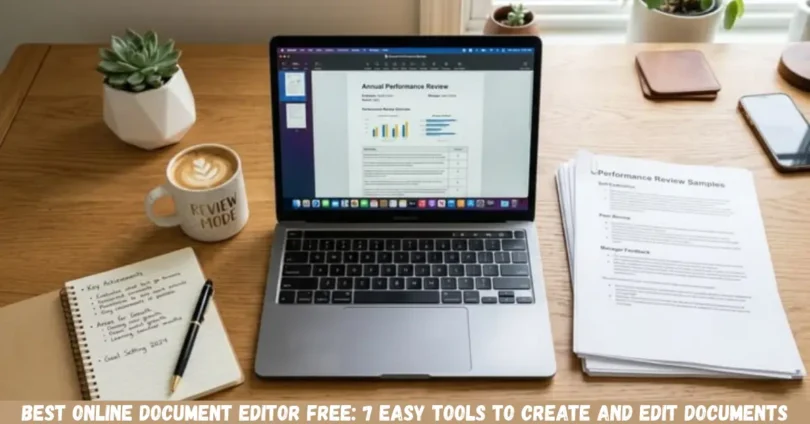
Best online document editor free options help students, professionals, freelancers, and business owners create, edit, format, and share documents directly from a web browser. These tools can save time because you do not always need to download desktop software to work on reports, assignments, letters, or business documents.
Some free online document editors also support real-time collaboration, cloud storage, document templates, and automatic saving. However, their features, storage limits, export options, and account requirements vary.
In this guide, you will discover seven useful free online document editors, their key features, advantages, limitations, and the situations in which each tool works best. You will also learn how to choose the right editor for your everyday document needs.
What Is a Free Online Document Editor?
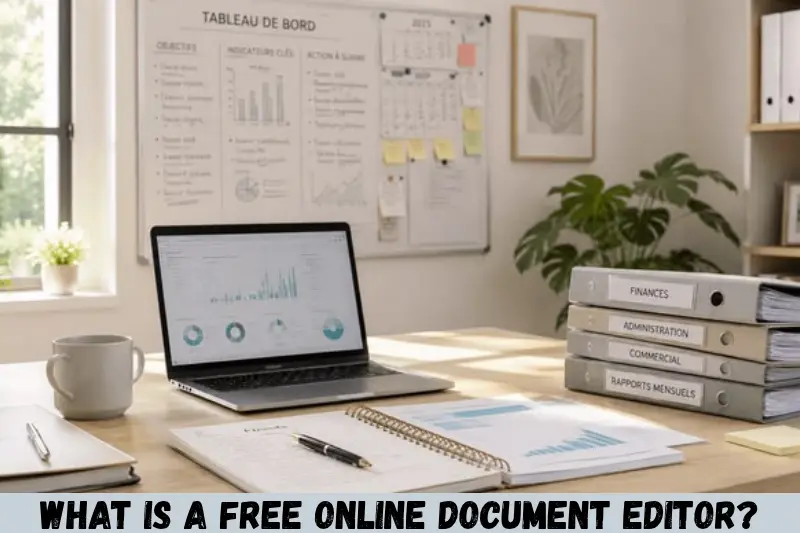
A free online document editor is a web-based tool that allows you to create, edit, format, and manage documents through an internet browser. Depending on the platform, you can work with text, headings, tables, images, lists, links, and other document elements.
Most tools do not require you to install a traditional desktop application. Some offer free accounts, while others allow limited editing without an account.
Common uses include:
- Writing school and college assignments
- Preparing business reports and proposals
- Creating resumes and cover letters
- Editing existing Word documents
- Sharing files with colleagues or clients
- Collaborating on documents with other people
- Exporting documents into PDF or Word formats
The best choice depends on whether you need simple writing features, advanced formatting, team collaboration, or compatibility with Microsoft Word.
7 Best Online Document Editor Free Tools
The best free online document editor depends on your main purpose. Google Docs is a strong choice for collaboration, Microsoft Word for the web suits users who work with Word files, and Zoho Writer offers a useful alternative for everyday writing and formatting.
1. Google Docs
Google Docs is one of the most practical options for creating and editing documents online without purchasing a traditional word-processing application. It is particularly useful for students, bloggers, office workers, and teams that need to work on shared files.
Key features:
- Create and format documents online.
- Collaborate with others in real time.
- Add comments and suggestions.
- Use spelling and grammar suggestions.
- Edit compatible Microsoft Word files.
- Access document version history.
Google Docs is useful for assignments, meeting notes, reports, and articles. You can also share a document with specific people and control their access permissions.
Google Workspace
+1
Limitation: Some advanced formatting and specialized desktop features may differ from those available in Microsoft Word.
Best for: Students, bloggers, freelancers, and collaborative projects.
Website: Google Docs
2. Microsoft Word for the Web
Microsoft Word for the web is a browser-based version of Word that allows users to create, edit, and share documents online. It is a good option for people who regularly receive DOCX files or already understand the Microsoft Word interface.
Key features:
- Create and edit Word documents in a browser.
- Format headings, paragraphs, and lists.
- Use spelling and grammar tools.
- Work with document templates.
- Share documents for collaboration.
- Download copies for offline use.
Microsoft provides a free web version of Word, although certain advanced features require a paid Microsoft 365 plan or the desktop application.
Microsoft Word for the Web
+1
Limitation: Some advanced page-layout and formatting options are available only in the desktop version.
Best for: Office workers, job seekers, and people who exchange Word documents.
Website: Microsoft Word for the web
3. Zoho Writer
Zoho Writer is a web-based word processor designed for writing, document formatting, and collaboration. It offers a clean interface and useful tools for people who want to prepare professional documents without dealing with complicated menus.
Key features:
- Create documents from scratch or templates.
- Import and export supported file formats.
- Collaborate with other users.
- Format tables, images, headings, and page layouts.
- Use writing assistance features.
- Access documents across supported devices.
Zoho Writer supports formats such as DOCX, DOC, ODT, PDF, TXT, and HTML, subject to its import and export capabilities. Its individual edition is available free of charge.
Zoho
+1
Limitation: Certain business automation capabilities and related services may have separate usage limits or charges.
Best for: Freelancers, content writers, small businesses, and professional document creation.
Website: Zoho Writer
4. Canva Docs
Canva Docs is a useful option for people who want their documents to look visually attractive. It combines document creation with design features, making it suitable for proposals, plans, educational materials, and reports that benefit from graphics.
Key features:
- Start with ready-made document templates.
- Add visual elements and design components.
- Collaborate with other users.
- Create attractive proposals and project plans.
- Access documents across desktop, tablet, and mobile.
- Combine documents with other Canva designs.
Canva Docs is available on its free plan, while some premium content and additional features require a paid subscription.
Free & Easy Online Document Editor
+1
Limitation: Traditional, text-heavy documents may be easier to manage in a dedicated word processor.
Best for: Students, marketers, designers, and people creating visually appealing documents.
Website: Canva Docs
5. ONLYOFFICE Docs
ONLYOFFICE provides document-editing tools for creating and managing text documents, spreadsheets, and presentations. Its online collaboration options can be helpful for individuals and teams working with office files.
Key features:
- Edit text documents online.
- Work with spreadsheets and presentations.
- Collaborate on shared files.
- Use supported office document formats.
- Access free desktop editors for offline work.
- Choose cloud or self-hosted solutions where appropriate.
ONLYOFFICE offers free solutions, including desktop editors and a free cloud DocSpace option. The available features depend on the specific product and plan.
onlyoffice.com
+1
Limitation: Some cloud collaboration, administration, and business features depend on the selected plan.
Best for: Users who want office-document compatibility and flexible deployment options.
Website: ONLYOFFICE
6. Dropbox Paper
Dropbox Paper is a collaborative workspace for creating shared notes, meeting summaries, project plans, and other team documents. It is more focused on collaboration and organizing information than on advanced traditional page formatting.
Key features:
- Write and organize shared documents.
- Collect feedback from teammates.
- Prepare meeting notes and project plans.
- Keep related information in a shared workspace.
- Collaborate on team content.
Limitation: Its traditional word-processing and page-layout capabilities may not meet the needs of users preparing highly formatted reports or formal documents.
Best for: Teams, project managers, and people who need shared working notes.
Website: Dropbox Paper
7. Apple Pages for iCloud
Apple Pages for iCloud is an online document editor that works through a browser and is particularly useful for people who already use Apple devices. It supports document creation, attractive layouts, and collaboration.
Key features:
- Create and format documents online.
- Work with templates.
- Add images, tables, and other elements.
- Collaborate on supported shared documents.
- Work with compatible Pages and Microsoft Word files.
Limitation: Some features and file-format details can differ between the browser and the native Apple application. Users should check the final layout when exporting files.
Best for: Apple users, students, and people who want well-designed documents.
Website: Apple Pages for iCloud
Comparison of Free Online Document Editors
The following table provides a quick comparison to help you choose the right tool for your requirements.
| Document editor | Main strength | Ideal use |
|---|---|---|
| Google Docs | Real-time collaboration | Assignments and shared writing |
| Microsoft Word for the web | Word document compatibility | Business documents and resumes |
| Zoho Writer | Writing and formatting tools | Professional documents |
| Canva Docs | Visual design | Proposals and creative reports |
| ONLYOFFICE Docs | Office file editing | Document-focused workflows |
| Dropbox Paper | Team notes and planning | Shared project documents |
| Apple Pages for iCloud | Document design | Personal and professional writing |
Free features, account requirements, storage allowances, and export options can change. Review the relevant official website before relying on a particular feature for important work.
How to Choose the Best Online Document Editor Free
The right document editor should match your writing needs, budget, and preferred file format. Before choosing a tool, consider how you plan to create, edit, save, and share your documents.
1. Check the Free Features
Start by checking which features are included in the free plan. Basic writing and formatting may be enough for everyday tasks, but professional work might require page numbering, advanced tables, templates, or document conversion.
Do not choose a platform based only on its advertised features. Check whether the specific features you need are free.
2. Consider File Compatibility
File compatibility is important when you exchange documents with clients, teachers, or colleagues.
Look for support for commonly used formats such as:
- DOCX for Microsoft Word documents
- PDF for sharing documents in a fixed layout
- TXT for plain text
- ODT for OpenDocument text files
If you regularly receive Word files, Google Docs, Microsoft Word for the web, and Zoho Writer are worth considering.
3. Look for Automatic Saving
Automatic saving helps reduce the risk of losing work when your browser closes unexpectedly or your computer encounters a problem.
Choose a platform with reliable saving and version history where available. For important documents, periodically download a backup instead of depending entirely on online storage.
4. Check Sharing and Privacy Settings
If you work with other people, select an editor that allows you to manage document access.
Useful sharing options include:
- View-only access
- Permission to comment
- Permission to edit
- Restricted access for selected people
Avoid creating public sharing links for confidential files. Check the privacy settings before sharing contracts, financial information, personal documents, or business records.
5. Consider Mobile Compatibility
Many users in India create and edit documents using smartphones. If you regularly work on a mobile device, choose an editor with a comfortable mobile interface or a suitable app.
Google Docs, Microsoft Word, Zoho Writer, and other major platforms offer mobile options. However, some formatting and editing features may work differently on a phone than on a computer.
How to Edit a Document Online for Free
You can usually create or edit a document online in a few simple steps. The exact process depends on the editor, but the following method works as a general guide.
Step 1: Choose an Online Editor
Select a platform that matches your needs. For general writing and collaboration, Google Docs is a convenient starting point. For Word documents, consider Microsoft Word for the web.
Step 2: Open the Official Website
Visit the editor’s official website and sign in or create an account if required. Check that you are using the genuine service rather than an unfamiliar website requesting unnecessary personal information.
Step 3: Create or Upload a Document
Choose a blank document to start writing from scratch. If you already have a file, look for an option to upload or open an existing document.
For example, you can upload a compatible Word file and edit its text without recreating the entire document.
Step 4: Edit and Format Your Content
Add your text and organize it using headings, paragraphs, lists, and tables where appropriate.
For a professional document, use consistent fonts, readable text sizes, and clear headings. Remove unnecessary spaces and check the page layout before sharing or exporting the file.
Step 5: Save and Share Your Document
Confirm that your changes have been saved. Depending on the platform, saving may happen automatically or require a manual action.
If you need feedback, share the document with the relevant people and assign appropriate permissions. Download a PDF or Word copy if you need to submit or send the document separately.
Benefits of Using a Free Online Document Editor
A free online document editor can make everyday writing more convenient without requiring an expensive software subscription.
Access Documents From Different Devices
Cloud-based editors allow you to access supported documents from multiple devices after signing in. This is useful when you start writing on a computer and need to review the same document on a phone.
Simplify Team Collaboration
Several online editors allow multiple users to work on the same document. Comments, suggestions, and sharing permissions can make it easier to collect feedback without exchanging multiple file versions through email.
Reduce Software Installation Requirements
Browser-based editors do not generally require a traditional desktop installation. This can be useful on shared computers, personal laptops, and devices with limited storage.
However, a compatible browser and internet connection may still be necessary for online work.
Improve Document Organization
Many editors provide folders, search functions, cloud storage, or document history. These features can help you organize assignments, reports, business proposals, and other files.
The available storage and organization tools depend on the service and your account plan.
Limitations of Free Online Document Editors
Free online document editors are useful, but they are not perfect for every situation.
Internet dependency: Many browser-based tools require an internet connection for normal use. Some provide offline capabilities, but these may need to be enabled beforehand.
Advanced formatting: Complex layouts, specialized fonts, macros, and certain page-formatting features may not transfer perfectly between platforms.
Storage restrictions: Free accounts may have storage limits or share storage with other services.
Account requirements: Some editors require registration before you can create, save, or share documents.
Privacy considerations: Cloud documents may be stored on a service provider’s infrastructure. Review the provider’s privacy policy and avoid uploading sensitive information to an untrusted platform.
For important work, test the editor with a sample document before moving all your files to it.
Common Mistakes to Avoid When Editing Documents Online
Avoiding a few common mistakes can make online document editing safer and more reliable.
- Ignoring file compatibility: Always review the layout after importing or exporting a document.
- Forgetting backups: Keep a separate copy of important files when practical.
- Sharing documents publicly: Review permissions before sending a sharing link.
- Using too much formatting: Excessive fonts, colours, and spacing can make documents harder to read.
- Assuming every feature is free: Confirm the free-plan limits before starting a large project.
- Editing without checking the final file: Review spelling, grammar, page breaks, tables, and headings before submitting the document.
A few minutes of checking can prevent avoidable formatting and sharing problems.
Frequently Asked Questions
1. What is the best online document editor free to use?
Google Docs is an excellent starting point for free online document editing, particularly for collaboration and everyday writing. Microsoft Word for the web is a strong alternative for users who work with Word files, while Zoho Writer offers additional formatting options. The best choice depends on your required features and preferred file format.
2. Can I edit Word documents online for free?
Yes, you can edit compatible Word documents online using tools such as Google Docs, Microsoft Word for the web, and Zoho Writer. Upload or open your file through the chosen platform, make your changes, and save or download the result. Always review the formatting after editing, especially if the document contains complex tables or layouts.
3. Do free online document editors require installation?
Most browser-based document editors do not require a traditional desktop installation. You can visit the official website using a compatible browser and start working after completing any required sign-in process. However, mobile apps and offline desktop editors may require installation, and offline access can depend on the particular platform.
4. Can I convert an online document into a PDF?
Yes, many online document editors provide a download or export option for PDF files. Open your completed document, locate the relevant download or export menu, and select PDF if available. Check page breaks, fonts, images, and tables before sharing the file, as exported formatting can occasionally differ from the online version.
5. Are free online document editors safe for private documents?
They can be suitable for many everyday documents, but safety depends on the provider, your account security, sharing permissions, and the sensitivity of the information. Use official websites, enable available account-security protections, and restrict access to authorized people. For highly confidential files, review the service’s privacy and data-handling policies before uploading them.
Conclusion
The best online document editor free option is the one that helps you complete your work easily without paying for features you do not need. Google Docs is a practical choice for collaboration, Microsoft Word for the web is useful for Word compatibility, Zoho Writer suits professional writing, and Canva Docs is helpful for visually attractive documents.
Before choosing a platform, compare its free features, supported file formats, sharing options, and privacy controls. For most beginners, starting with Google Docs is a sensible first step. Create a sample document, test the formatting and sharing features, and choose the editor that fits your daily workflow.